
OnePlus Speaker Dead Quiet: A Real Fix, Start to Finish
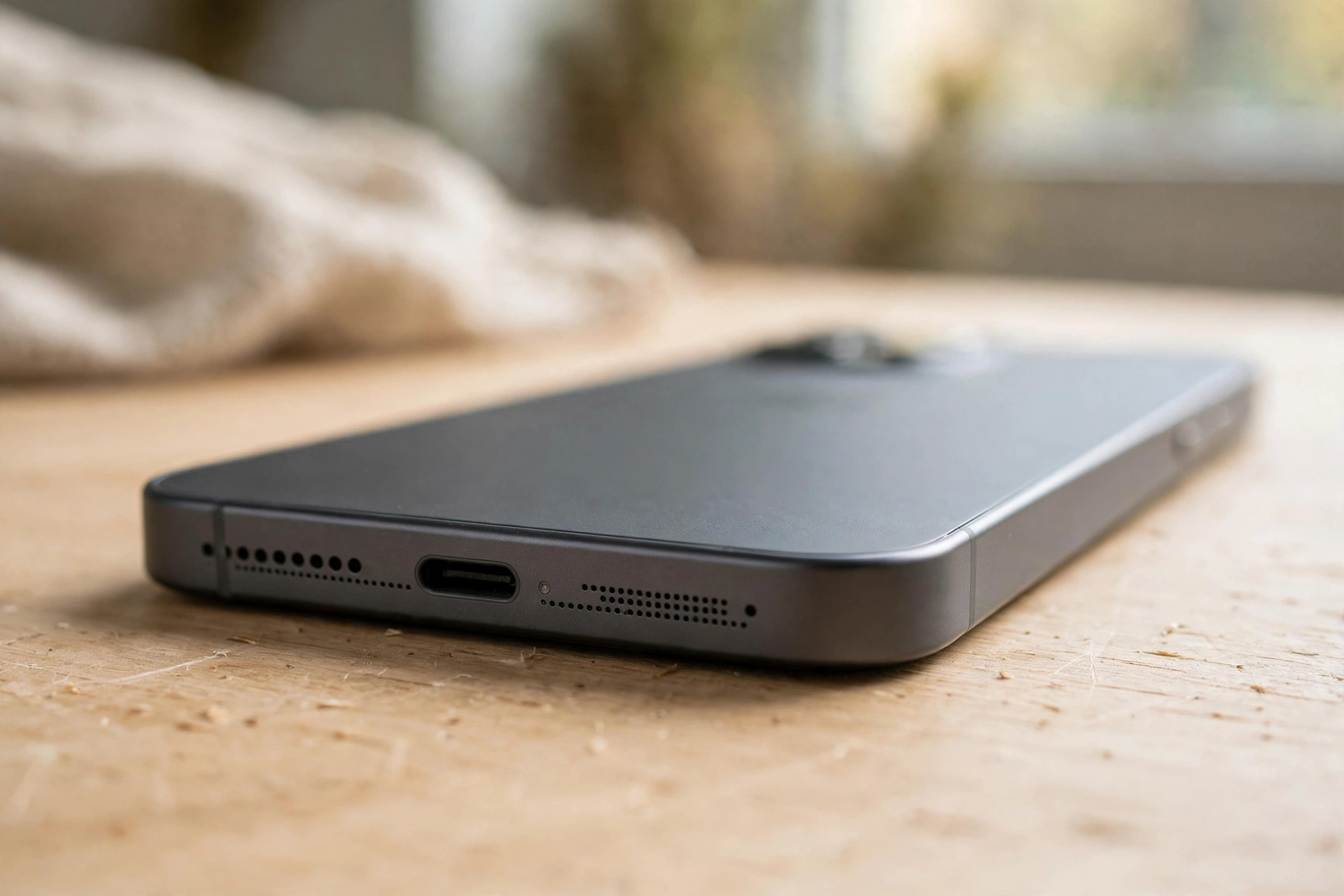
Your OnePlus plays video, but no sound comes out. Or the ringtone works and music doesn’t. Or nothing works at all. It’s a frustrating one, but here’s the good news: the speaker itself is rarely the problem. A slider, a switch, or a stray connection is usually doing the damage — and you can track it down yourself.
Start With the Alert Slider — It’s the OnePlus Quirk
OnePlus phones have a physical alert slider on the side, and it catches people out constantly. If it’s sitting on silent or vibrate, your notifications and calls stay quiet no matter what the volume buttons say. Slide it all the way to the ring position and test again.
While you’re there, press volume-up during a video and watch which slider moves. OnePlus splits media, ring, and notification volume apart, so a loud ringtone proves nothing about media sound. Then open Settings, tap Sound and vibration, and make sure Do Not Disturb is off.
Is the Sound Going to Something Else?
Before anything else, check where your audio is actually headed. If your OnePlus is still connected to earbuds in your bag, a Bluetooth speaker, or your car stereo, the built-in speaker will stay silent while everything else looks normal. Open Settings, tap Bluetooth, and disconnect or forget any audio device you’re not using right now. Then play a video immediately.
Also look at the status bar for a headphone icon when nothing is plugged in. If it’s there, the phone wrongly thinks headphones are connected — lint or moisture in the USB-C port can cause that. Gently clean the port opening with a dry, soft brush, restart the phone, and check again.
Restart, and Test More Than One Kind of Sound
Press and hold the power button, tap Restart, and wait for the phone to fully boot. A restart clears the temporary glitches left behind by a crashed app, a failed update, or weeks without a reboot — and it fixes a surprising number of sound faults.
Once it’s up, test a video, a ringtone preview, and a voice recording. If only one app is silent, the problem is in that app’s settings, not your speaker.
Dig Into the OxygenOS Sound Settings
Open Settings, then Sound and vibration, and check that media, ring, and notification volumes are all turned up. Look for anything unusual that’s been switched on — mono audio, a sound enhancement, or a hearing-related setting you don’t recognize — and turn it back off.
Then check the apps themselves: open Settings, go to Apps, pick a silent app, and confirm its notifications and media permissions are allowed. Some apps have their own mute switch that overrides the phone’s main volume. If you run a custom sound profile, a focus mode, or a third-party equalizer, disable it for now — these tools can reroute or suppress audio in ways that are hard to spot from the volume screen.
The Grille Gets Dirty Faster Than You’d Think
Dust, pocket lint, and dried moisture build up on a OnePlus speaker grille fast, and it doesn’t take much to muffle the sound or block it outright. Hold the phone with the grille facing down and brush it lightly with a clean, dry, soft-bristled brush so debris falls out instead of deeper in. Don’t poke anything sharp into the holes, and don’t use compressed air at close range — both can damage the mesh and the membrane behind it.
If the speaker went muffled after water exposure, let the phone dry naturally in open air and don’t charge it until the port is fully dry. No hair dryer on high heat, either. You can run the free speaker-cleaning sound tool on the myspeakerfix.com homepage once — it plays a tone designed to help shake loose water from the speaker.
Safe Mode Will Tell You If an App Is the Culprit
Safe mode starts your OnePlus with only its built-in apps running. Press and hold the power button, then press and hold the Restart or Power off option until the Safe Mode prompt appears, and confirm. Play a ringtone or a video in safe mode — if the sound is back, a downloaded app is interfering.
Restart normally and think about which apps were installed or updated just before the problem started. Uninstall the most recent ones one at a time, testing the speaker after each removal, until you find the one responsible. If the speaker still doesn’t work in safe mode, the cause is in the system or the hardware, so move on to the checks below.
Updates, a Settings Reset, and Knowing When It’s Hardware
Outdated or interrupted software can break speaker output, especially right after a big OxygenOS update. Open Settings, go to About device or System, and check for a software update. Install it over stable Wi-Fi, restart, and test again.
As a gentler reset, you can reset system settings without deleting your photos or files. In Settings, go to System, find the reset options, and choose the one that resets settings only. This restores sound, network, and display settings to their defaults while your personal data stays put.
If the speaker stays silent through all of this, safe mode included, it’s most likely hardware — a failed module, a connector shaken loose by a drop, or water damage. Back up your data and get a quote from an authorized OnePlus service center or a repair shop you trust before approving any work.
Frequently Asked Questions
Why is my OnePlus speaker suddenly not working?
The most common causes are a muted media slider, the alert slider on silent, a connected Bluetooth device, Do Not Disturb, a problem app, or a software glitch. Work through volume, Bluetooth, restart, and safe mode before assuming a hardware fault.
How do I fix a muffled OnePlus speaker after water exposure?
Let the phone dry naturally in open air and don’t charge it until the port is dry. Brush the grille gently with a dry soft brush, keep the volume moderate, and test again once the phone is fully dry.
Will a factory reset fix my OnePlus speaker?
A factory reset can fix a deep software fault, but it deletes your data, so try a restart, a settings-only reset, and a software update first. Back up everything before a factory reset.
Does safe mode really help find speaker problems?
Yes. If sound works in safe mode, a downloaded app is likely interfering with audio. Uninstall recently added apps one at a time until the speaker works normally again.
Related Guides
- Free Speaker Fix Tool
- How to Fix a Phone Speaker
- How to Clean a Phone Speaker Safely
- Phone Speaker Crackling Fix
- Bluetooth Connected But No Sound
- Phone Speaker Not Working After an Update
- How to Test a Phone Speaker
- Is a Phone Speaker Blown or Dirty?
- Remove Water From a Phone Speaker
- Phone Speaker Muffled After Water