
Why Is My Galaxy A56 Speaker Not Working?
Your Galaxy A56 speaker has gone quiet, but the reason is rarely a dead speaker. In most cases a setting sends sound somewhere else, a call-only fault is at play, or an app has taken over the audio. Work through the checks below and you will find the cause in minutes, without opening the phone or paying for a repair.
Is It the Speaker, or Only One Kind of Sound?
Before changing anything, split the problem in two. Play a video on YouTube and then make a test call on speakerphone. If videos and ringtones play fine but you cannot hear callers, the loudspeaker is healthy and the fault sits in the call path. If nothing plays at all — no media, no ringtone, no alarm — the problem is wider and may be the speaker itself.
This split matters because the fixes are different. A media-only failure points at volume, Do Not Disturb, or a connected Bluetooth device. A call-only failure points at the earpiece or a setting that routes call audio away from the speaker. Note which of the two you have before you start tapping settings.
Speakerphone Dead During Calls, Media Fine
A common A56 complaint is this exact split: music and videos sound normal, but the moment you switch a call to speakerphone you hear nothing, even though the other person hears you. That is a different fault from “no media audio,” and it has its own causes.
First, check the in-call volume. During a call, press volume-up — call volume is separate from media volume and can sit at zero while everything else is loud. Next, look at the call screen: make sure the speaker icon is highlighted, and tap it off and on once. If the phone is paired to a car, earbuds, or a smartwatch, the call may be routed there instead; check the audio output shown on the call screen.
Test a normal call without speakerphone too. If you can hear the caller through the earpiece but not through the loudspeaker, the loudspeaker call path is the problem. If you cannot hear them either way, try a call on Wi-Fi calling and then on mobile data, so you can tell a network glitch from a phone fault.
One UI “Separate App Sound” Sending Audio Elsewhere
One UI has a feature that quietly causes many “speaker not working” reports: Separate app sound. It sends one app’s audio to a Bluetooth device while everything else uses the phone speaker. If it was turned on by accident — often while pairing earbuds or a car — your music app can go silent on the phone while the phone itself seems fine.
Go to Settings, then Sounds and vibration, then Separate app sound. If it is on, check which app and device it points to. Turn it off entirely, then play the same video or song again. If the sound comes back, that was the whole problem.
While you are there, check the four volume sliders: Ringtone, Media, Notifications, and System. Media can be muted while the ringtone is loud, which makes the phone look broken when only one slider is down. Also tap Sound quality and effects and turn off any equalizer or Dolby Atmos setting you do not recognise — a bad audio profile can silence the speaker on some apps.
Check the Speaker with Samsung Members Diagnostics
Samsung ships a proper hardware test on the phone, and it is the fastest way to tell a software fault from a broken speaker. Open the Samsung Members app, tap Support, then Phone diagnostics, and run the Speaker test. The phone plays a tone through the loudspeaker and the earpiece in turn.
If you hear the tone clearly in both tests, the hardware is fine and the fault is software or a setting — keep working through the fixes below. If the loudspeaker test is silent while the earpiece test works, the bottom speaker is likely damaged or blocked, and software will not fix it. If both are silent, check the volume first and run the test again after a restart, because a crashed audio service can silence the test itself.
No Samsung Members app? Install it from the Galaxy Store. Keep the test result in mind: it decides whether the rest of your time goes to settings or to a repair shop.
Clear the Speaker Grille and Rule Out Water
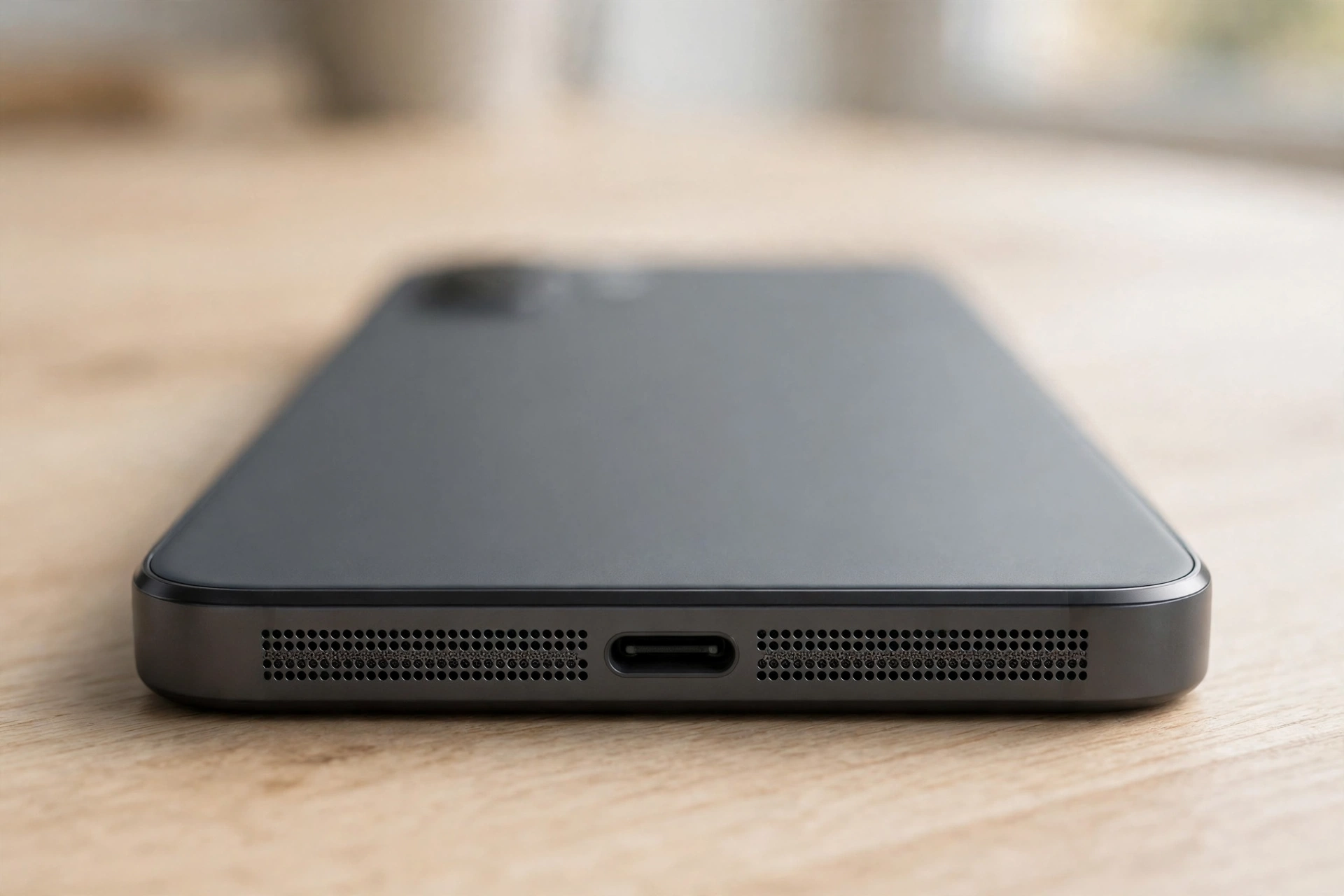
The A56’s bottom speaker sits behind a small grille that collects pocket lint, dust, and dried moisture. Hold the phone under a bright light and look at it. If it looks clogged, brush it very gently with a soft, dry toothbrush — never poke it with a pin or a SIM ejector, which can puncture the speaker mesh.
If the phone got wet recently, do not charge it and do not blast it with hot air. Leave it upright in a dry, ventilated place for several hours. A quick pass with the free speaker-cleaner tool at myspeakerfix.com can help push out trapped water with sound vibrations, and it costs nothing to try before you book a repair. Also test with the case off — a thick case with a misaligned cutout can cover the grille completely.
Restart, Safe Mode, and the Audio Cache
A restart fixes more speaker faults than people expect, because it restarts the audio service every app shares. Hold the power button, tap Restart, and test the speaker as soon as the phone comes back. If the fault appeared after an app install or an update, restart first and judge after.
If that does not help, boot into Safe Mode: hold the power button, long-press Power off on the screen, and tap Safe Mode. In Safe Mode only Samsung’s own apps run. Play a video — if the speaker works, a third-party app is interfering. Restart normally, then uninstall recently installed apps one at a time, starting with equalizers, volume boosters, call recorders, and VPN apps.
Finally, wipe the cache partition. Turn the phone off, hold Volume up and Power together until the Samsung logo appears, use the volume keys to select Wipe cache partition, and confirm with Power. This clears temporary system files without touching your photos or apps, and it resolves the audio glitches that survive a normal restart.
When the Speaker Is Really Broken
If the Samsung Members test is silent, the grille is clean, and every software fix has failed, the speaker itself may be damaged — usually from a hard drop, water, or a worn connection. A genuine A56 loudspeaker module is not expensive, but the phone needs opening, so get a quote from a Samsung service centre or a reputable local repair shop.
Ask the shop to test the speaker module before replacing anything, and keep your receipt. If the phone is still under warranty and there is no visible damage, Samsung may repair it free — do not open the phone yourself first, because that can void the warranty. Back up your data before handing the phone over.
Frequently Asked Questions
Why does my Galaxy A56 play music but I can’t hear callers on speakerphone?
Call audio and media audio use separate volume levels and routing. Check the in-call volume, make sure the call is not routed to Bluetooth, and test the earpiece — if the earpiece works but speakerphone does not, the loudspeaker call path is the fault.
What is Separate app sound on the Galaxy A56?
It is a One UI feature that sends one app’s audio to a Bluetooth device while the rest uses the phone speaker. Find it in Settings, then Sounds and vibration, then Separate app sound, and turn it off if an app has gone silent on the phone.
How do I test the A56 speaker to see if it is broken?
Open Samsung Members, tap Support, then Phone diagnostics, and run the Speaker test. A clear tone means the hardware is fine; silence from the loudspeaker test points to a hardware fault that settings will not fix.
Will a factory reset fix my Galaxy A56 speaker?
Only if the cause is corrupted software, and it should be your last step. Try a restart, Safe Mode, and a cache wipe first, and back up everything before resetting — a reset will not fix a damaged speaker or a blocked grille.