
No Sound on WhatsApp Calls? Here’s Where Your Call Audio Actually Went
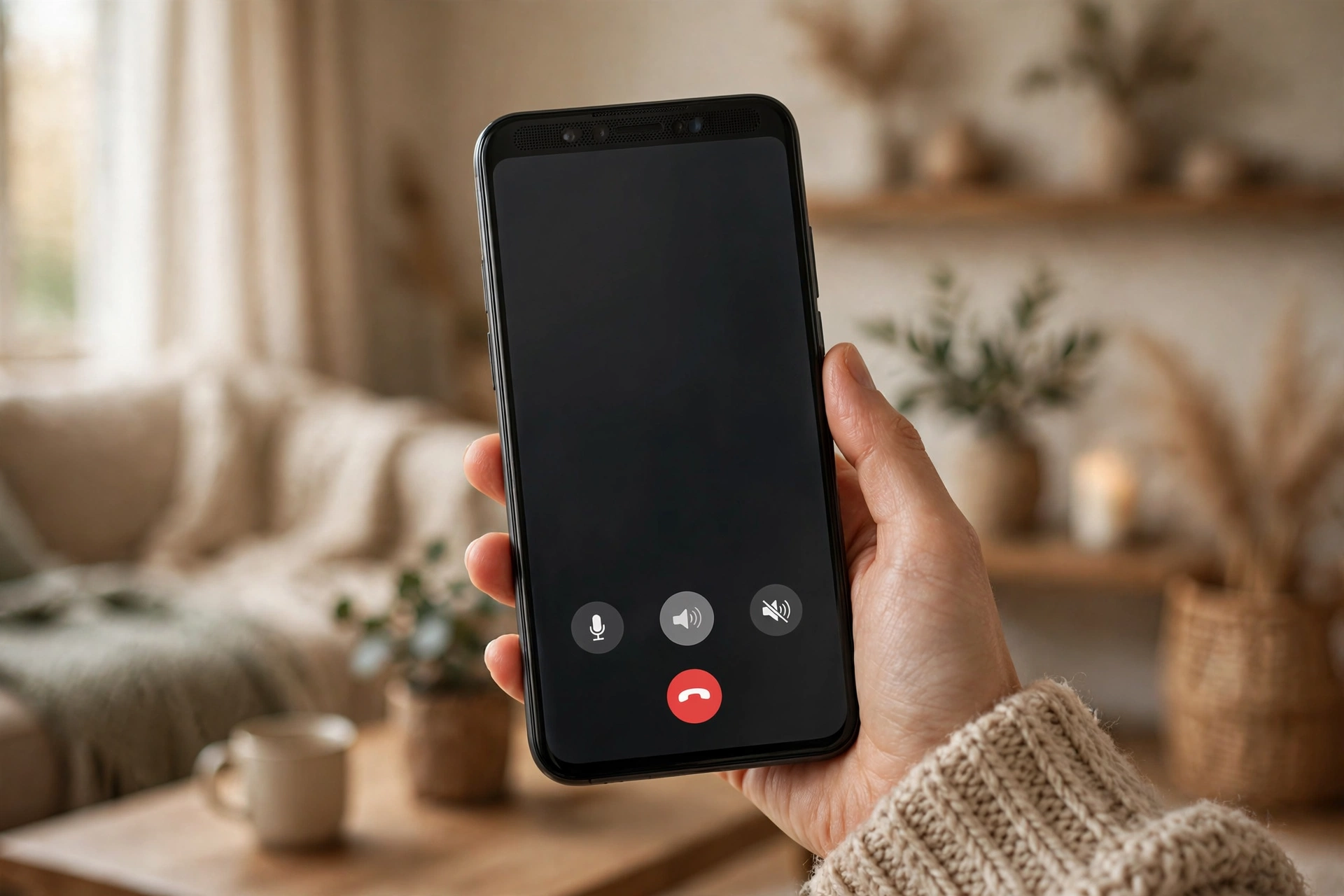
You tap answer, say hello twice, and hear nothing back. No voice, no ringing, just dead air. Most of the time your speaker is fine — WhatsApp is sending the sound somewhere you can’t hear it, or a permission is blocking it.
The Two-Second Checks Everyone Skips
Start while you’re on a call — that’s the only moment call volume exists. Press volume-up a few times mid-call and ask the other person to keep talking. Call volume sits apart from media volume, so turning it up while watching a video does nothing.
On the call screen, look for the speaker button. On iPhone it’s the audio button; on Android it’s the speaker icon. Tap it to see what it says. If it lists a Bluetooth device or a speaker you didn’t choose, switch it back to phone. WhatsApp remembers the last output you used, so one hands-free call in the car can leave the next one playing through a stereo that isn’t there.
Check the top of your screen. Is Do Not Disturb on? Is your phone still paired to a car stereo, a TV, or earbuds in another room? If so, that’s where your call goes.
Where WhatsApp Sends Your Call Audio
Bluetooth is the number one culprit — the phone looks perfectly normal, which is what catches people out. The screen shows the call connected and the timer runs, yet you hear nothing — meanwhile your earbuds are playing the call from inside a bag, or your car stereo is doing it in the driveway.
Turn Bluetooth off completely and call back, with any wired earphones and adapters unplugged too. If the sound suddenly returns, you found it — your phone was never silent.
On Android the output choice hides in different places — a speaker icon, or under a three-dot menu. Force audio back to the phone and test again.
Three WhatsApp Settings That Quietly Break Calls
WhatsApp has its own settings that can mute or degrade calls without warning. These three are worth checking before you blame the phone.
First, “Use less data for calls”, under Settings, then Storage and data. When it’s on, WhatsApp compresses call audio — voices can sound muffled or drop out on a weak connection. If your calls sound quiet or choppy, turn it off. If it was already off, toggle it on, make a test call, then turn it off again — that clears a stuck audio path.
Second, the proxy setting. WhatsApp calling isn’t supported through a proxy, so if one is set, calls can connect and stay silent. In the same Storage and data screen, tap Proxy, make sure it’s off, then call again.
Third, “Silence unknown callers”, under Settings, then Privacy, then Calls. If this is on, calls from unknown numbers get silenced — they still appear in your Calls tab, but never ring. If unknown numbers never get through, that’s your answer, not a speaker fault.
Permissions: The Quiet Blocker
WhatsApp can’t carry a call properly without microphone access, and a missing permission can mute things in ways that don’t make sense. You’d expect it to stop the other person hearing you — and sometimes it does. But it can also break your side of the call, especially after an update resets things.
On Android, open Settings, then Apps, then WhatsApp, then Permissions, and allow Microphone. On iPhone, open Settings, scroll to WhatsApp, and make sure the Microphone switch is on.
Try this: turn the permission off, wait a few seconds, turn it back on, then close WhatsApp and reopen it. That fresh grant clears the half-stuck state an update leaves behind.
When the App Itself Gets Stuck
Apps get wedged. WhatsApp can lose the audio channel after another app used it, or after your phone jumped networks mid-call.
Force-close WhatsApp and open it again. On Android, clear its cache from Settings, then Apps, then WhatsApp, then Storage. Don’t touch Clear data — that wipes your chats. Then restart the phone — it gives the audio system a clean state. Test with a different contact. If one person is silent and everyone else sounds fine, the problem is on their end.
Is It WhatsApp, or Is It Your Phone?
Now make a normal phone call. If that works and WhatsApp doesn’t, you’ve narrowed it to the app, its permissions, or its routing. Record a WhatsApp voice note and play it back — if it records and plays normally, the microphone and speaker both work, which points at the live-call path.
Try switching networks too — Wi-Fi to mobile data, or the other way round — and call again. Some Wi-Fi networks block the ports WhatsApp calls use, so messages work while call audio dies. If calls work on mobile data but not on your Wi-Fi, the network is the problem.
For a quick speaker check, the free speaker-cleaning tool on myspeakerfix.com plays a tone through your speaker so you can hear straight away whether it produces sound.
The Last Resort That Actually Works
If everything above failed and calls are still silent, a reinstall gives WhatsApp a fresh start. Back up your chats first, under Chats, then Chat backup, and wait until the backup finishes. Then uninstall the app, restart your phone, and install it again.
Restore your chats when it asks, grant the permissions when prompted, and make a test call first. That way you’ll know whether the reinstall did the job. If a fresh install still leaves WhatsApp calls silent while normal calls work, contact WhatsApp support from inside the app and tell them what you tried.
Frequently Asked Questions
Why is there no sound on WhatsApp calls but my phone rings normally?
Ringtones and live call audio use different paths. A Bluetooth device, a missing microphone permission, or a stuck audio session can silence a call while the ringtone still plays. Turn Bluetooth off, check permissions, and look at “Use less data for calls” — it can make call audio too quiet to hear.
Why can the other person hear me but I can’t hear them?
Your incoming audio is probably going to the wrong place, like Bluetooth earbuds in another room, or your call volume is down. Turn Bluetooth off, press volume-up during the call, and tap the speaker button to force the audio back to the phone.
Why do WhatsApp calls have no sound only on Wi-Fi?
Some Wi-Fi networks block the ports WhatsApp calls need, so messages work but call audio doesn’t. Switch to mobile data and test again. If calls work there, your Wi-Fi is blocking them. Also check the Proxy setting — WhatsApp calling isn’t supported through a proxy.
Will reinstalling WhatsApp delete my chats?
It can, so back up first under Chats, then Chat backup. Reinstall only after you’ve checked volume, Bluetooth, permissions, and updates.