
iPhone 15 Pro Speaker Not Working: Causes and Fixes
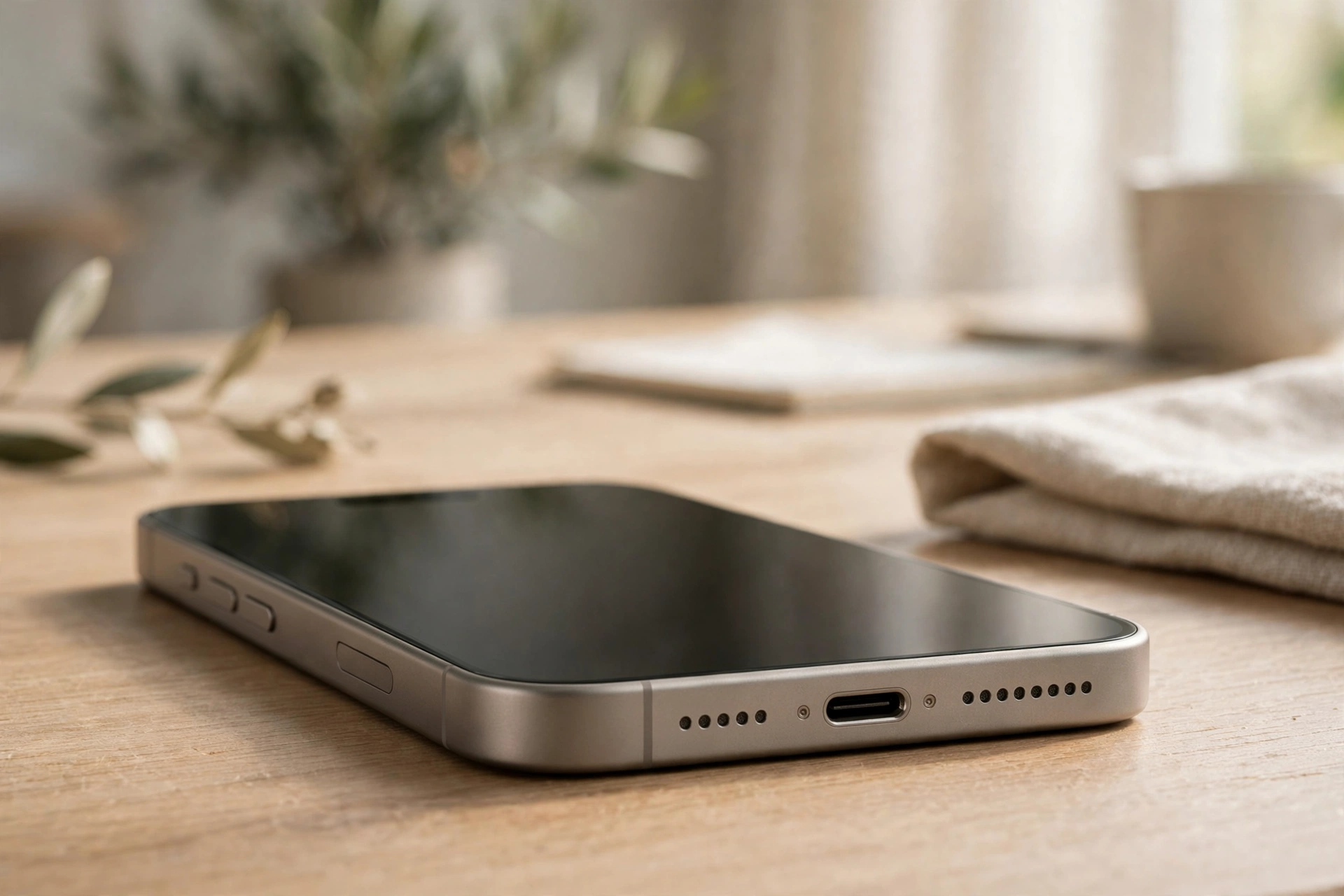
An iPhone 15 Pro speaker not working is usually caused by one of three things: the Action Button left the phone on silent, lint in the USB-C port confusing the audio routing, or the iOS 26 Volume Limit quietly capping the output. The classic 15 Pro pattern is the bottom speaker going silent while the earpiece still works, so music and videos sound thin and quiet and the speakerphone may fail. Work through the checks below in order.
Where exactly is the sound missing?
Before changing any setting, find out which speaker has failed — the bottom loudspeaker, or the earpiece at the top, which doubles as the second stereo channel.
- Play a video in the YouTube app with the volume up. Sound there means the bottom speaker can still play media.
- Open Settings, then Sounds & Haptics, and drag the Ringtone and Alerts slider. A ringtone means the speaker can play system sounds.
- Make a test call and tap the speaker icon. If the other person hears you but you hear nothing, the fault sits in the call path.
Bottom speaker silent but the earpiece works: a routing fault, a blocked grille, or lint in the USB-C port. Nothing at all: silent mode, Bluetooth, or a volume limit.
The Action Button put your phone on silent — check it first
The 15 Pro replaced the old Ring/Silent switch with the Action Button, and that change causes more “speaker not working” reports than any hardware fault — one press can leave the phone on silent, with nothing physical to show it.
Press and hold the Action Button. If the phone was on silent, you will feel a haptic pulse and the crossed-out bell will disappear from the Dynamic Island. Also check the Silent Mode toggle at the top of Settings, then Sounds & Haptics. If you keep knocking the phone into silent by accident, go to Settings, then Action Button, and assign it a different action such as Camera.
Bottom speaker silent, earpiece fine: the USB-C lint trap
The 15 Pro is the first iPhone with a USB-C port, which doubles as the phone’s audio-routing sensor. When lint packs into the port, the phone can behave as if an accessory is connected and send audio nowhere — or keep the bottom speaker muted while the earpiece keeps working.
Hold the phone under a bright light and look inside the port. If grey fluff is packed around the small tongue in the middle, power the phone off and clean it gently with a soft, dry toothbrush or a wooden toothpick. Never use a metal pin or a SIM ejector — the contacts bend easily, and a bent pin can kill charging too. The bottom speaker fires through a grille beside the port — if it looks clogged, brush it gently and never poke it with a pin. After cleaning, plug a USB-C cable in and out once, then play the same video again. Apple covers this in its support guide for iPhone speakers with no sound or distorted sound.
iOS 26 Volume Limit is quietly capping your speaker
The 15 Pro shipped with iOS 17 and now runs iOS 26, which added volume limits that can make a healthy speaker sound broken. Open Settings, then Sounds & Haptics, then Volume Limit. If the slider sits well below maximum, media will sound thin and quiet even with the volume buttons pressed all the way up — turn the limit off for one test and play the same video again.
Also check Reduce Loud Sounds under Settings, then Accessibility, then Audio & Visual. It is meant for headphones, but owners report it affecting speaker output after updates — turn it off and test again. Finally, check Settings, then Focus: a Focus mode with sounds silenced can make the phone look dead even when the speaker is fine.
iPhone 15 Pro speaker not working? Test it yourself with Voice Memos
The split test compares the earpiece, the bottom speaker, and the microphone against each other — no tools needed.
- Open Voice Memos and record ten seconds of yourself talking, then play it back through the earpiece by holding the phone to your ear. Clear playback means the earpiece and the microphone both work.
- Play the same recording back on speakerphone. If it is silent or badly distorted on speakerphone but fine through the earpiece, the bottom speaker or its grille is the fault.
- Make a test call, tap the speaker icon, and listen. If the caller sounds fine on speakerphone but media apps stay silent, the fault is in the app, not the speaker.
If the bottom speaker is silent in every test, restart the phone and run the same tests again — a restart clears the audio subsystem after a crash. This bottom-speaker-silent, earpiece-still-works split is the pattern PhoneGuiding describes for the 15 Pro: music and videos sound thin and quiet, and the speakerphone may fail.
When the speaker is really broken
If the split test is silent on speakerphone, the grille is clean, the USB-C port is clear, and every software fix has failed, the bottom speaker may be damaged — usually from a hard drop or water. Replacing it means opening a phone sealed with adhesive, so get a quote from Apple or an authorised repair shop.
If the phone is still under AppleCare or warranty and there is no visible damage, Apple may repair it free — do not open the phone yourself first, because that can void the coverage. Back up your photos and messages before handing the phone over, and tell the shop which speaker works and whether the USB-C port had lint in it.
The most common 15 Pro speaker faults — silent mode from the Action Button, lint in the USB-C port, and an iOS 26 volume limit — are all fixed at home in minutes. If the split test shows the bottom speaker is dead, get a repair quote. Try the free speaker-cleaner tool at myspeakerfix.com first if water or dust is the suspect.
Frequently Asked Questions
Why is my iPhone 15 Pro bottom speaker silent but the earpiece still works?
The two speakers use separate audio paths. Silent mode, lint in the USB-C port, or an iOS 26 volume limit can mute the bottom speaker while the earpiece keeps working — run the Voice Memos split test to confirm.
How do I know if the Action Button left my iPhone 15 Pro on silent?
Look at the Dynamic Island for a crossed-out bell icon, or check the Silent Mode toggle in Settings, then Sounds & Haptics. Press and hold the Action Button to switch silent mode off.
Can lint in the USB-C port stop the iPhone 15 Pro speaker working?
Yes. Packed lint can make the phone behave as if an accessory is connected, muting the bottom speaker. Power the phone off, clean the port gently with a soft dry toothbrush or wooden toothpick, and never use a metal pin.
Where is the iOS 26 Volume Limit on the iPhone 15 Pro?
Open Settings, then Sounds & Haptics, then Volume Limit. If a limit is set below maximum, media will sound thin and quiet even at full volume — turn it off for one test, and check Reduce Loud Sounds under Accessibility, then Audio & Visual.