
iPhone 14 Pro Speaker Not Working: Causes and Fixes
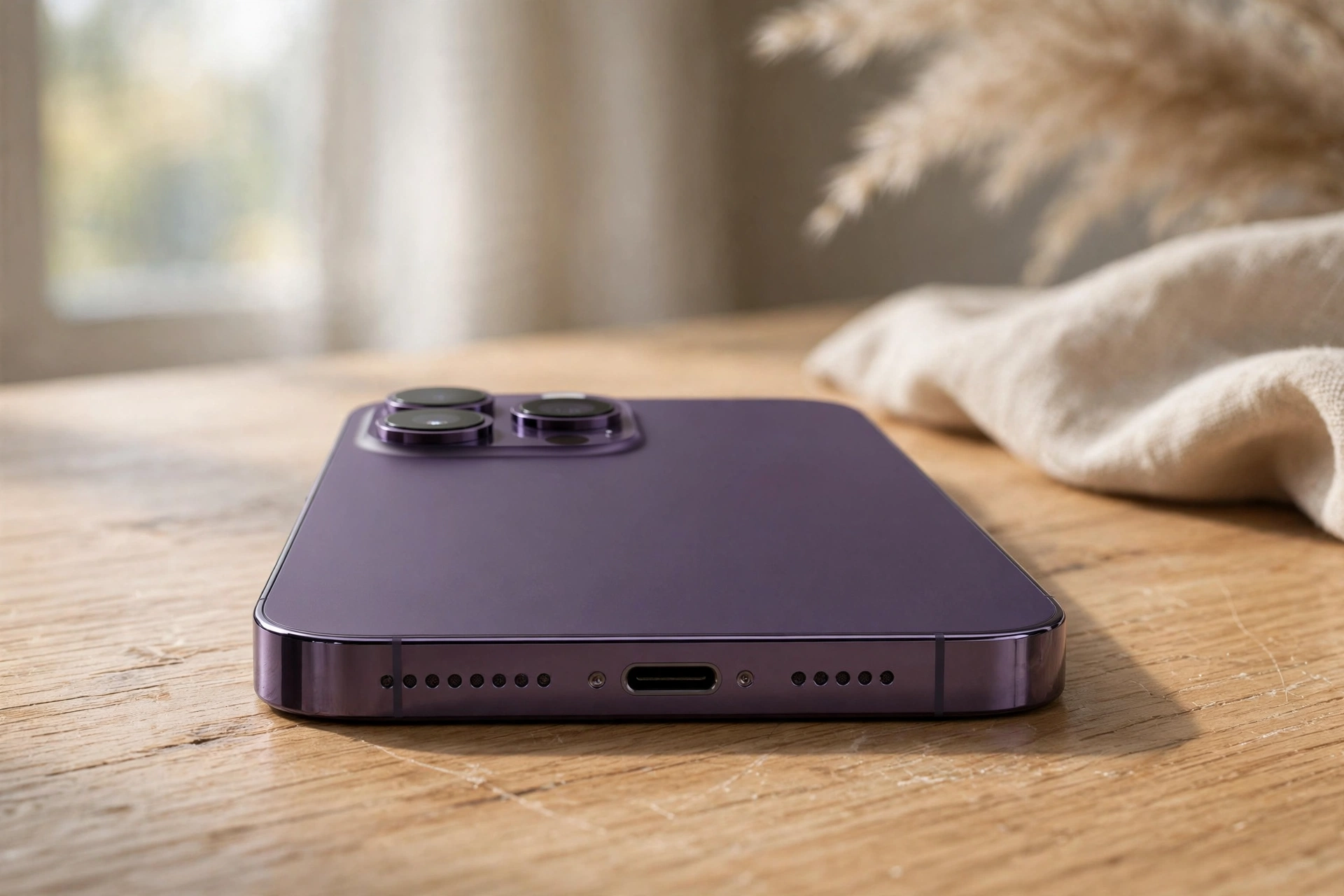
An iPhone 14 Pro speaker not working is usually a split fault — this phone has two speakers, and they fail for different reasons. The earpiece at the top handles calls, and the loudspeaker at the bottom handles media, ringtones, and speakerphone. They are separate parts joined by a shared dock flex cable, so one can go silent while the other works. Owners report the same spread: no sound from the earpiece, low or distorted earpiece volume, sound cutting in and out, an earpiece that fails during calls but works on speakerphone, and a loudspeaker silent during calls, media, and FaceTime.
Start with the split test below — two minutes, no tools — to learn whether to chase a setting, a blocked grille, or a repair.
The Voice Memos split test: find the dead speaker in two minutes
The earpiece and the loudspeaker are separate drivers joined by a shared dock flex — the ribbon that also carries the Lightning port and the bottom microphone — so one can fail while the other works. This test separates them using only the built-in Voice Memos app.
Open Voice Memos and record ten seconds of talking, then play it back. First, play it through the earpiece by holding the phone to your ear as if it were a call. Then tap the speaker icon and play the same recording through the loudspeaker. Finally, record a second memo holding the phone flat and watch the waveform — a flat line means the bottom microphone is not picking up sound, which points at the dock flex.
- Earpiece silent, loudspeaker clear: the earpiece is blocked or dead — clean its mesh.
- Loudspeaker silent, earpiece clear: the bottom driver is blocked, muted, or damaged — check the grille and the volume limit.
- Both silent: the fault is in the shared path — a setting, a stuck headphone mode, or the dock flex. Restart and work through the software fixes.
- Both work here but calls are still silent: the problem is call routing, not the speakers — check Call Audio Routing in Accessibility.
Lightning-port lint: the 14 Pro still charges over Lightning
The 14 Pro was the last Pro generation with a Lightning port — USB-C only arrived with the iPhone 15 — and the port sits on the same dock flex as the loudspeaker. Lint packed into it does more than stop charging: it presses on the flex and can distort or silence the bottom speaker.
Hold the phone under a bright light: if you see grey or white fluff in the Lightning port, pick it out gently with a wooden toothpick, working along the walls. Never use a metal pin — it can short the pins or tear the flex. After cleaning, plug the charger in and out twice and play a video.
While you are there, brush the bottom speaker grille next to the port lightly with a soft, dry toothbrush — pocket lint across that grille can muffle the loudspeaker enough to look like a dead speaker.
The Ring/Silent switch and the iOS 26 volume limit
The 14 Pro still has the physical Ring/Silent switch above the volume buttons — the Action Button only replaced it on the iPhone 15 Pro. If the switch shows orange, the phone is silenced: ringtones and alerts stop, though media can still play. Flip it back and test a ringtone.
Next, check the volume limit that catches many owners after updating. In Settings, then Sounds and Haptics, then Headphone Safety, look at Reduce Loud Sounds — then in Settings, then Accessibility, then Audio and Visual, check Volume Limit under Built-In Speaker. If either is set low, the loudspeaker stays quiet no matter how far you push the volume buttons. Turn the limit off or raise it, then test a video at full volume.
Also check the in-call volume, which is separate from media volume: during a call, press Volume Up at your ear — it can sit at zero while your music is loud.
Software fixes that actually help a 14 Pro
If the split test points at software, work through these in order, re-testing the Voice Memo after each one.
- Turn Bluetooth off and play the same memo again — a forgotten pair of earbuds, a watch, or a car can steal the audio.
- Check for stuck headphone mode: plug wired earphones in and out twice. If the phone still thinks headphones are connected, the speakers stay silent.
- Force-close the silent app and reopen it. If only one app is silent, delete and reinstall it — its audio session can break while the rest of the phone is fine.
- Go to Settings, then General, then Software Update, and install any pending update. Audio faults are fixed in point releases more often than owners expect.
- Reset all settings as a last step in Settings, then General, then Transfer or Reset iPhone. This keeps your photos and apps but wipes Wi-Fi passwords.
When the speaker itself is broken
If the Voice Memos test is silent on one speaker, the grilles are clean, and every software fix has failed, the part is likely damaged — usually from a hard drop or water. The earpiece and the loudspeaker are separate replacements, but both sit on the shared dock flex, so a shop will test the flex before quoting a part. If the phone got wet, leave it upright in a dry place for several hours and do not charge it. A quick pass with the free speaker-cleaner tool at myspeakerfix.com can push trapped water out of the grille with sound vibrations.
If the phone is still under AppleCare or warranty with no visible damage, Apple may repair it free — do not open it yourself first. Back up your photos, and tell the shop the split-test result: which speaker failed and whether the microphone waveform was flat.
In short, an iPhone 14 Pro speaker fault is a split diagnosis — the Voice Memos test shows which speaker failed, Lightning-port lint and the volume limit are the two Pro-specific traps, and the dock flex is the suspect when both fail together. Fix the side the test points at, and check the speaker with the free tool at myspeakerfix.com.
Frequently Asked Questions
Why can I hear callers on speakerphone but not through the earpiece?
The earpiece and loudspeaker are separate parts. If speakerphone works, the loudspeaker is fine and the fault is the earpiece — check its mesh, in-call volume, and Call Audio Routing in Accessibility.
Does the Ring/Silent switch mute media on the iPhone 14 Pro?
No. The switch silences ringtones and alerts, but media can still play. The 14 Pro keeps the physical switch — the Action Button arrived only on the iPhone 15 Pro.
How do I test the iPhone 14 Pro speaker?
Record a memo in Voice Memos and play it back through the earpiece, then through the loudspeaker. A silent earpiece with a clear loudspeaker means the earpiece is at fault; silence on both points at settings or the dock flex.
Is the earpiece and the loudspeaker the same part on the 14 Pro?
No, they are separate drivers, but both connect through the shared dock flex that also carries the Lightning port. That is why one can fail while the other works, and why a flex fault can silence both at once.