
iPhone 14 Speaker Not Working: Model-Specific Fixes
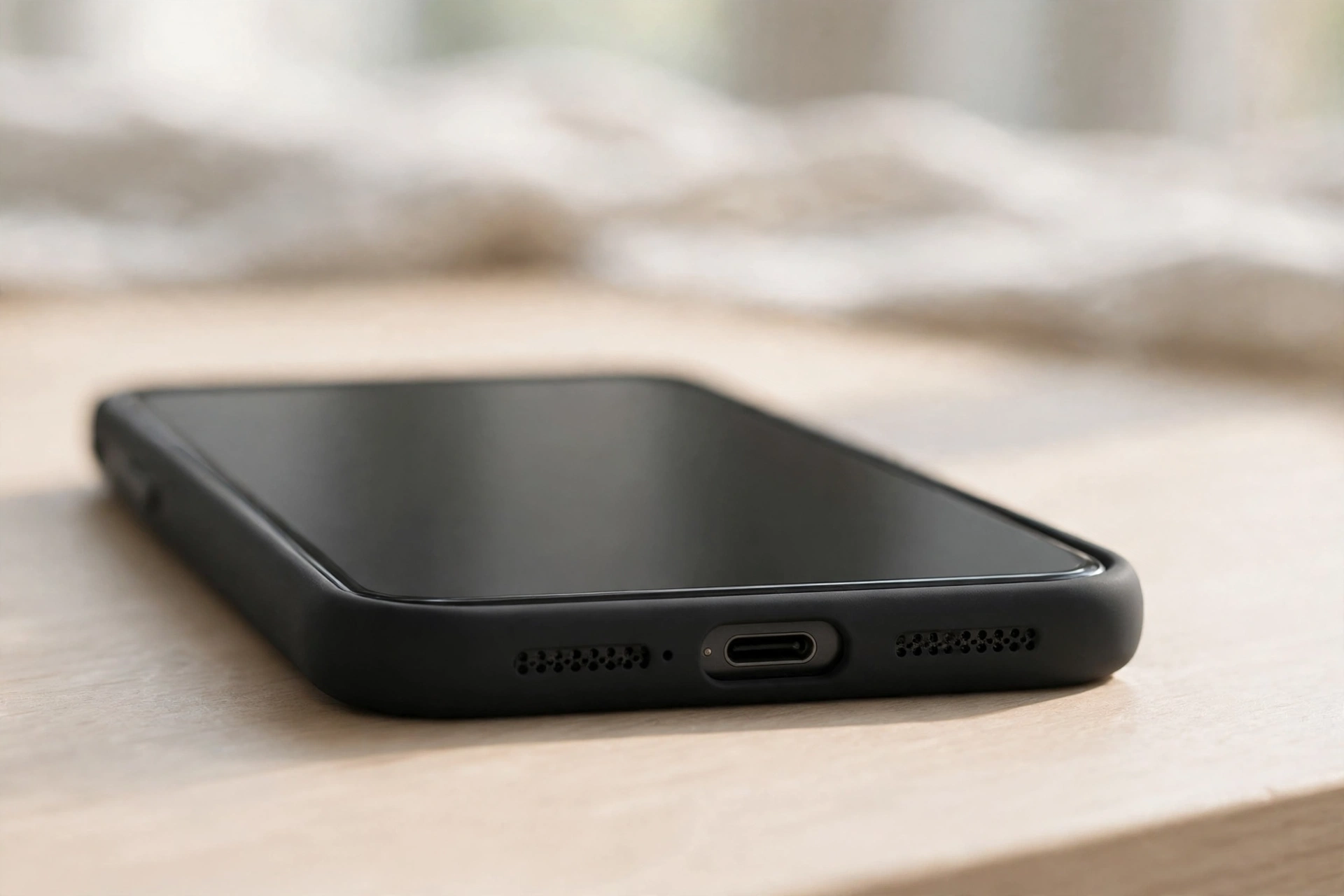
The iPhone 14 has two sound outputs — the bottom loudspeaker and the earpiece — and they fail independently, so the first job is to work out which one is silent. Most iPhone 14 sound problems are a switch, a routing quirk or a blocked grille, and this guide covers the model-specific checks, including its Lightning port.
Which Speaker Is Silent? Bottom Speaker or Earpiece
Test the two speakers separately, because they point at different causes. Play a song or a ringtone: if that is silent, the bottom loudspeaker is the suspect. Then make a call and listen through the earpiece: if the caller is silent but music plays fine, the earpiece is the suspect. Finally, make a call on speakerphone — if the caller is audible there, the bottom speaker works and the problem is the earpiece or the call routing.
The Ring/Silent Switch Above the Volume Buttons
The physical Ring/Silent switch above the volume buttons is the most common reason an iPhone 14 suddenly goes quiet. If the switch shows an orange line, the phone is on silent, and ringtones and alerts will not play through the speaker. Flip the switch toward the screen so the orange disappears.
Then press the volume-up button while a song or video is playing and check that the media volume is raised. Open Settings, then Sounds & Haptics, and make sure the Ringer and Alerts slider is turned up and “Change with Buttons” is switched on, so the side buttons actually control the ringer.
Stuck Headphone Mode — the Lightning Port Quirk
The iPhone 14 uses a Lightning port, and it sometimes stays in headphone mode after the headphones are unplugged, so sound keeps routing to headphones that are no longer connected. Plug a pair of wired or Lightning headphones in, play a short audio clip, then unplug them firmly and check whether the volume indicator changes from “Headphones” to “Ringer”.
If the port is dirty, clean it gently with a dry wooden toothpick, never metal — the Lightning connector pins are easy to damage, and a metal tool can short them. Also check Control Centre’s audio output panel to confirm it now shows iPhone. Restarting the phone after this step often clears the stuck state completely.
Do Not Disturb and Focus Schedules
Do Not Disturb and Focus modes silence calls, notifications and alerts, which can look exactly like a broken speaker. Swipe down from the top-right corner to open Control Centre and check whether the moon icon or a Focus mode is active. Tap it to turn it off.
Then go to Settings, then Focus, and check each Focus mode’s schedule — a Work or Sleep schedule can switch on automatically at certain times of day. Also confirm your ringtone is not set to “None” in Settings, then Sounds & Haptics.
Cleaning Both Speakers
Dust, pocket lint and dried moisture collect in the speaker grille at the bottom edge of the iPhone 14 and in the earpiece slot above the screen, muffling or blocking sound. Hold the phone with the speaker facing down and brush the grille gently with a clean, dry, soft-bristled toothbrush. Use short strokes away from the phone so debris falls out instead of being pushed in.
Never use compressed air at close range, sharp objects, or liquids. If the earpiece sounds muffled during calls, clean its slot the same way and test a call again.
Water in the Speaker: The Tone Test
If water or moisture got into the speaker, sound can stay muffled or distorted even after the phone looks dry. The free speaker cleaner on myspeakerfix.com plays a specially designed tone that vibrates the speaker to push trapped water and dust out of the grille. Open the tool in your browser, tap Start, and let it run for a few minutes while holding the phone speaker-down over a towel. It is a safe, free first step after any water exposure, before considering a repair.
iOS Updates and the Reset Ladder
Apple regularly fixes audio bugs in iOS updates, and an outdated version can leave the speaker silent after an app or carrier update. Go to Settings, then General, then Software Update, and install any update that is available. If the speaker problem started right after an iOS update, the next point release usually contains the fix, so check for updates again a few days later.
If the speaker is still silent, work up the rest of the ladder:
- Restart the iPhone 14. Press and hold the side button and either volume button, drag the power-off slider, and wait 30 seconds. Then press and hold the side button until the Apple logo appears. Once the phone restarts, play a song or video to check whether sound is back.
- Reset all settings. Go to Settings, then General, then Transfer or Reset iPhone, then Reset, and choose Reset All Settings. You will need to enter your passcode, and the phone will restart. This restores every audio, network and system setting to its default without deleting your photos, apps or files.
- Book a diagnostic. If sound is still missing, the fault is most likely hardware. Contact Apple Support or an authorised repair provider for a diagnosis — if the speaker crackles, buzzes or distorts at every volume, the speaker unit has probably failed.
Frequently Asked Questions
Why is my iPhone 14 speaker suddenly not working?
The most common causes are the Ring/Silent switch being flipped, audio routing to a Bluetooth device, Do Not Disturb being on, or a blocked speaker grille. Software glitches and stuck headphone mode are also frequent. Work through the settings checks first, since most cases are fixed without a repair.
Why does my iPhone 14 have no sound on calls but music plays fine?
That usually points to the earpiece rather than the bottom speaker. Clean the earpiece slot gently, check that the call volume is turned up during the call, and make sure the phone is not on speakerphone or routed to a Bluetooth device. If the earpiece stays silent after cleaning, it may need a hardware check.
Can water damage make my iPhone 14 speaker stop working?
Yes. Water trapped in the speaker grille muffles or silences sound, even on a water-resistant phone. Let the phone dry speaker-down, then run a speaker-cleaner tone to vibrate the water out. If sound stays distorted after a day, have it checked — internal corrosion can develop over time.
Should I reset my iPhone 14 if the speaker is not working?
Try a settings reset only after the simpler fixes fail. Reset All Settings restores defaults without deleting your data and often fixes stubborn audio bugs. A full factory reset is a last resort — back up your phone first and treat it as the step before a hardware repair.