
Why Is My iPhone 15 Speaker Not Working?
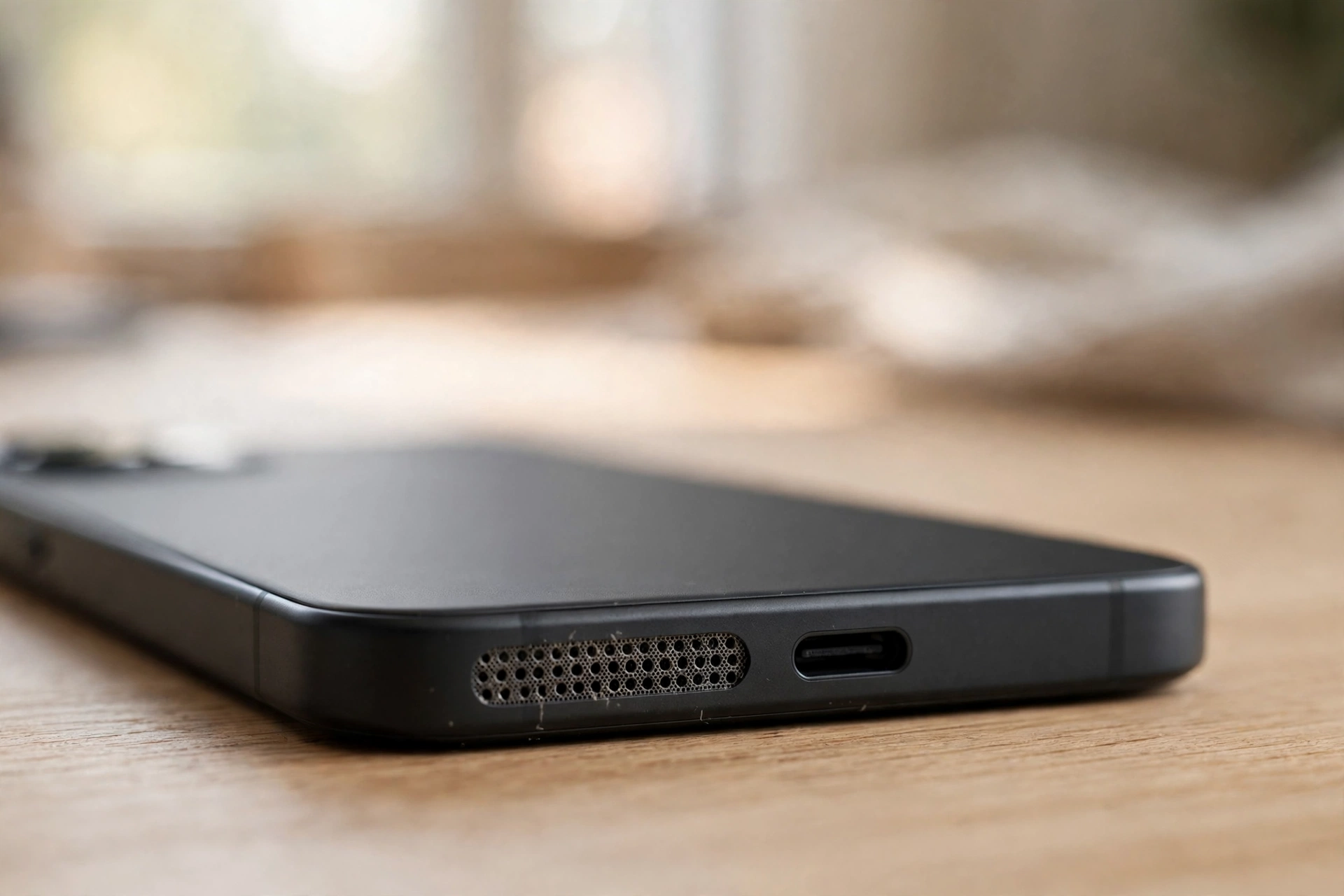
Your iPhone 15 speaker is most likely silent because of a simple setting — Silent Mode, a connected Bluetooth device, or a stuck audio route — rather than a broken speaker. Check the Action Button, disconnect Bluetooth, and clean the speaker grille first. Most cases clear up in a few minutes without a repair visit.
Is Silent Mode or the Action Button muting your iPhone 15?
The iPhone 15 replaced the old mute switch with the Action Button, and it is easy to press it by accident. Look at the Dynamic Island: if you see a small bell with a line through it, Silent Mode is on. Press and hold the Action Button until you feel a vibration and see the bell icon without the line. Then press a volume button and check that the on-screen volume bar moves and the ringer level is not at the bottom.
Also open Settings, then Sounds and Haptics, and drag the Ringer and Alerts slider up. Make sure “Change with Buttons” is switched on so the side buttons actually control the volume. Play a song in the Music app and a video in Safari. If one app is silent and the other is not, the problem is in that app, not the speaker.
Could sound be going to another device?
iPhone 15 models are quick to hand audio to AirPods, a car stereo, a Bluetooth speaker, or an Apple TV. Swipe down from the top right to open Control Center, tap the AirPlay icon in the music card, and check where the tick mark sits. If it is on anything other than “iPhone”, tap “iPhone” to bring sound back to the built-in speaker.
Go to Settings, then Bluetooth, and look for any device marked Connected. Tap the “i” next to it and choose Disconnect if you do not want to use it right now. Do the same for any wired accessory plugged into the USB-C port: a faulty adapter or a dock can hold the audio route even after you unplug it, so restart the phone after removing it.
What if water or dust is blocking the speaker?
The iPhone 15 is water resistant, not waterproof, and a splash in the rain or a drop near a sink can leave water sitting in the bottom speaker grille. The sound often turns muffled, crackly, or very quiet until the water clears. Hold the phone with the speaker grille pointing down and gently shake it once or twice. Do not use a hair dryer on high heat and do not push a pin or a toothpick into the grille — the mesh is delicate and easy to tear.
For dust and pocket lint, use a soft, dry brush or a piece of low-tack tape pressed lightly over the grille and lifted away. A dry microfibre cloth works for the surface. You can also play a low-frequency tone to push water and debris out: the free speaker-cleaner tool on myspeakerfix.com plays a tone designed to vibrate water and dust out of the speaker, and it runs straight in the browser with no app to install. Run it for a short session with the volume up and the speaker facing down, then test a ringtone.
Is a software bug holding the sound back?
If the speaker worked yesterday and stopped after an update or an app install, software is the likely cause. Start with a force restart: press and release Volume Up, press and release Volume Down, then press and hold the Side Button until the Apple logo appears. This clears temporary audio glitches without deleting anything.
Next, check for an update in Settings, then General, then Software Update. Apple regularly fixes audio bugs in small updates, so install one if it is waiting. If a single app is silent, open Settings, scroll to that app, and check that its sound permissions are on, then delete and reinstall the app. As a last software step, go to Settings, then General, then Transfer or Reset iPhone, then Reset, and choose Reset All Settings. Your photos and apps stay, but Wi-Fi passwords and wallpaper settings return to defaults.
How do I know if the speaker itself is damaged?
Run a quick hardware check. Record a voice memo and play it back through the speaker. Then make a test call on speakerphone. If the earpiece works during calls but the bottom speaker stays silent for media, ringtones, and voice memos, the bottom speaker or its connection may be faulty. If the sound is distorted at every volume, crackles when you press gently near the grille, or cuts out when you tilt the phone, that also points to hardware.
Try the same tests after removing the case. Some thick cases press against the grille or cover it partly, and a case with a warped edge can muffle sound badly. If the problem started right after a drop, a repair shop needs to look inside — a loose speaker connector is a common result of a hard fall and is not something to fix by opening the phone yourself.
When should I contact Apple Support?
Book a support visit if the speaker stays silent after a force restart, a software update, and a reset of all settings, or if the sound is distorted at all volumes. Before you go, back up the phone to iCloud or a computer, and note when the problem started and whether water or a drop came first. Apple can run a remote diagnostic that checks the speaker, and a phone still under warranty or AppleCare may be repaired or replaced without a fee. Do not keep trying home fixes that involve opening the phone, because that can void the warranty.
Frequently Asked Questions
Why is my iPhone 15 speaker suddenly not working?
Most often it is Silent Mode, a Bluetooth device taking the audio, or a software glitch. Check the Action Button, disconnect Bluetooth, and force restart the phone.
Why does my iPhone 15 have no sound on calls but works for music?
Calls use the earpiece and a different audio route from media. Check that the call is not on mute, the earpiece grille is clean, and no Bluetooth headset is connected.
Can water damage my iPhone 15 speaker?
A splash can leave water in the grille and muffle sound until it dries or is vibrated out. If sound stays distorted after the phone is fully dry, the speaker may need inspection.
Will resetting all settings fix my iPhone 15 speaker?
It often fixes software-caused silence because it restores audio and network settings to defaults. Your photos and apps stay, but Wi-Fi passwords are cleared.