
Every Call Lands on Speakerphone and You Never Tapped It
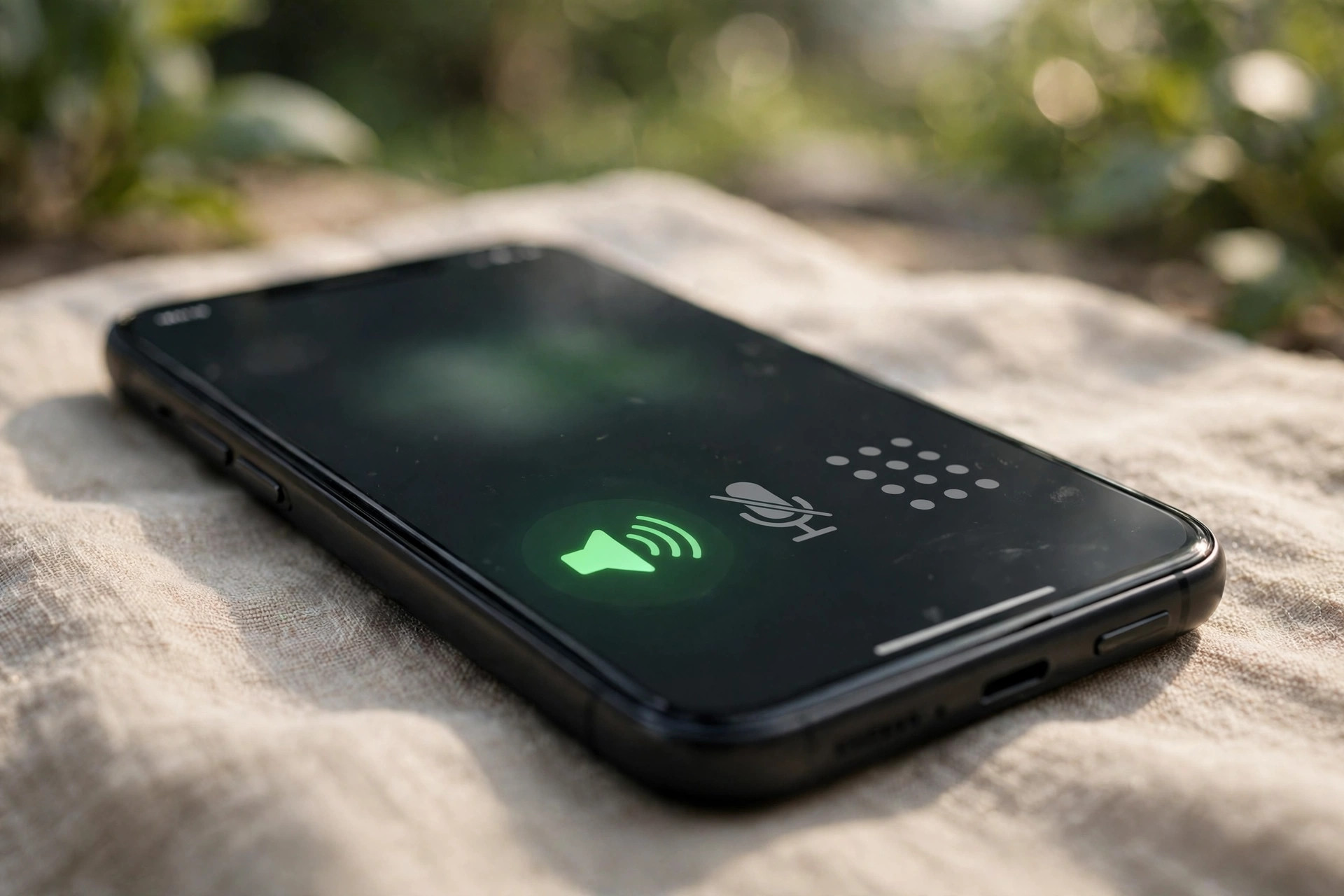
You answer a call, hold the phone to your ear, and the caller’s voice blasts out of the bottom speaker for the whole room to hear. You never tapped the speaker button. The phone just decided. It’s an embarrassing fault and a confusing one, because the speaker button looks untouched — but the phone isn’t broken. Something told it to route every call to the speaker, and that something is usually a setting you can switch off in under a minute. This guide finds it: first the routing setting, then the Bluetooth device, then the app that took over.
iPhone: the Call Audio Routing setting
On iPhone, the most common cause is one accessibility setting: Call Audio Routing. It decides where call audio goes — Automatic, Bluetooth Headset, or Speaker — and if it’s set to Speaker, every call starts on speakerphone. It can change after an update, or after someone was playing with accessibility options.
Open Settings, then Accessibility, then Touch, then Call Audio Routing. If it says Speaker, change it to Automatic. That’s the whole fix for most iPhones: Automatic means the phone uses the earpiece when you hold it to your ear, and the speaker only when you tap the button. Apple Support documents the Call Audio Routing setting, and it’s the first place Apple’s own troubleshooting points.
Android: accessibility and hearing settings
Android hides the same routing choice in different places, but the fault is the same: some setting tells the phone to use the speaker for every call. Start in Settings, then Accessibility, and look for call audio or hearing options — Samsung puts a “Hearing enhancements” section here. If you find one set to Speaker, switch it back to Automatic or Earpiece.
Also check the phone app: some diallers remember your last output, so a call that ended on speaker can start there too. During a call, tap the audio button, choose the earpiece, and end the call cleanly. Search your settings for “auto answer” and switch it off if it’s on. And check for a third-party dialler or call-recording app — those can take over call routing, and the stock phone app can’t override them.
A Bluetooth device is answering for you
Your phone remembers every device it has paired with — earbuds in their case, a car stereo, a smartwatch. When a call comes in, it can hand the audio to the last device it remembers, and if that device is off or out of range, the call can land on the speaker instead of the earpiece.
Turn Bluetooth off completely — not just disconnect, switch it off in Settings — and ask someone to ring you. If the call comes through the earpiece, a Bluetooth device was behind it. Turn Bluetooth back on, open the paired-devices list, and forget anything you don’t use any more: an old car stereo, lost earbuds, a speaker you gave away. Then reconnect only the device you want and test again.
Car stereos deserve special attention: many auto-connect the moment you sit down, and some stay connected after you’ve walked away. If calls only jump to speaker after a drive, forget the car stereo in your Bluetooth list and pair it fresh when you need hands-free. If sound still goes to the wrong place, our guide to Bluetooth audio problems walks through the routing checks.
Car mode and the case pressing the button
Some phones have a driving or car mode that routes every call to the speaker. It can switch itself on when the phone connects to the car or detects driving motion. Check for a driving mode, car mode, or driving Focus and switch it off, then test a call at home, nowhere near the car. If calls behave at home but jump to speaker in the car, the mode is doing what it was told to do.
Then there’s the physical cause. A case with a tight edge, or a phone in a car mount, can press the speaker button on the call screen — or the screen can register a cheek touch as a tap. Take the case off and make a test call. If the call stays on the earpiece, the case was pressing the screen.
When an app has taken over your calls
If the settings are clean, Bluetooth is off, and calls still start on speaker, an app may have taken over call routing. Call recorders, spam blockers, and some messaging apps can grab the audio path, and the phone’s own routing can’t override them. The cleanest test is safe mode, which loads only the apps your phone shipped with.
On Android, hold the power key, then press and hold Power off on screen until the safe-mode prompt appears, and tap it. Make a test call in safe mode. If it lands on the earpiece, a downloaded app is the fault — restart, then remove recently installed calling, recording, or spam-blocking apps one by one, testing after each one. On iPhone there’s no safe mode — check which apps have phone or microphone permission in Settings, then Privacy. If the call still jumps to speaker in safe mode too, with Bluetooth off and routing set to Automatic, the fault is in the phone itself — a stuck sensor or a routing fault — and a repair shop is the next step. Before that, run the free Fix My Speaker cleaner once to rule out a clogged speaker. And if the speaker itself sounds wrong, see how to fix a phone speaker.
Tested on
Run this with one test call and about ten minutes — you need a friend who can ring you twice.
- Turn Bluetooth off completely in Settings, then ask a friend to call you. Note whether the call lands on the earpiece or the speaker.
- Check the routing setting — iPhone: Settings, Accessibility, Touch, Call Audio Routing; Android: Settings, Accessibility, hearing options.
- Set it to Automatic, hang up, and ask your friend to call again. Note where the audio lands.
- Turn Bluetooth back on, forget any device you don’t use, and make another test call.
- Take the case off, hold the phone to your ear, and check whether the screen goes dark during the call.
- Reboot into safe mode (Android) and make one more test call.
Earpiece in step 1 means a Bluetooth device was the trigger. Earpiece after step 3 means the routing setting. Earpiece only in safe mode means a downloaded app took over. Speaker in every step points at the sensor or the phone itself.
Frequently Asked Questions
Why does every call start on speakerphone on my iPhone?
Usually the Call Audio Routing setting is set to Speaker. Open Settings, then Accessibility, then Touch, then Call Audio Routing, and change it to Automatic. If it’s already Automatic, turn Bluetooth off and test again.
Can Bluetooth make my calls go to speaker?
Yes. If your phone hands the call to a Bluetooth device that’s off or out of range, it can fall back to the speaker. Turn Bluetooth off and test a call.
Why do calls only jump to speaker when I’m in the car?
Your car stereo is auto-connecting, or a driving mode is routing calls to the speaker. Forget the car stereo and switch off any driving mode, then test a call at home.
My calls start on speaker even in safe mode — is my phone broken?
Possibly. If Bluetooth is off, routing is Automatic, and safe mode doesn’t fix it, the fault is likely a stuck proximity sensor or a hardware routing problem.