
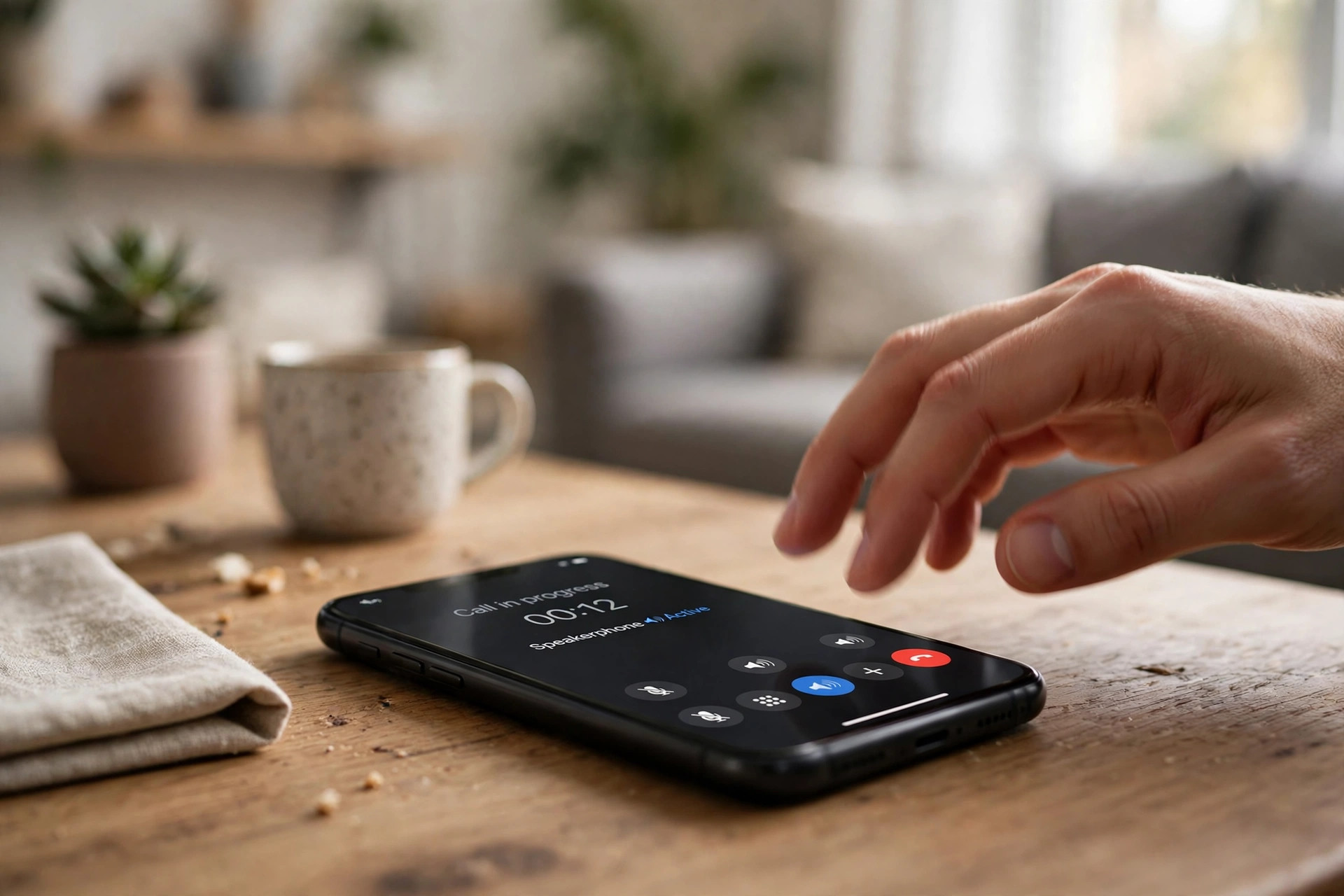
Phone Speaker Not Working on Calls? 6 Fixes for Call Audio
When your phone’s loudspeaker goes silent during calls — you can’t hear the caller on speaker, or they can’t hear you — but music plays fine, the speaker itself is fine. The problem lives in the call audio path: volume, routing, Bluetooth, or the microphone. Work through these 6 fixes, starting with a 60-second test that pinpoints the broken side.
Fix 1: Run the 60-Second Direction Test
Call a friend, a family member, or your own voicemail, and switch to speakerphone. Now answer two questions: can YOU hear the other side, and can THEY hear you? The answers point to completely different fixes, so don’t skip this.
If you can’t hear them but they hear you fine, the problem is on the output side — in-call volume or audio routing (Fixes 2–3). If they can’t hear you but you hear them, the problem is on the input side — the microphone or its permissions (Fixes 4–5). If neither direction works, work through all the fixes in order, since a routing problem can kill both.
Fix 2: Turn Up the In-Call Volume — It’s Separate From Media
Your phone keeps independent volume levels for media, calls, ringtones, and alarms. The volume you set while watching videos has nothing to do with calls. Some phones also remember a low “in-call volume” from a previous call and keep it there indefinitely.
The only reliable way to raise it: while on an actual call in speakerphone mode, press volume-up repeatedly until the on-screen indicator hits maximum and the label reads “Call volume” or “In-call volume” — not “Media.” Also check you haven’t accidentally tapped the mute button on the call screen; on some phones the mute icon is easy to hit while holding the phone.
Fix 3: Stop Bluetooth From Stealing Your Call Audio
The single most common cause of “speaker not working on calls” is audio being routed to a Bluetooth device you forgot about — earbuds in a pocket, a smartwatch, or your car. The phone thinks it’s sending call audio to that device, so the loudspeaker stays silent even though it works perfectly for music.
During the call, tap the audio button on the call screen (iPhone labels it “audio”; Android shows a speaker or Bluetooth icon) and look at the list. If anything other than “Speaker” or “Phone” is selected, the call is playing there — switch it back. For a definitive test, turn Bluetooth off entirely in quick settings and call again. If the problem keeps returning, unpair or “forget” the device that’s grabbing your calls.
Fix 4: Clean the Bottom Speaker and the Mic Holes
Speakerphone mode uses two separate components: the bottom loudspeaker for output and the small microphone holes (usually along the bottom edge) for input. Lint packed into either one breaks one direction of the call while music — which uses the same speaker — can still sound acceptable at higher volumes.
Power the phone off and gently brush the bottom speaker grille and the tiny mic holes with a clean, dry, soft-bristle toothbrush, then press painter’s tape over the grilles and peel it off to lift out packed debris. Never poke pins into the mic holes — they’re even more fragile than the speaker mesh. Also check your grip: holding the phone in a way that covers the bottom mic with your palm mutes you to the caller on every speakerphone call. After cleaning, you can play a low-frequency tone from our free tool at https://myspeakerfix.com/ with the phone speaker-side down to shake loose any remaining dust from the grille.
Fix 5: Check Microphone Permissions and Restart the Call Audio Path
If the caller can’t hear you, your Phone app may have lost microphone permission after an update. On Android, go to Settings > Apps > Phone > Permissions and make sure Microphone is allowed. On iPhone, check Settings > Privacy & Security > Microphone for any calling apps. A revoked permission silences you completely while you hear the caller perfectly — a confusing but common symptom.
Next, restart the phone to reset the dedicated call-audio software path, which can crash while media audio keeps working. If you use a third-party dialer or call-recording app, test with the stock Phone app instead — these apps can hijack in-call audio routing. On Android, booting into Safe Mode rules out all third-party interference at once.
Fix 6: Reset Network Settings, Then All Settings
When calls specifically misbehave, corrupted network and calling settings are a prime suspect. On iPhone, go to Settings > General > Transfer or Reset > Reset > Reset Network Settings — you’ll need to re-enter Wi-Fi passwords, but your data stays intact. On Android, go to Settings > System > Reset options > Reset Wi-Fi, mobile & Bluetooth.
If that doesn’t work, reset all settings (iPhone: Settings > General > Transfer or Reset > Reset All Settings; Android: Settings > System > Reset options > Reset all settings). This keeps your data while clearing every audio and network configuration. If speakerphone calls still fail after this — and the speaker plays music fine — the fault is likely the bottom speaker or mic flex connection, and a repair shop can test and replace the module.
Frequently Asked Questions
Why can I hear the caller but they can’t hear me on speakerphone?
That’s a microphone problem, not a speaker problem. Your loudspeaker is working — the mic that picks up your voice in speakerphone mode isn’t. Clean the mic holes, check the Phone app’s microphone permission, and make sure your hand or case isn’t covering the bottom mic.
Why does speakerphone work in WhatsApp but not on regular calls?
Apps like WhatsApp use your data connection’s audio path, while regular calls use your carrier’s voice path with the stock Phone app. If only regular calls fail, the issue is in the Phone app’s settings, permissions, or your carrier’s calling configuration — try Fix 5 and Fix 6, and contact your carrier if it persists.
Could my phone case be blocking the speaker during calls?
Yes — and it’s more common than people think. A case with misaligned cutouts can partially cover the bottom speaker grille or the mic hole, muffling one or both directions. Take the case off and make a test call; if the problem disappears, the case is the culprit.
The speaker works for music but not calls — is it broken?
No. If music plays loud and clear through the bottom speaker, the hardware is fine. Call audio runs through a separate software path with its own volume level and routing, so a silent speakerphone during calls is always a settings, Bluetooth, permission, or software problem — never a dead speaker.