
People Can’t Hear Me on Calls? How to Fix Your Microphone (2026)
If people can’t hear you on calls, your microphone is the problem — not your speaker. Remember it this way: the speaker is for YOU hearing THEM, while the mic is for THEM hearing YOU. In most cases the cause is surprisingly simple: a blocked mic hole, a case covering it, Bluetooth sending your voice to another device, or an app that lost its microphone permission. Work through the tests and fixes below — most people are back to “loud and clear” within five minutes.
Quick Check: Is It Your Mic or Your Speaker?
People mix these up constantly, so let’s get the diagnosis right first:
| Symptom | The problem is… |
|---|---|
| They can’t hear you, but you hear them fine | Your MICROPHONE |
| You can’t hear them, but they hear you fine | Your SPEAKER |
| Neither side works | Could be both — or an audio routing/software issue |
If your issue is actually on the hearing side, see our earpiece fix guide instead. Otherwise, keep reading — your mic is the patient.
Test 1: The Voice Memos Test (Bottom Mic)
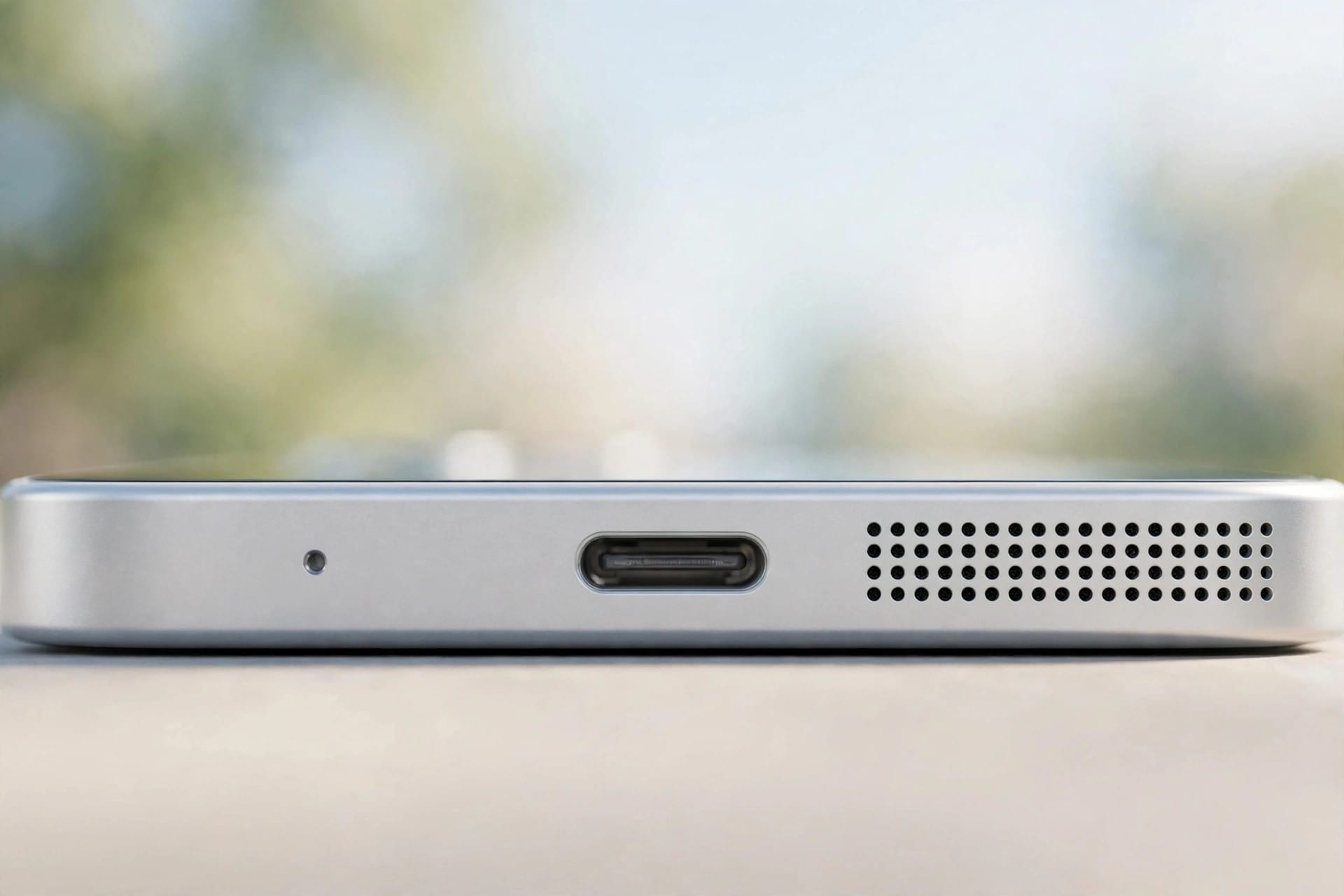
Your phone has more than one microphone. The bottom mic (near the charging port) handles regular phone calls. Here’s how to test it:
- Disconnect any Bluetooth earbuds or headsets so the phone uses its built-in mics
- Open Voice Memos (iPhone) or Recorder (Android)
- Hold the phone normally and speak near the bottom edge for 10 seconds
- Play the recording back
If your voice is clear, the bottom mic works. If it’s silent, very quiet, or muffled, the bottom mic is blocked or dead — jump to the fixes below.
Test 2: The Selfie Video Test (Front Mic)
The front-facing mic (near the selfie camera) handles speakerphone and video calls:
- Open your camera app and switch to video mode with the front camera
- Record yourself talking for 10 seconds
- Play it back and listen
If the selfie video sounds fine but regular calls don’t, you’ve narrowed it down: the bottom mic is the culprit while the front mic is healthy. If both tests sound bad, the problem may be software affecting all mics.
Fix 1: Remove the Case and Screen Protector
This is Apple’s own first troubleshooting step, and it fixes more cases than you’d think. Cases that cover the bottom edge or the top receiver area can mute your mic even when the phone looks perfectly fine. Peel off the case and any screen protector film, then make a test call. If people can suddenly hear you, you’ve found it — get a case with proper mic cutouts.
Fix 2: Clean the Microphone Hole Gently
Mic holes are tiny pinholes that clog with pocket lint and dust. Here’s the safe way to clean them:
- Shine a flashlight at the bottom edge to spot the mic hole
- Use a soft, dry brush or a rubber air blower (the kind for camera lenses) with short, gentle bursts
- Never poke pins, needles, SIM tools, or toothpicks into the hole — you will puncture the mic membrane and turn a cleaning job into a repair bill
- Don’t blow into it with your mouth — breath moisture makes things worse
Fix 3: Turn Bluetooth Completely Off
Your phone may be routing your voice to forgotten Bluetooth earbuds, a smartwatch, or your car stereo — leaving the built-in mic “silent” on calls. Open Settings and turn Bluetooth fully OFF (not just disconnect), then make a test call. This single step resolves a surprising number of “dead mic” reports.
Fix 4: Check the App’s Microphone Permission
If the problem only happens in one app — say, people hear you on regular calls but not on WhatsApp — that app probably lost its microphone permission:
- iPhone: Settings > Privacy & Security > Microphone — make sure the app’s toggle is ON
- Android: Settings > Apps > [app name] > Permissions > Microphone — set to Allow
If the permission is already on and the app still can’t hear you, try deleting and reinstalling the app.
Fix 5: Restart and Update Your Phone
A restart clears stuck audio processes that can mute the mic. If that doesn’t help, check for OS updates — manufacturers regularly fix audio bugs in updates. On iPhone: Settings > General > Software Update. On Android: Settings > System > Software update.
Fix 6: Try Safe Mode (Android)
Safe Mode disables all third-party apps, which tells you instantly whether a downloaded app is hijacking your mic:
- Press and hold the Power button
- Long-press “Power off” until the Safe Mode prompt appears, then tap OK
- Make a test call in Safe Mode
If the mic works in Safe Mode, one of your apps is the cause — uninstall recently installed apps one by one until the problem disappears. (iPhone doesn’t have Safe Mode; instead, check for recently installed call-recording or VoIP apps.)
When It’s a Hardware Problem
If your mic is dead in the Voice Memos test AND the selfie video test, and none of the fixes above helped, you’re likely looking at hardware: a failed mic module, a loose internal connection, or corrosion from past water exposure. Visit the manufacturer’s service center or a trusted repair shop — mic replacement is usually a quick, inexpensive repair. Back up your data first, just in case.
Frequently Asked Questions
Why can people hear me on speakerphone but not on regular calls?
Different mics handle different modes. Speakerphone and video calls use the front mic; regular calls use the bottom mic. If the bottom mic is blocked or dead, speakerphone works fine while regular calls don’t.
Can a software update break my microphone?
Yes. Updates sometimes reset app permissions or introduce audio driver bugs. Check the app’s microphone permission first, then look for a follow-up patch update.
Will cleaning the mic hole with a pin help?
No — never poke anything sharp into the mic hole. The membrane inside is extremely delicate, and one poke can destroy it permanently. Use a soft brush or gentle air blower instead.
My mic works in Voice Memos but not on calls. Why?
That’s almost always Bluetooth routing (your voice going to forgotten earbuds) or the calling app’s microphone permission. Turn Bluetooth fully off and check the app’s permission — one of those two is the culprit in nearly every case.
Related guides: