
Speakerphone Silent on Calls? The Settings and Fixes That Work
You tap the speakerphone button and get silence — even though music blasts through the same speaker without a problem. Speakerphone trouble almost always comes down to in-call volume, audio routing, or a software hiccup, and each takes minutes to rule out.
Match the Symptom to the Cause
Speakerphone failures look alike, but the details give the cause away:
| What happens | Most likely cause |
|---|---|
| Music loud, speaker calls silent | In-call volume down, or audio routed elsewhere |
| Button taps, nothing changes | Bluetooth grabbed the call, or a dialer app |
| Speakerphone died right after an update | Software bug or a changed setting |
| No sound from the bottom speaker | Blocked grille or dead speaker module |
The checks below run quickest-first, so you won’t waste time on a settings reset when a volume slider was the whole story.
Is the Volume Even on the Right Channel?
Your phone keeps separate volume levels for media, calls, ringtones, and alarms — that’s where most people get tripped up. Turn the volume down during a video and you’ve lowered media volume, not call volume.
The only reliable way to raise it is during an actual call in speakerphone mode. Ring a friend or your own voicemail, tap the speakerphone button, then press volume-up until the indicator hits the top. Watch the label — it should read “Call volume” or “In-call volume,” not “Media.” If the buttons don’t respond, check Settings > Sound & vibration on Android, or Settings > Sounds & Haptics on iPhone, for a call-volume slider, and check whether your case is pressing the volume keys.
The Speaker Button Might Not Mean What You Think
On the in-call screen, the speakerphone button has to be lit up as active — on some phones a single tap toggles it, so an accidental second tap switches it straight back off.
Then there’s routing. During the call, tap the audio icon — on iPhone it says “audio,” on Android it may show a speaker or Bluetooth symbol. If a Bluetooth device is showing, the call is playing there, not through the loudspeaker. Pick “Speaker” by hand, and switch Bluetooth off from quick settings to test.
Routing and Focus Settings Worth a Look
On iPhone, head to Settings > Accessibility > Touch > Call Audio Routing. If it’s on “Bluetooth Headset” instead of “Automatic,” every call defaults away from the phone’s speakers — put it back to Automatic and test again.
On Android, look under Settings > Accessibility for anything labelled “Hearing” or “Audio” that forces call audio to a specific device. Do Not Disturb won’t mute a connected call, but answering one while DND or a Focus mode is active can leave the audio in a strange state. If speakerphone only fails after a silenced call, switch DND off and try again.
Give the Bottom Speaker a Look — and a Listen
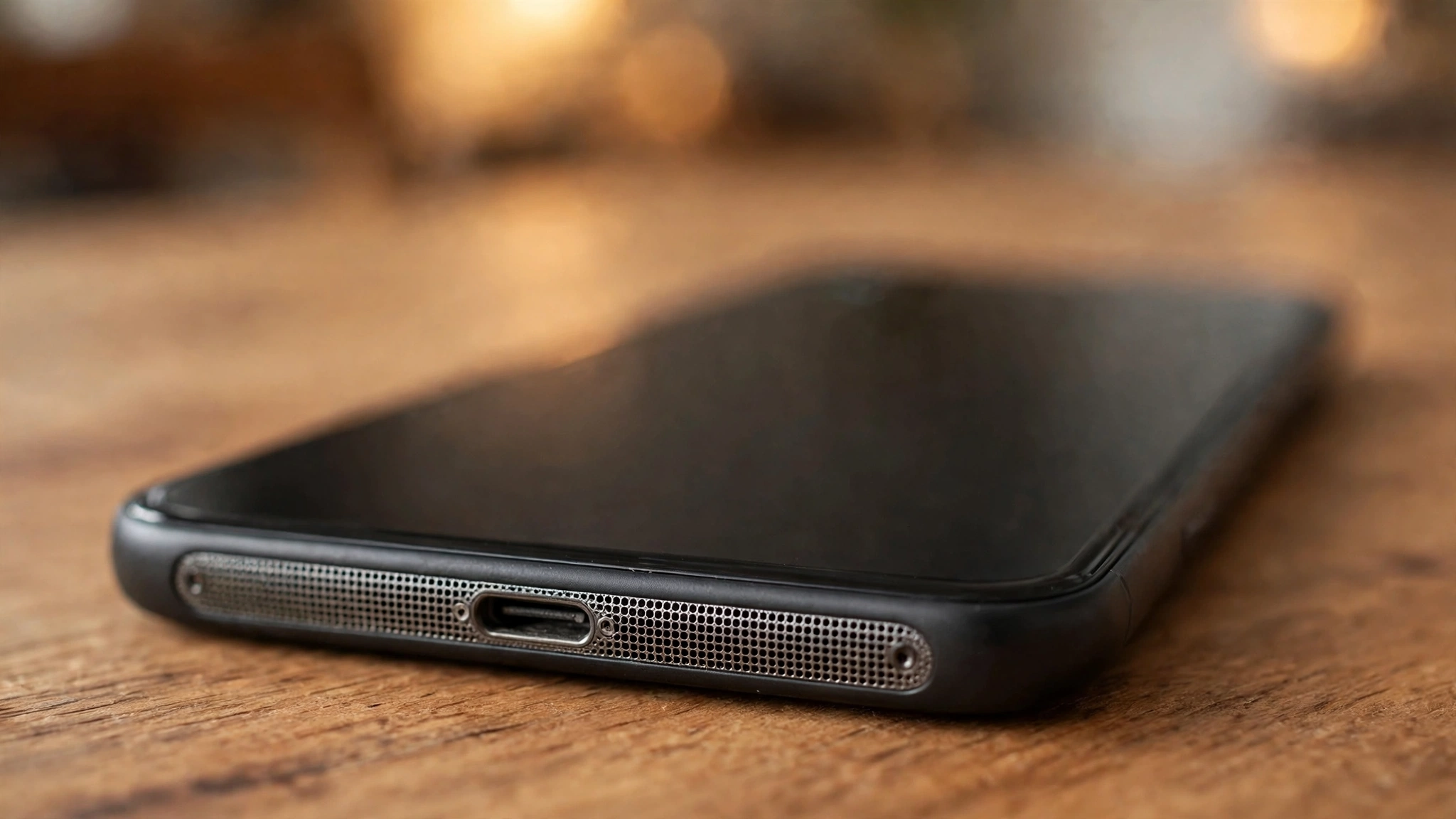
Speakerphone mode leans on the main bottom speaker, so a grille packed with pocket lint can muffle the sound until it seems dead on calls. Power the phone off and brush the bottom grille gently with a clean, dry, soft-bristle toothbrush, sweeping across the holes. Then press painter’s tape or sticky tack over the grille and peel it off to lift out packed debris. Never push pins or needles into the holes — you can puncture the speaker mesh.
Then test outside of calls: play a song or a video at full volume. Loud and clear means the hardware is fine and the problem is call-specific. If the phone got wet recently, play a low-frequency water-eject tone from the free speaker tool while holding the phone speaker-side down — it helps push moisture out. It only helps with water, mind you, not with a damaged driver.
Apps, Updates, and the Dialer You Actually Use
Call audio runs through its own software path, which can crash while everything else keeps working — that’s why media sounds fine but speakerphone doesn’t. A restart resets the whole call-audio stack, so don’t skip it just because it sounds too simple.
Next, check for OS updates: Settings > System > Software update on Android, or Settings > General > Software Update on iPhone. A third-party dialer or call-screening app like Truecaller or Mr. Number can meddle with in-call audio routing. Make a test call with the stock Phone app as your default dialer — if speakerphone works there, the third-party app is your problem. On Android, Safe Mode rules out every third-party app in one go.
As a last software step, reset all settings: iPhone, Settings > General > Transfer or Reset > Reset All Settings; Android, Settings > System > Reset options > Reset all settings. It keeps your data.
How to Know the Speaker Itself Is Dead
If the bottom speaker makes no sound at all after cleaning, restarts, and a settings reset, the module itself has likely failed. A few signs seal it: it died right after a drop, with dents or cracks near the bottom edge or charging port; sound cuts in and out when you press on the bottom of the phone, hinting at a loose connection; or it buzzes and rattles, which usually means a torn or blown driver.
Confirm it with a media test at full volume: if a song is silent through the bottom speaker but the earpiece still works, the bottom speaker is the dead part. Get a quote — replacement is a common, quick repair, and under warranty with no physical or water damage, the manufacturer should cover it.
Frequently Asked Questions
Why does speakerphone work for music but not calls?
Media and calls use different audio paths and volume levels. If music is loud but speakerphone calls are silent, it’s almost always call-specific: in-call volume set low, call audio sent to Bluetooth, or a crashed call-audio process. Restart and raise the volume during a real call.
Why does the speakerphone button do nothing when I tap it?
Usually the tap isn’t doing what you expect — or a third-party dialer app is overriding the call screen. Try the stock Phone app, and check whether Bluetooth routed the audio elsewhere.
Can an app break speakerphone?
Yes. Third-party dialer, call-recording, call-screening, and some VPN apps can hijack in-call audio routing. If speakerphone broke right after you installed an app, uninstall it or boot into Safe Mode on Android.
My speakerphone works but the caller can’t hear me — is that the same problem?
No — that’s the microphone side, not the speaker side. Your loudspeaker is fine; the mic used in speakerphone mode isn’t picking up your voice. That’s a separate issue, from cleaning the mic holes to checking microphone permissions.