
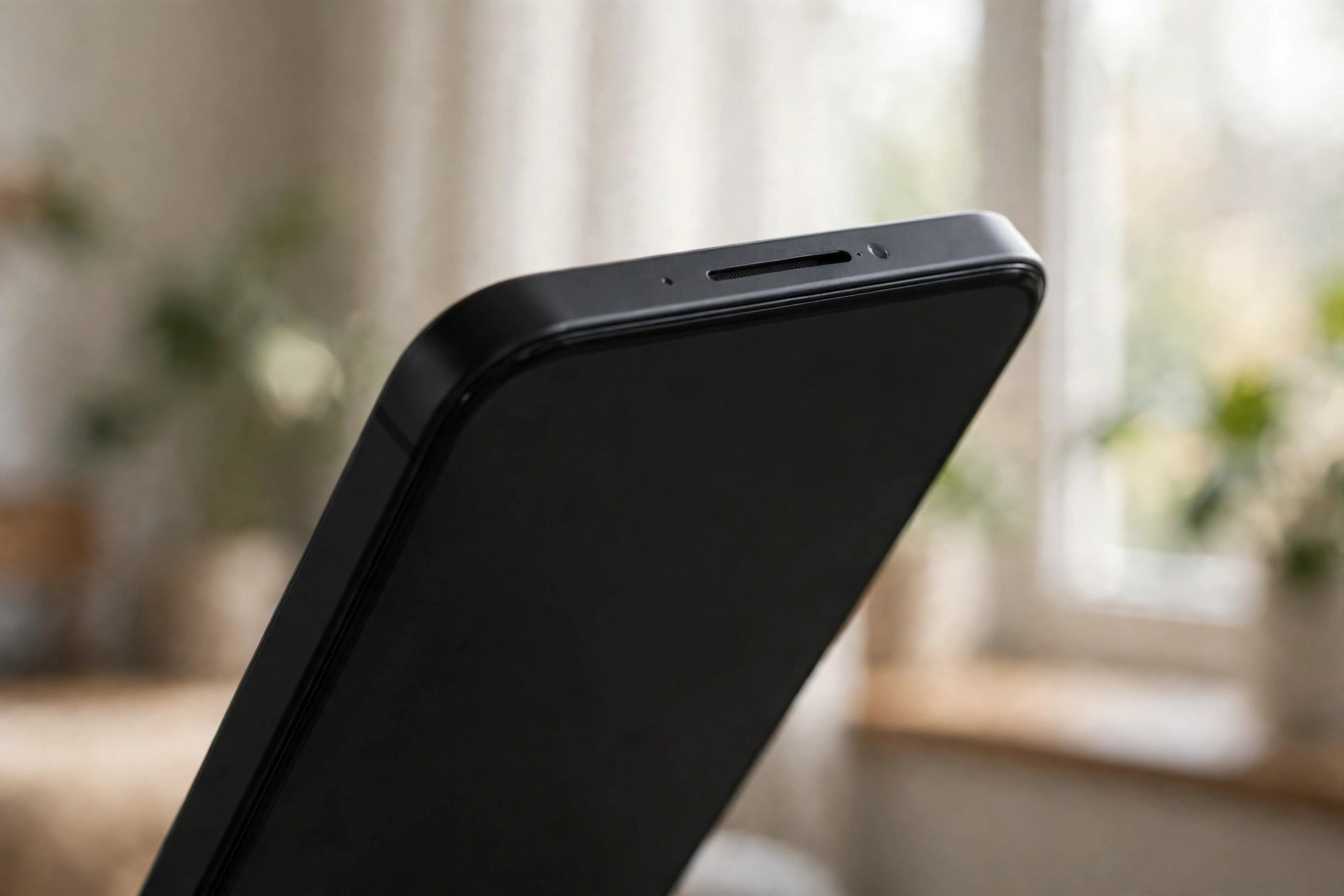
Why Is My Phone Earpiece Not Working During Calls? 7 Checks
When your earpiece goes completely silent during a call — no voice at all, even though music and ringtones play fine — the cause is rarely a dead speaker. Usually your call audio is being routed somewhere else, a sensor is misbehaving, or a software glitch muted the call channel. These 7 checks find the culprit fast.
Check 1: Make Sure the Call Isn’t Going to Bluetooth or Your Car
The most common cause of a silent earpiece is audio routing: your phone thinks you’re wearing earbuds or sitting in your car. When Bluetooth takes over, the earpiece stays dead while everything else sounds normal.
Pull down quick settings, turn Bluetooth off entirely, and make a test call. If the earpiece suddenly works, a paired device — earbuds still in their case, a smartwatch, your car’s infotainment system — was stealing the audio. Cars often auto-connect the moment you start the engine, so the earpiece may have “broken” only since your last drive.
On iPhone, also tap the “audio” icon on the in-call screen and confirm “iPhone” is selected, not a Bluetooth device.
Check 2: Restart Your Phone and Clear the Glitch
Call audio runs through a dedicated audio path that can crash while the media path keeps working — which is exactly why YouTube sounds fine but calls are silent. A restart resets the call audio stack completely, and it fixes more cases than people expect.
Also toggle Airplane Mode on for about 30 seconds, then off. This forces your phone to re-register with the network, clearing glitches tied to VoLTE and Wi-Fi calling, which can lose the voice path while keeping the connection alive.
Check 3: Clean the Earpiece Grille
The earpiece slot at the top of your phone collects skin oil, makeup, and pocket lint. When the blockage is severe — or your case has a poorly aligned earpiece cutout — it can seem completely dead rather than just muffled.
Power off the phone and brush the slot gently with a clean, dry, soft-bristle toothbrush, sweeping across it rather than into it. For packed-in grime, press painter’s tape or sticky tack over the slot and lift it off — it pulls debris out without pushing it deeper.
Remove your case and test without it; some cases and thick screen protectors cover the opening just enough to kill the sound. Never poke anything sharp into the earpiece — the driver and mesh sit right behind the slot. If it got wet recently, run the water-eject tone from the free tool at https://myspeakerfix.com/ to help shake moisture out.
Check 4: Test the Proximity Sensor
The proximity sensor next to the earpiece turns the screen off during calls so your cheek doesn’t press buttons. When it gets confused, the screen stays black even when you pull the phone away — so you can’t switch to speakerphone — or call audio behaves strangely.
Make a test call, hold your palm over the top of the phone, then pull it away. The screen should turn off when covered and back on when uncovered. If it stays black, the sensor is stuck.
The usual cause is a dirty sensor area or a misaligned screen protector. Clean the top of the screen with a microfiber cloth and check that the protector’s cutout lines up with the sensor and earpiece. A misaligned protector is a classic cause of black-screen-plus-silent-call behavior.
Check 5: Check Hearing-Aid, TTY, and Accessibility Settings
A few accessibility settings can quietly kill earpiece audio:
- Hearing Aid Compatibility (HAC): In phone/call settings on many Android phones; under Settings > Accessibility > Hearing Devices on iPhone. If it got turned on accidentally, toggle it off and test.
- TTY mode: Under Phone/Call settings on Android and Settings > Accessibility > RTT/TTY on iPhone. Unless you use a TTY device, it should be off — it can mute or reroute call audio.
- Call Audio Routing (iPhone): Settings > Accessibility > Touch > Call Audio Routing. If set to “Bluetooth Headset” or “Speaker” instead of “Automatic,” calls will never come through the earpiece by default.
- Hearing enhancements (Android): These shouldn’t kill the earpiece, but if audio is behaving strangely, make sure nothing under Accessibility > Hearing enhancements is forcing unusual routing.
Change one setting at a time and test between changes.
Check 6: Test With a Different Call Type
Make a regular cellular call, then a WhatsApp or FaceTime audio call. This tells you whether the problem is your carrier or your phone.
- Earpiece silent on cellular but works on WhatsApp/FaceTime: the issue is in the cellular voice path — VoLTE, Wi-Fi calling, or your carrier. Try turning off Wi-Fi calling and test again.
- Silent on every call type: the problem is in the phone itself — hardware, software, or one of the settings above.
Also ask the other person whether they can hear you. If they can, your microphone is fine and only the earpiece output path is affected — useful information at a repair shop.
Check 7: Signs the Earpiece Hardware Has Failed
If every check passes and the earpiece is still dead across all call types, the module or its connection may have failed:
- It died right after a drop, with a crack near the top of the phone or a dent along the top edge.
- It works intermittently — pressing on the top of the phone makes it cut in and out (loose flex cable).
- You hear faint static or clicking but no voice (damaged driver).
Before booking a repair, try a settings reset: iPhone Settings > General > Transfer or Reset > Reset All Settings (keeps your data), or Android Settings > System > Reset options > Reset all settings. If it’s still silent, get a quote — earpiece replacement is a common, quick repair. Under warranty with no physical or water damage, the manufacturer should cover it.
Frequently Asked Questions
Why can I hear nothing during calls but music plays fine?
Calls and media use separate audio paths. A crashed call-audio process, Bluetooth hijacking the call channel, or a routing setting (like iPhone’s Call Audio Routing) can silence calls while media works. Restart the phone and check Bluetooth first — those two fixes solve most cases.
Why does my screen stay black during calls?
The proximity sensor next to the earpiece turns the screen off during calls; if it’s stuck, the screen stays black and you can’t switch to speakerphone. Clean the top of the screen and check that your screen protector isn’t covering the sensor.
Can Bluetooth really break my earpiece?
Yes — it’s the most common cause of a “dead” earpiece. If your phone auto-connects to earbuds, a smartwatch, or your car, call audio goes there instead. Turn Bluetooth off and test; if the earpiece works, remove that pairing or disable auto-connect.
Is a dead earpiece covered by warranty?
If it failed on its own with no drops or water damage, yes — it’s a hardware defect. After a drop or water exposure, standard warranty usually doesn’t cover it; you’ll need a paid repair or an accidental-damage plan.