
How to Fix a Silent Samsung Galaxy A34 Speaker
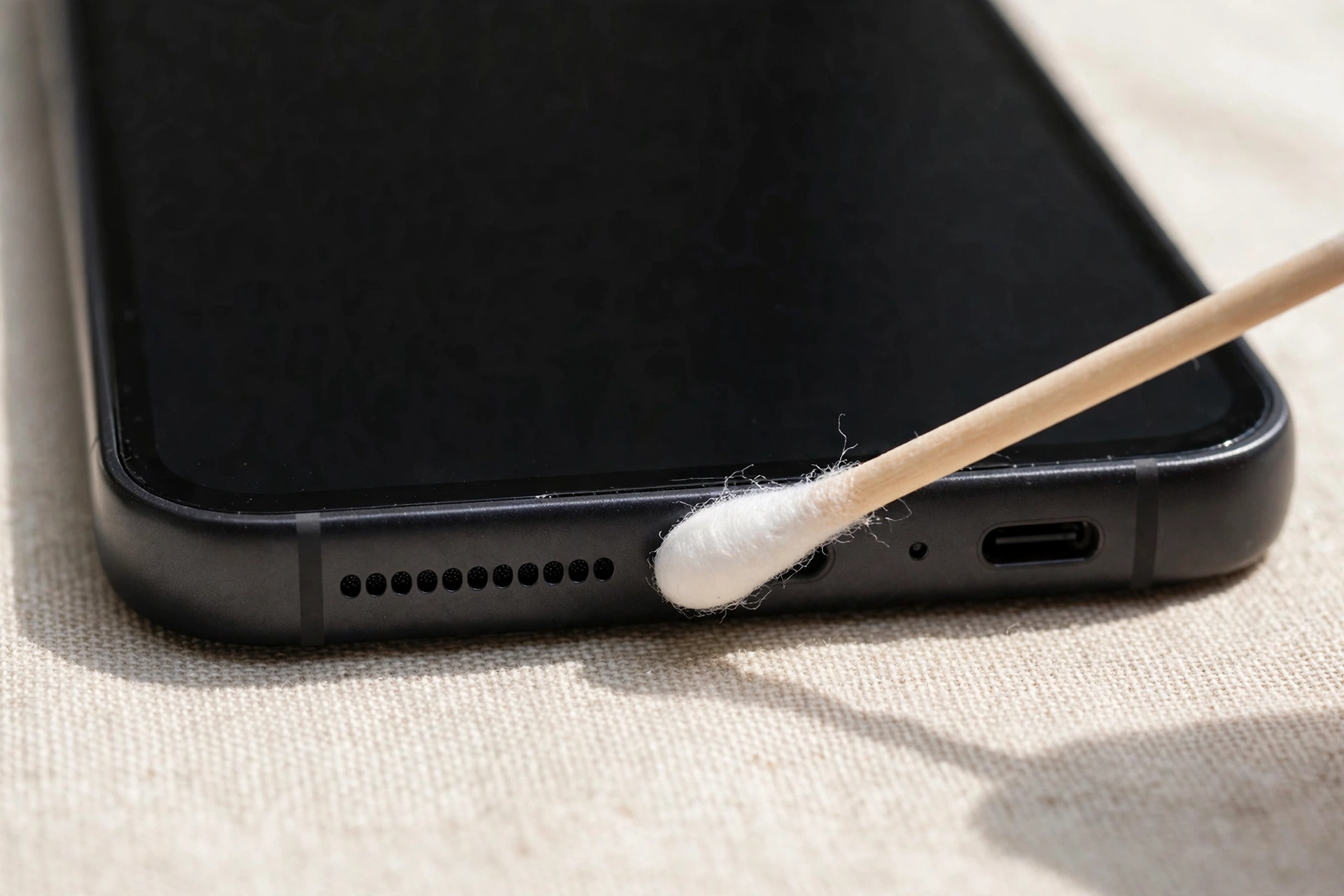
Your Galaxy A34’s speaker has most likely gone quiet because of a muted media volume, sound routing to a Bluetooth device, lint in the speaker grille, or a glitch in One UI. Most causes take minutes to check at home, before you ever think about a repair shop.
Start With the Two-Minute Checks
Half of all “dead speaker” scares on the A34 turn out to be something simple — run through these first.
- Turn the media volume up while something is playing. Open a video, press volume-up, then tap the three dots on the volume popup. The A34 has separate sliders for media, ringtone, notifications, and system sounds — your ringtone can be loud while media sits at zero.
- Switch off Bluetooth. Swipe down and switch Bluetooth off. Your phone may still be sending sound to earbuds in your bag or a speaker in another room, and the A34 doesn’t always tell you.
- Check Do Not Disturb in quick settings: swipe down twice and look for the Sound icon. If it shows a crossed-out speaker, tap it to switch back to Sound mode.
- Try a different app. Play a YouTube video, then a voice note, then a speakerphone call. If one app has sound and another doesn’t, the speaker is fine — the silent app is the problem.
If everything stays silent, the fault is deeper — the next sections will pin it down.
The A34’s Speaker Grille Loves Pocket Lint
The Galaxy A34’s bottom speaker fires through a narrow slot where pocket lint and crumbs collect. Over weeks in a pocket or bag, a thin layer of fluff builds up over the grille and muffles the sound — sometimes so much that the speaker seems dead.
Hold the phone speaker-down and brush the slot gently with a soft, dry toothbrush, using light strokes so debris falls out instead of getting pushed further in. Never poke a pin, needle, or SIM ejector tool into the holes — the speaker membrane sits just behind the grille, and one careless poke can tear it, turning a cleaning job into a real repair.
Check your case too — some chunky cases partly cover the A34’s speaker slot. Take it off and play a video: if the sound comes back, the case was the culprit.
Water in the Speaker? Dry It the Right Way
The A34 carries an IP67 rating, so it can survive a splash or a quick dip — but water can still sit inside the speaker grille afterwards and leave the sound muffled or silent. Don’t reach for a hair dryer, and don’t stick the phone in rice: heat can damage the battery and seals, and rice dust can clog the grille further.
Instead, hold the phone speaker-down, shake it gently, and leave it somewhere dry and ventilated for an hour or so. Once the outside is dry, push the trapped water out with sound itself. The free speaker-cleaner tool at https://myspeakerfix.com/ plays a tone designed to vibrate water and dust out of the grille — run it a few times and listen after each round. If the sound gets clearer every time, water was the problem. Don’t charge the phone until the port is fully dry, and if you see a moisture warning, wait it out rather than forcing a cable in.
One UI Settings That Quietly Mute Your Phone
One UI packs in several settings that can silence your speaker without any obvious warning.
In Settings, then Sounds and vibration, check Media is turned up — not just Ringtone. While you’re there, tap Separate app sound: if it’s on, one app’s audio may be routing to a Bluetooth device while everything else plays through the speaker.
Next, look at Settings, then Accessibility, then Hearing. Make sure Mono audio is off unless you need it, and the left-right balance slider sits in the middle — pushed fully to one side, it can make the bottom speaker seem dead.
Finally, check the volume limiter in Settings, then Sounds and vibration, then Volume — tap the three dots and open Media volume limit. If a limit is set very low, media will sound faint no matter how high you push the buttons. Turn it off or raise it, then test again.
Restart, Update, and the Safe-Mode Test
A restart clears temporary glitches that can leave an A34 speaker silent after an app crash or a long stretch without rebooting. Press and hold the power button, tap Restart, and test once it’s back on — a small step that fixes more speaker complaints than people expect.
If the restart doesn’t help, check for updates: Settings, then Software update, then Download and install. Samsung regularly ships audio and Bluetooth fixes for the A34, and a pending update can be the difference between a silent speaker and a working one. Install what’s waiting, restart once more, and test again.
Still silent? Try safe mode: hold the power button, then hold Power off until “Safe mode” appears and tap it. Only Samsung’s own apps run there — if the speaker works, a third-party app is interfering. Restart normally, then uninstall recently added apps one at a time, starting with the most recent, until the sound returns.
When It’s Actually the Hardware
If you’ve cleaned the grille, checked every setting, restarted, updated, and tested in safe mode — and the speaker is still silent everywhere, including speakerphone calls — the speaker itself may have failed, often after a hard drop or water damage beyond the IP67 limits.
Before booking a repair, try one last test: plug in wired earphones or a Bluetooth headset. If sound works through them, only the speaker is at fault, which makes the repair straightforward and usually inexpensive at a Samsung service centre or a reputable local shop. Mention what you’ve already tried — it saves the technician time. And check your warranty first: failure from a manufacturing fault should be covered, though water damage usually isn’t.
Frequently Asked Questions
Why is my Galaxy A34 speaker suddenly not working?
Most often it’s a muted media volume, Bluetooth routing sound elsewhere, lint in the grille, or a One UI glitch — the quick checks above fix most cases in minutes.
Can water damage the A34 speaker even though it’s water resistant?
Yes. IP67 protects against brief submersion, but water can still sit in the grille and muffle sound. Let the phone dry fully, then run a water-ejection tone a few times.
How do I know if an app is causing the problem?
Test in safe mode: if the speaker works there, a third-party app is interfering. Restart normally and uninstall recently added apps one by one until the sound returns.
Should I take my A34 to a repair shop?
Only after you’ve cleaned the grille, checked the settings, restarted, updated, and tested in safe mode. If it’s still silent everywhere, the hardware may have failed — check your warranty before paying.
Related Guides
- Fix My Speaker — Free Speaker Cleaner Tool
- How to Fix a Silent Samsung Galaxy A54 Speaker
- How to Fix a Silent Samsung Galaxy A14 Speaker
- How to Fix a Silent Samsung Galaxy A15 Speaker
- How to Fix Your Phone Speaker After Water Damage
- How to Make Your Phone Speaker Louder
- Speaker Not Working but Headphones Work? Here’s the Fix