
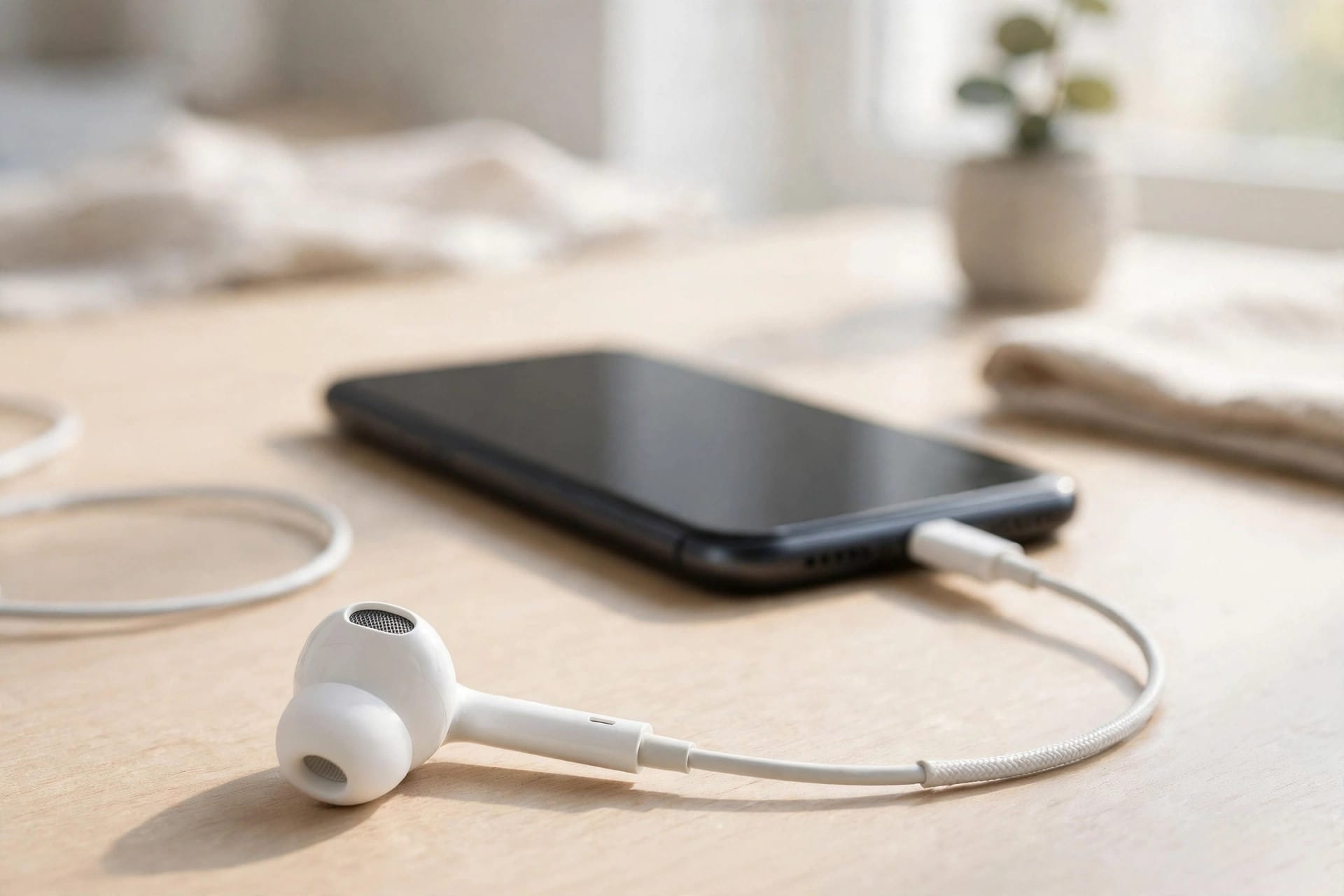
Phone Speaker Not Working but Headphones Work? 8 Fixes
When your phone plays sound perfectly through headphones or earbuds but the loudspeaker stays silent, the speaker itself often isn’t broken. The usual causes are a phone stuck in headphone mode, audio routed to the wrong output, debris in the port, or a software glitch — and most of them take just a few minutes to fix at home.
Why Headphones Working Is Actually a Good Clue
Headphones bypass the loudspeaker entirely. Your music app, the audio chip, and the volume controls can all work perfectly while sound still never reaches the speaker. So this symptom already rules out a lot:
- The audio files and apps are fine
- The main audio processing works
- The problem sits between the audio output setting and the loudspeaker itself
That narrows it down to four suspects: the phone thinks headphones are still plugged in, audio is routed elsewhere, the speaker is blocked or wet, or the loudspeaker has genuinely failed.
Fix 1: Check Whether Your Phone Is Stuck in Headphone Mode
A phone stuck in headphone mode believes headphones are connected even after you unplug them, so it keeps sending all sound to an empty port. The classic trigger is lint or debris packed into the headphone jack or charging port, fooling the connector sensor.
Signs you’re stuck in headphone mode:
- A headphone icon stays in the status bar with nothing plugged in
- The volume slider shows “Headphones” when you press the volume buttons
- Calls only work on speakerphone — or not at all
Quick fixes to try:
- Plug headphones in and out several times — this can free a stuck detection switch.
- Restart the phone with nothing connected.
- Gently clean the jack or port (next fix) and test again.
We have a full guide on a phone stuck in headphone mode if it won’t go away.
Fix 2: Clean the Headphone Jack or Charging Port
Pocket lint compacts inside ports over time and can hold the headphone detection pin in the “connected” position. Clean it carefully:
- Power the phone off.
- Shine a flashlight into the jack or USB-C/Lightning port and look for packed lint.
- Blow short bursts of air across the opening to loosen debris.
- Lift out lint gently with a wooden toothpick — scrape the sides lightly, never stab straight in.
- Power on and test the speaker with a ringtone or video.
Avoid metal tools, which can short pins or damage the connector, and never use liquids inside the port.
Fix 3: Check the Audio Output Routing
Modern phones juggle several outputs at once: the speaker, Bluetooth earbuds, a car stereo, even a nearby tablet. Sound may be playing somewhere else entirely.
Do this check:
- Turn Bluetooth fully off and play a video — if the speaker works now, audio was going to a Bluetooth device
- On iPhone, open Control Center, long-press the audio panel, tap the AirPlay icon, and confirm the output says “iPhone”
- On Android, use the media output picker in the volume panel and select “This phone”
- Disconnect from cars, smart TVs, and speakers you paired with earlier
Wireless earbuds are a frequent culprit — they can auto-connect from inside their case in another room.
Fix 4: Test the Loudspeaker Directly
Now test the speaker itself, isolated from apps and settings:
- Play your ringtone from the sound settings — this uses the loudspeaker directly.
- Make a call and switch to speakerphone.
- Run your phone’s built-in diagnostics (Samsung Members, Apple Diagnostics, or your brand’s support app) and choose the speaker test.
If nothing plays at all — no ringtone, no speakerphone, no alarm — the issue is the speaker path itself. If it plays but sounds weak or distorted instead, use our guide on how to test your phone speaker to narrow it down.
Fix 5: Clear Water and Dust From the Speaker
A speaker clogged with lint or still damp from a splash can sound almost silent while headphones stay crystal clear. Check the bottom speaker grille — if the mesh looks grey or fuzzy, that’s likely your problem.
Safe ways to clear it:
- Brush the grille gently with a soft, dry toothbrush
- Press and lift painter’s tape over the grille to pull out surface dust
- If the phone got wet, use the free tool at https://myspeakerfix.com/ — it plays a sound burst designed to push water out of the speaker — then let the phone air-dry
Never poke the grille with pins or needles; the mesh tears easily and the speaker sits right behind it.
Fix 6: Restart, Update, and Check Sound Settings
If the hardware looks fine, move to software:
- Restart the phone — audio services get stuck more often than people think.
- Check that no “mute all sounds” or mono audio accessibility setting is on.
- On Android, check for a zeroed media volume in Settings > Sound.
- Install pending system and app updates.
- Test in Safe Mode (Android) to rule out a third-party app forcing audio elsewhere.
- Last resort: reset all settings (iPhone) or reset app preferences (Android) — your data stays, but audio routing returns to defaults.
Fix 7: Decide Whether the Loudspeaker Is Blown
Sometimes it really is the speaker. A blown loudspeaker fails on its own because headphones never use it — exactly why this symptom combination happens. Telltale signs:
- Total silence from the speaker on every test, including ringtones and alarms
- Buzzing, rattling, or crackling before it died
- It failed after long max-volume playback or a drop
Our guide on whether your phone speaker is blown or just dirty walks through the comparison tests. If the speaker is dead, repair is the only fix — loudspeaker modules are usually inexpensive parts, though labor varies by model. Use your warranty if you have one.
Frequently Asked Questions
Why do my headphones work but my phone speaker doesn’t?
Because headphones bypass the loudspeaker. If sound reaches your headphones, your apps and audio chip are fine — the failure is in the speaker path. Common causes: the phone stuck in headphone mode, audio routed to a Bluetooth device, a clogged or wet speaker, or a failed loudspeaker.
How do I get my phone out of headphone mode?
Plug headphones in and out a few times, then restart the phone. If the headphone icon remains, clean the jack or charging port with air and a wooden toothpick to remove the lint tricking the sensor. A settings reset clears it if it was a software glitch.
Can a dirty charging port stop the speaker from working?
Yes. Phones that route wired audio through the charging port detect headphones there. Compacted lint can hold the detection in the “connected” state, so the phone sends all sound to the port instead of the speaker. A careful cleaning usually restores speaker sound right away.
How much does it cost to replace a phone loudspeaker?
The loudspeaker module itself is usually a low-cost part, but the total depends on your model and local labor rates, so get a quote first. Under warranty, a dead speaker is normally repaired free.