
How to Fix iPhone 17e Speaker Not Working — Quick Guide
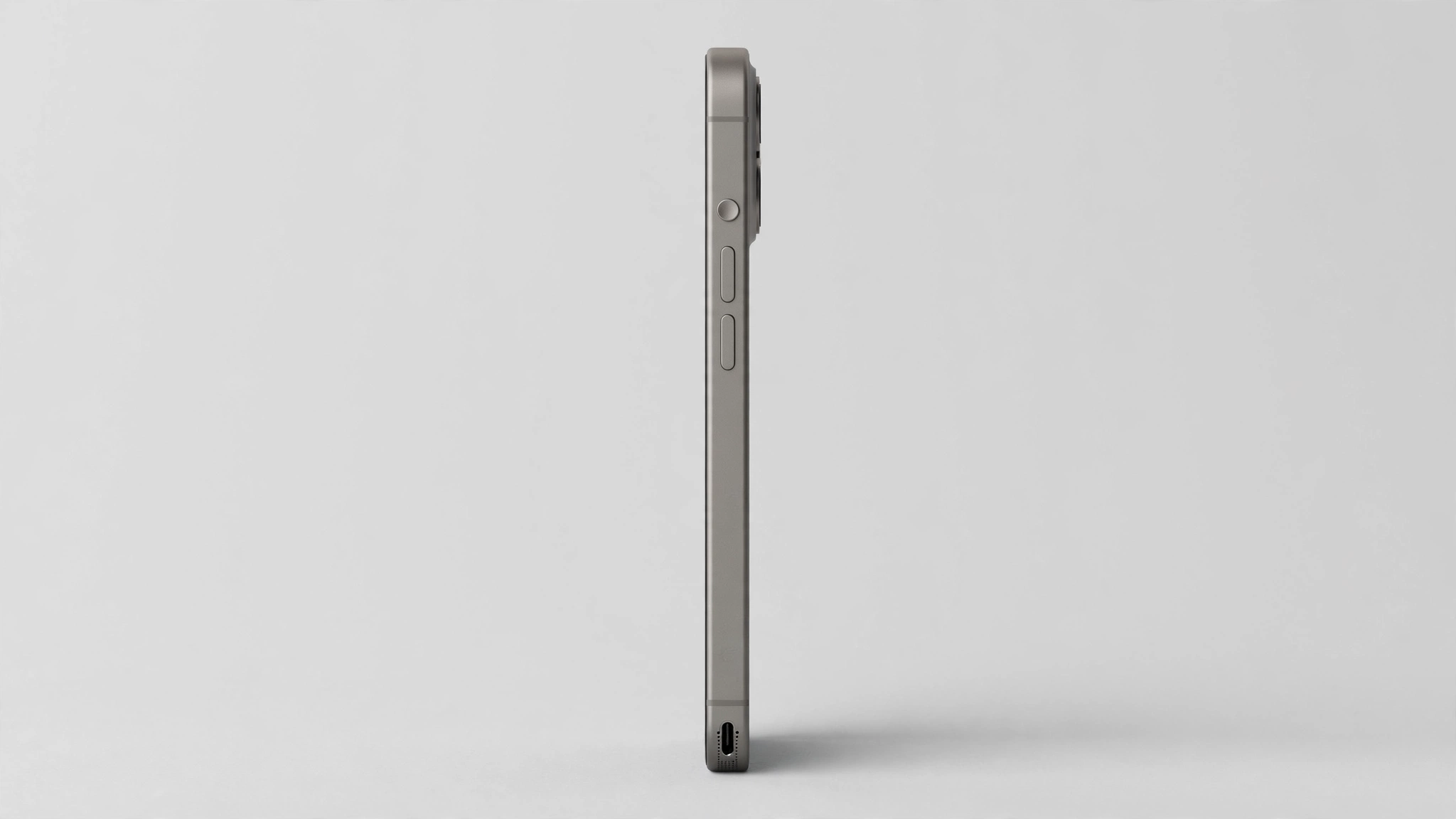
If your iPhone 17e speaker is not working, check the Action Button before anything else. The 17e has no mute switch — Silent mode is toggled by a long press of the Action Button — and new owners miss it constantly, because the phone looks and sounds exactly like one with a broken speaker. Most silent 17e phones are fixed by step one, and the split test in step two tells you whether the speaker itself is the problem.
First, Check the Action Button — the Number-One Trap
The iPhone 17e shipped with an Action Button instead of the old ring/silent switch, and a long press flips Silent mode on or off.
- Press and hold the Action Button — a banner tells you whether Silent mode just turned on or off.
- Look at the status bar for the orange bell icon, which means the phone is silenced.
- Go to Settings > Action Button and confirm what the button does — if it is set to Silent mode, every long press is a mute toggle.
- Press the volume-up button — if the indicator shows a bell with a line through it, the phone is silenced, not broken.
If sound comes back after this step, stop here — the speaker was never faulty. Apple Support’s own guidance on no sound or distorted sound from your iPhone starts with the same checks: Silent mode, volume, and anything covering the speaker.
Is It Silent or Broken? The Earpiece Split Test
The iPhone 17e has stereo speakers — an earpiece and a bottom speaker — and testing them separately tells you exactly where the fault sits.
- Make a call and hold the phone to your ear — if you hear the other person, the earpiece works.
- Switch the same call to speakerphone. If the bottom speaker stays silent while the earpiece worked, the bottom speaker is the problem.
- Play a ringtone in Settings > Sounds & Haptics — ringtones use the loudspeaker, so silence here with a working earpiece points at the loudspeaker.
- Play a video at full volume. If the picture plays but no sound comes out of either speaker, the problem is system-wide — a setting, Focus, or Bluetooth routing — not one dead speaker.
Silence everywhere has a different cause from one dead speaker, and the rest of this guide follows that split.
Focus, Do Not Disturb and Bluetooth Routing
If the split test shows silence everywhere, the phone is probably sending sound somewhere else, or blocking it outright.
- Open Control Centre and check Focus — Do Not Disturb, Sleep, and custom Focus modes can silence calls and alerts. Turn Focus off and test again.
- Check Settings > Bluetooth. If the phone is paired with headphones, a car stereo, or a smart speaker, audio may be routing there — disconnect it, or turn Bluetooth off for the test.
- Go to Settings > Sounds & Haptics and drag the ringer volume slider up — if it moves but no test sound plays, the problem is deeper than a setting.
- Remove the case and any screen protector covering the speaker grilles, then test again — a case lip over the bottom grille can muffle the loudspeaker badly enough to look like a failure.
Volume Limit, Restart and iOS Update
With Silent mode, Focus, and Bluetooth ruled out, check the remaining software settings.
- Go to Settings > Sounds & Haptics > Headphone Safety and check Reduce Loud Sounds is not set extremely low.
- In Settings > Accessibility > Audio & Visual, confirm the balance slider is centred and Mono Audio is off.
- Restart the phone: press and release volume up, press and release volume down, then hold the side button until the Apple logo appears. A restart clears temporary audio glitches.
- Go to Settings > General > Software Update and install any update waiting. The 17e shipped with iOS 26.3, so make sure the phone is on the latest release — an early software bug is plausible on a new model, and updates are the cheapest fix to rule out.
If sound returns after the restart or update, the fault was software. If both speakers stay silent after every check, back up the phone and contact Apple Support — do not open the phone yourself; it is sealed and opening it voids the warranty.
Clean the Grilles and Test Again
The 17e’s stereo sound depends on small grilles at the bottom edge and the earpiece slot, both of which collect lint and dust from pockets and bags.
- Brush the bottom grille gently with a soft, dry toothbrush.
- Use a short burst of compressed air at an angle, never straight into the holes.
- Wipe the earpiece slot with a dry, lint-free cloth.
- Do not poke anything sharp into any grille or use liquids.
Retest with a ringtone at full volume. If the sound is louder but still distorted, the grille was part of the problem; if nothing changes, the fault is inside the phone. A step-by-step walkthrough of the same checks, including the Action Button trap, is available in this iPhone 17e speaker fix guide.
Tested on
You can test both speakers of the 17e in under two minutes. Open the free tone test on myspeakerfix.com and play a tone sweep at moderate volume through the loudspeaker, listening for clean tones with no buzz, rattle, or drop-outs. Then make a test call and switch between the earpiece and speakerphone, comparing volume and clarity. If the sweep sounds clean and the call is clear on both speakers, the hardware is fine and the original silence was a setting — most likely the Action Button. If one speaker distorts while the other sounds clean, you have isolated the fault — exactly what Apple Support needs to hear.
Frequently Asked Questions
Why is my iPhone 17e speaker suddenly not working?
Most often it is Silent mode, toggled by accident with the Action Button — the 17e has no mute switch. Long-press the Action Button and check for the orange bell icon before assuming the speaker is broken.
How do I know if my iPhone 17e speaker is broken or just silenced?
Make a call and listen on the earpiece, then switch to speakerphone. If the earpiece works but the loudspeaker does not, one speaker is at fault. If both are silent, check Silent mode, Focus, and Bluetooth routing first.
Does the iPhone 17e have stereo speakers?
Yes — the iPhone 17e has stereo speakers, an earpiece speaker and a bottom loudspeaker, plus an Action Button and the A19 chip. Testing each speaker separately is the fastest way to find the fault.
Will updating iOS fix my iPhone 17e speaker?
It can, if the cause is an early software bug — the 17e shipped with iOS 26.3, so install the latest update and restart. If the speaker stays silent after the update and the settings checks, book a warranty check with Apple.
Related Guides
- How to test your phone speaker with a tone sweep
- No sound on your phone? Start here
- Earpiece volume too low? Fix it here
- Speaker not working after an update
- How to make your phone speaker louder
If your iPhone 17e speaker is silent, check the Action Button first, run the earpiece split test, and rule out Focus and Bluetooth — most cases end at step one. Test both speakers free at myspeakerfix.com to confirm whether the fault is a setting or a speaker.