
No Sound on WhatsApp Calls? Here’s Where Your Call Audio Actually Went
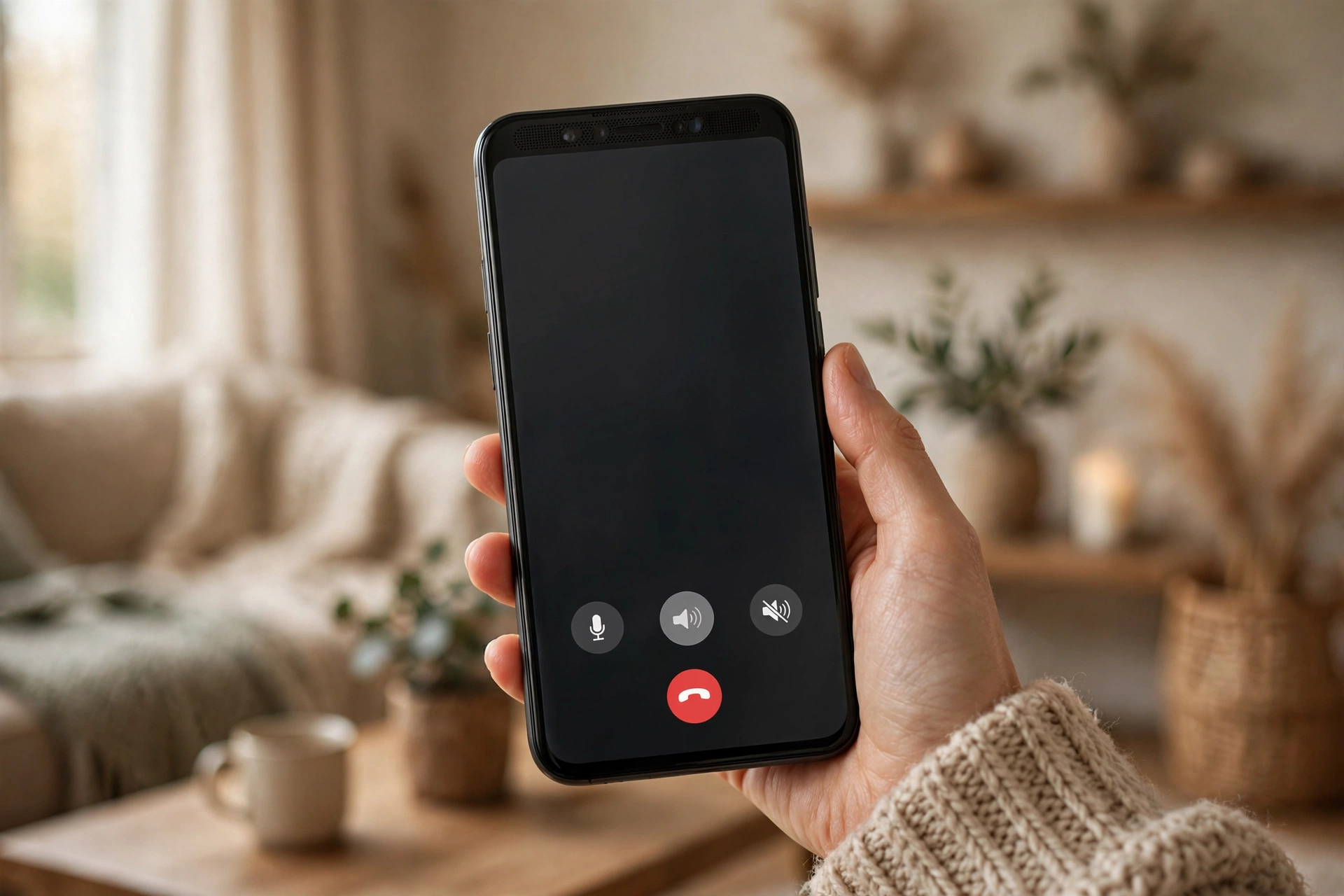
You tap answer, say hello twice, and hear nothing back. No voice, no ringing, just dead air. Most of the time your speaker is fine and WhatsApp is simply sending the sound somewhere you can’t hear it, or a permission is blocking it. The checks below sort that out in minutes.
The Two-Second Checks Everyone Skips
Start while you’re actually on a call, because that’s the only moment call volume exists. Press volume-up a few times mid-call and ask the other person to keep talking. On a lot of phones call volume sits apart from media volume, so turning it up while you’re watching a video does nothing for a call.
Then look at the top of your screen. Is Do Not Disturb on? Is your phone still paired to a car stereo, a TV, or earbuds sitting in another room? WhatsApp doesn’t care where the device is. If it’s connected, that’s where your call goes.
Where WhatsApp Sends Your Call Audio
Bluetooth is the number one culprit here, and it catches people out because the phone looks perfectly normal. The screen shows the call connected, the timer runs, and yet you hear nothing. Meanwhile your earbuds are playing the call from inside a bag, or your car stereo is doing it in the driveway.
Kill the guesswork. Turn Bluetooth off completely, not just disconnect one device, and call someone back. Unplug any wired earphones and adapters as well. If the sound suddenly returns, you found it. Your phone was never silent.
iPhone users get one extra trap. On the call screen there’s an audio button that lets you pick the output, and it quietly remembers the last device you used. Tap it during a call and check what it says. If it lists a Bluetooth device or a speaker you didn’t choose, switch it back to iPhone.
Android phones do something similar, though the option hides in different places depending on the brand. Some show a small speaker icon on the call screen, others bury it under a three-dot menu. Either way, force the audio back to the phone and test again before you change anything else.
Permissions: The Quiet Blocker
WhatsApp can’t carry a call properly without microphone access, and a missing permission can mute things in ways that don’t make sense at first. You’d expect a permission problem to stop the other person hearing you, and sometimes it does that too. But it can also break your side of the call, especially after an update resets things behind your back.
On Android, open Settings, then Apps, then WhatsApp, then Permissions. Microphone needs to be allowed. While you’re there, check Phone permission too if your phone lists it. On iPhone, open Settings, scroll to WhatsApp, and make sure the Microphone switch is on.
Here’s a trick that fixes more than it should: turn the permission off, wait a few seconds, turn it back on, then close WhatsApp fully and reopen it. That fresh grant clears the half-stuck state an update can leave behind.
When the App Itself Gets Stuck
Apps get wedged. WhatsApp can lose its grip on the audio channel after another app used it, or after your phone jumped from Wi-Fi to mobile data mid-call. The call stays connected, but the sound path just stops working.
Force-close WhatsApp and open it again. On Android, you can also clear its cache from Settings, then Apps, then WhatsApp, then Storage, then Clear cache. Don’t touch Clear data. That one wipes your chats and settings, and you don’t need it here.
Then restart the phone. I know, everyone says that, and it’s annoying advice. It works here because a restart hands the audio system back to a clean state and kicks off anything hogging the channel. Test with a different contact after the restart. If one person is silent and everyone else sounds fine, the problem is on their end.
Is It WhatsApp, or Is It Your Phone?
Now make a normal phone call, the old-fashioned kind. If that works and WhatsApp doesn’t, you’ve narrowed it down to the app, its permissions, or its routing. Record a voice note inside WhatsApp and play it back as well. A voice note that records and plays normally tells you the microphone and speaker both work, which points straight at the live-call path.
Try switching networks too. Move from Wi-Fi to mobile data, or the other way round, and call again. Some Wi-Fi networks and firewalls block the ports WhatsApp calls use, so messages sail through while call audio dies completely. If calls work on mobile data but not on your Wi-Fi, the network is the problem, not your phone.
And if you want a quick speaker check that takes seconds, the free speaker-cleaning tool on myspeakerfix.com plays a tone through your speaker so you can hear straight away whether it produces sound at all.
The Last Resort That Actually Works
If you’ve tried everything above and calls are still silent, a reinstall gives WhatsApp a completely fresh start. Back up your chats first in WhatsApp settings, under Chats and then Chat backup, and wait until it says the backup finished. Then uninstall the app, restart your phone, and install it again from the official store.
Restore your chats when it asks, grant the microphone and phone permissions when prompted, and make a test call before you touch any other setting. That way you’ll know whether the reinstall itself did the job.
If a fresh install still leaves WhatsApp calls silent while normal calls and music work fine, contact WhatsApp support from inside the app and tell them what you already tried, in order.
Frequently Asked Questions
Why is there no sound on WhatsApp calls but my phone rings normally?
Ringtones and live call audio use different paths. A Bluetooth device, a missing microphone permission, or a stuck audio session can silence a call while the ringtone still plays. Turn Bluetooth off, check permissions, and restart the app.
Why can the other person hear me but I can’t hear them?
Your incoming audio is probably going to the wrong place, like Bluetooth earbuds in another room, or your call volume is turned down. Turn Bluetooth off and press volume-up during the call.
Why do WhatsApp calls have no sound only on Wi-Fi?
Some Wi-Fi networks block the ports WhatsApp calls need, so messages work but call audio doesn’t. Switch to mobile data and test again. If calls work there, your Wi-Fi network is blocking them.
Will reinstalling WhatsApp delete my chats?
It can, so back up first in WhatsApp settings under Chats and then Chat backup. Reinstall only after you’ve checked volume, Bluetooth, permissions, and updates.