
How to Fix Redmi Note 15 Pro Speaker Not Working Fast
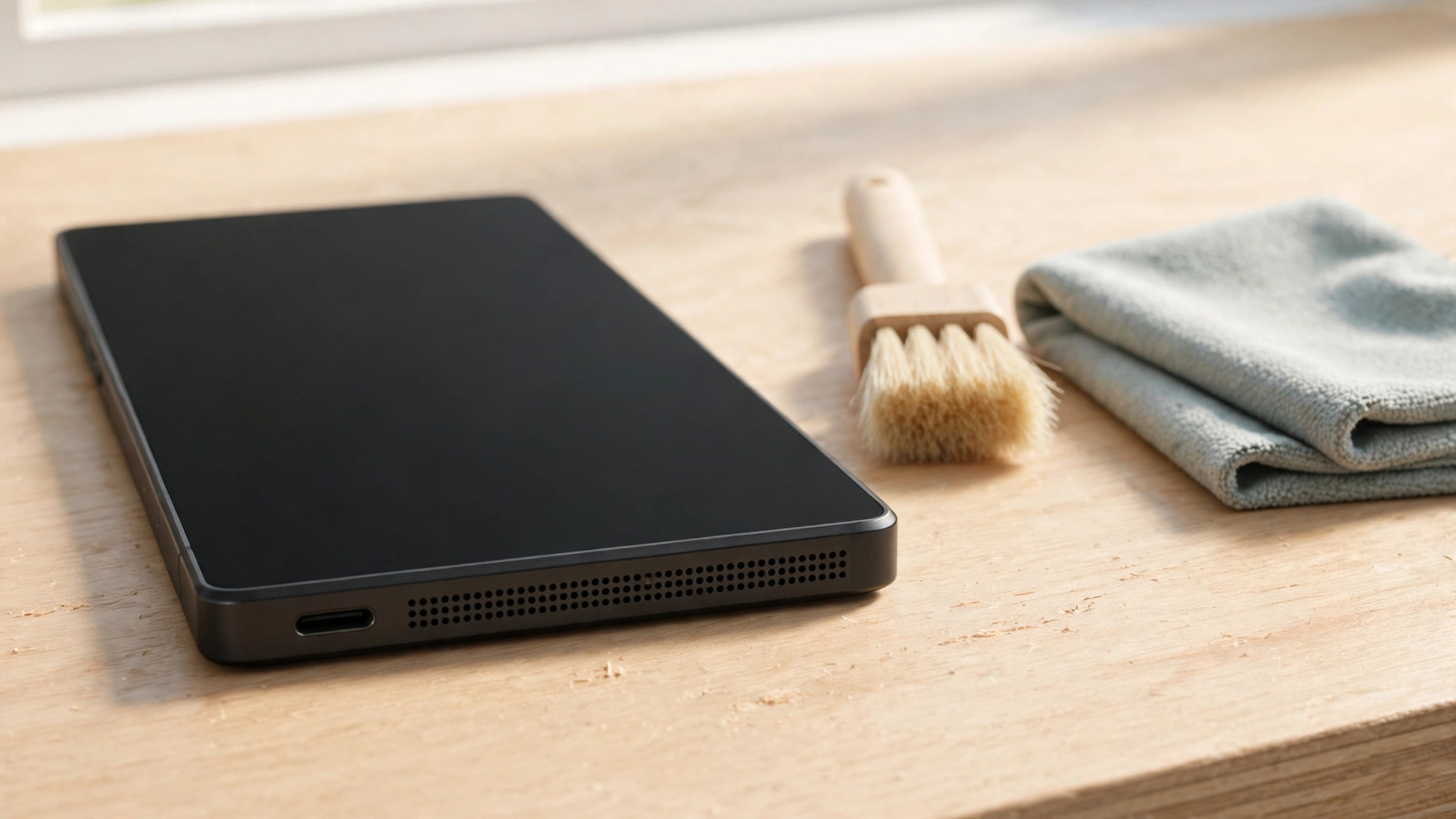
A silent Redmi Note 15 Pro speaker is usually a HyperOS setting, not a dead speaker — the five-channel volume check below is the fastest way to tell, because media can sit at zero while the ringtone sounds normal. Work through it in order and you will know in ten minutes if the fault is a setting, a bug, or hardware.
This phone has a few causes specific to it. HyperOS splits sound into five independent channels, its Mi Sound Enhancer and Dolby Atmos settings can fight each other, and the built-in speaker-clearing feature had an occasional bug fixed in the OS2.0.206 changelog. Each section below covers one cause, and the built-in hardware test near the end settles the question.
Redmi Note 15 Pro Speaker Not Working? Start With the Five Volume Channels
HyperOS keeps five separate volume controls — the most common trap. Media, ringtone, notifications, alarms, and calls each have their own slider, so a phone can ring loudly while a video plays in silence, looking exactly like a broken speaker. Press a volume button, then tap the three dots to open the full panel:
| Channel | What to check |
|---|---|
| Media | Raise it while a video is playing |
| Ringtone | Test with an incoming call |
| Notifications | Raise it and send a test message |
| Alarm | Set a test alarm |
| Calls | Can only be adjusted during an active call |
If media is at zero and everything else sounds normal, you have found the fault: raise the media slider while a video plays — the buttons adjust whichever sound is active. Also check the mute switch and Do Not Disturb — both can silence media while the phone rings.
Switch Off Mi Sound Enhancer and Dolby Atmos
HyperOS sound-enhancement features can clash with each other and with apps. Mi Sound Enhancer tunes audio for earphones; Dolby Atmos adds its own processing. When both are active, or a profile is set for the wrong output, the speaker can go quiet. Open Settings, then Sound and vibration, then Sound effects. Switch off Mi Sound Enhancer first and play a video. If sound returns, the enhancer was the cause — leave it off, since it is made for earphones. If nothing changes, switch it back on and try Dolby Atmos off instead.
Check the Speaker-Clearing Feature and Update the Phone
HyperOS has a built-in speaker-clearing feature that plays a tone to push water and dust out. It had an occasional bug fixed in the OS2.0.206 changelog, so an older build can show problems a newer build has solved. First, check your version in Settings, then About phone. If an update is available, install it — the speaker-clearing fix may be part of it — then test again. Next, find the speaker-clearing option under Additional settings or Sound and vibration. Run it once with the phone held speaker-down. If water or dust was muffling the speaker, the tone can clear it in under a minute. If the speaker sounds worse during the clearing tone — rattling or buzzing — stop and move to the hardware test below: that points to debris inside the grille.
Look for a Scheduled Silence
HyperOS Automation can silence the phone on a schedule — bedtime mode, a work-hours rule, a focus routine — and a forgotten rule can mute the speaker every evening with no visible warning. This is easy to miss: the schedule was set weeks ago and the phone gives no reminder. Open Settings and search for Automation. Look for any rule that silences the phone on a schedule — silent, vibrate only, or Do Not Disturb — and check the times: a rule silencing it from 10 in the evening to 7 in the morning makes the speaker look dead every night. Switch off any rule you do not recognise, then test the speaker.
Run the Built-In Hardware Test
If the settings above all check out, the built-in hardware test settles whether the speaker works. Xiaomi phones include a CIT hardware test that checks each speaker separately — no app, no account needed. Open the Phone dialler and type *#*#6484#*#*; the CIT menu should open automatically. Tap Speaker, then run the Receiver, Top speaker, and Bottom speaker tests. Listen carefully: a working speaker plays a clear tone; a faulty one stays silent, buzzes, or rattles. Note which tests fail for the repair shop. If the code does not open the CIT menu, your build may have it disabled; use the tone test in the Tested on section instead.
Try Safe Mode and Clean the Grille
Safe Mode rules out third-party apps: hold the power button, long-press Power off, tap OK, then play a video. If the speaker works there, an installed app — an equaliser, a volume booster, a cleaner app — is interfering; restart normally and uninstall recently added audio apps one at a time. If Safe Mode changes nothing, clean the grille with a soft, dry toothbrush, holding the phone grille-down. Pocket lint is a quiet killer of loudspeakers, and a phone slowly becoming quieter over weeks usually has a blocked grille. Never use water, compressed air, or a pin. Review testing has found this model’s speaker can distort at high volume, so test at moderate volume first — distortion only at maximum volume is a characteristic of the speaker, not proof that it is broken.
Tested on
Run this check before booking a repair. Open the free speaker test at Fix My Speaker and play a tone sweep at moderate volume, listening for clean sound at every pitch. Then play a short video and raise the media channel, confirming the five-channel check. A clean sweep plus sound returning when the media slider rises means the hardware is healthy and the fault was a setting. A buzz at one pitch, or silence in the CIT Bottom speaker test, points to hardware — take the CIT results to a service centre.
Frequently Asked Questions
Why does my Redmi Note 15 Pro ring but play no media sound?
HyperOS has five volume channels, so the ringtone can be loud while media sits at zero — raise media while a video is playing.
How do I test the speaker on a Redmi Note 15 Pro?
Dial *#*#6484#*#* to open the CIT hardware test and run the Receiver, Top speaker, and Bottom speaker tests. A clear tone means that speaker works; silence or buzzing needs service.
Can the speaker-clearing feature fix a silent speaker?
It can clear water and dust that muffle the sound, and an occasional bug in it was fixed in the OS2.0.206 update. Update first, then run the feature once with the phone held speaker-down.
What if the speaker distorts at high volume?
Some distortion at maximum volume has been noted in review testing, so test at moderate volume first. Distortion at every volume points to a real fault.
Related Guides
- How to clean your phone speaker safely
- Test your phone speaker with a free tone test
- Fix a phone with no sound at all
Official guidance is on Xiaomi’s support page about what to do if the Xiaomi phone speaker has no sound, with a step-by-step reference at HardReset.info’s Redmi Note 15 Pro speaker guide.
Most silent-speaker cases on this phone end at the volume panel or the sound-enhancer toggle — check the five channels, switch off the conflicting enhancement, and run the CIT test. If the tone test at Fix My Speaker sounds clean, the hardware is fine.