
Why Is My Google Pixel 10 Speaker Not Working?
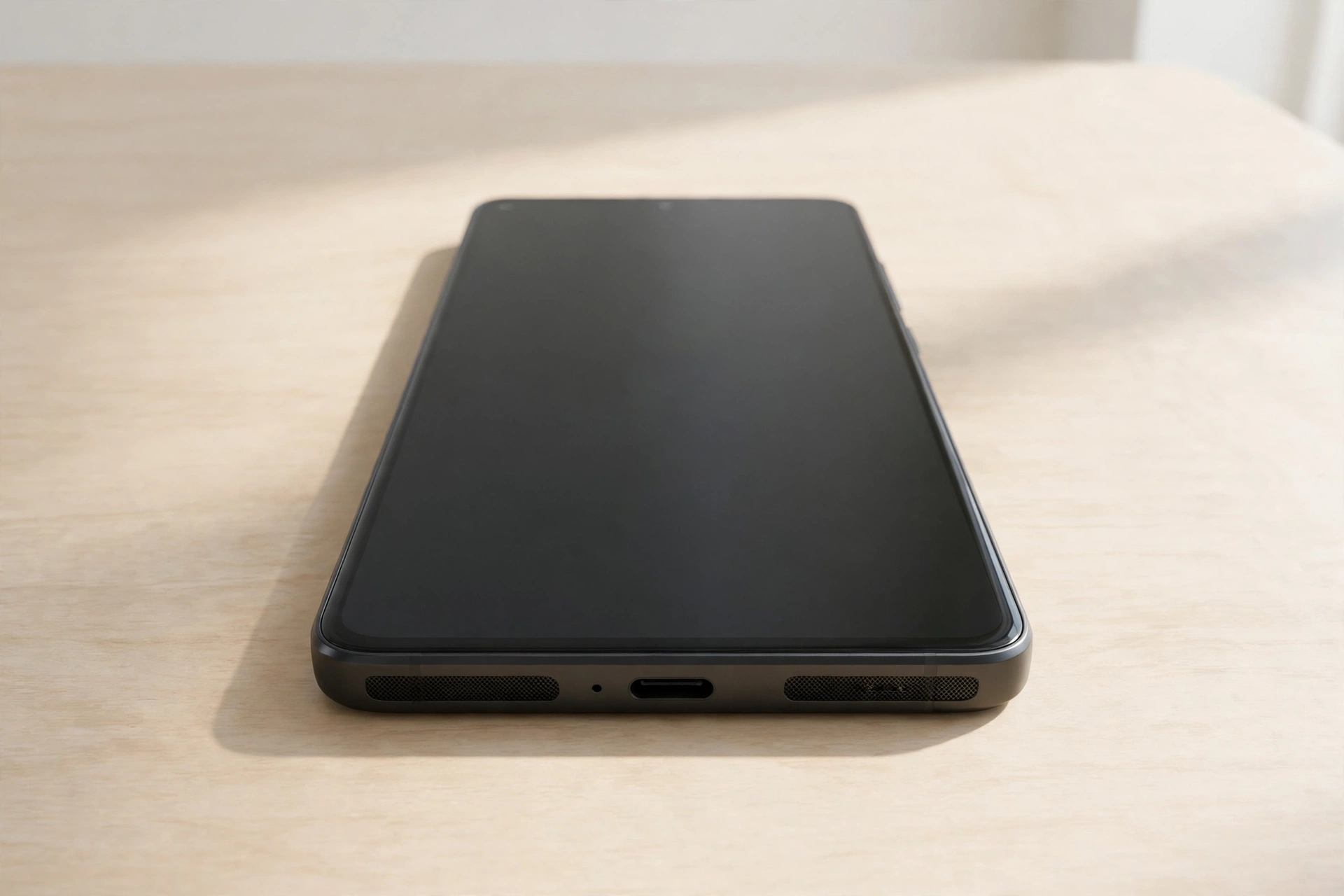
Your Google Pixel 10 speaker is most likely silent because of Android 16 audio routing, the known speakerphone toggle bug, or a blocked bottom grille — not because the speaker has died. The Pixel 10 has two speakers that can fail independently, so first find out which one is quiet.
First, find out which speaker has gone quiet
The Pixel 10 plays sound through two speakers: the bottom-firing loudspeaker and the earpiece, which doubles as a second speaker for stereo sound. They can fail independently, and knowing which one is silent narrows the cause in under a minute.
- Play a video at full volume and hold the phone normally. Sound from the earpiece but nothing from the bottom means the bottom speaker is blocked, muted, or faulty.
- Make a call on speakerphone. If the call is loud and clear, the bottom speaker works and the problem is routing or an app.
- Open Settings, then Sound & vibration, and drag the Media volume slider. If you hear nothing at all while the slider moves, the fault is deeper than one app.
A speaker that is silent everywhere — videos, ringtones, calls, alarms — points to a system setting or hardware. A speaker that works for ringtones but not for one app points to that app. A speaker that only fails on calls points straight at the speakerphone bug covered below.
Android 16 settings that silence the Pixel 10
Android 16 on the Tensor G5 keeps media, calls, ringtones, and alarms on separate volume sliders, and the most common false alarm is simply the wrong slider at zero. Press Volume Up while a video is playing, then tap the three dots to open the full panel. The Media slider is the one that controls videos, music, and games — your ringtone can be loud while media sits at zero, and the phone will feel broken when it is not.
Next, check where the sound is actually going. Swipe down twice and switch Bluetooth off entirely. Your Pixel 10 may still be sending sound to earbuds in your bag, a speaker in another room, or your car, and it will keep doing so silently until you break the connection. If the sound returns, a paired device was the problem: go to Settings, then Connected devices, and forget devices you no longer use.
Two more settings catch people out. Do Not Disturb silences ringtones and notifications while leaving media alone, so check the crescent icon in the status bar and turn it off in Settings, then Sound & vibration, then Do Not Disturb. Also check the media output switcher: while audio is playing, tap the output icon in the volume panel and make sure “This device” is selected rather than a cast target or a forgotten Bluetooth device.
The speakerphone toggle bug Google will not fix
Here is the Pixel 10’s most frustrating fault, and it is also the one with the clearest answer. During a call, the speakerphone toggle lags, does not respond, or switches itself off, so the call stays on the earpiece even though you tapped speakerphone. Google has confirmed it will not fix this bug, so waiting for an update is a waste of time — the workarounds below are the fix.
The most reliable workaround is to toggle speakerphone from the call notification shade instead of the in-call screen. During a call, pull down the notification shade and look for the call controls there. Switching speakerphone on from the shade responds when the on-screen button does not, and for many Pixel 10 owners this alone restores hands-free calling. Try it on your next call before touching anything else.
If the shade toggle does not help, roll back the Phone app to an older version. Open Settings, then Apps, then See all apps, then Phone, tap the three dots in the top corner, and choose Uninstall updates. This returns the Phone app to the version that shipped with the phone, and for many owners the speakerphone toggle starts working again. A third-party dialer from the Play Store is another way around the same fault, since a different dialer uses its own call screen and sidesteps the buggy toggle entirely.
The bottom grille: lint, water, and a gentle clean
The Pixel 10’s bottom speaker sits exactly where pocket lint collects, and a thin layer across the grille can silence it completely while the earpiece keeps working — which is why this fault looks so confusing. Hold the phone speaker-down and brush the slot gently with a soft, dry toothbrush. Never poke a pin or a SIM ejector into the holes, because the membrane behind the grille tears easily and a torn membrane means a repair bill.
Water is the other grille problem. The Pixel 10 is water resistant, but water can linger in the grille for hours after a splash and muffle the sound until it clears. Do not use a hair dryer, do not charge the phone until the USB-C port is dry, and do not seal it in rice. Instead, hold it speaker-down and let gravity help, then run Fix My Speaker — the free tool plays a tone designed to vibrate water and dust out of the grille — for a short session with the volume up and the speaker facing down, then test a video again.
Safe Mode and the app that stole your sound
If the quick checks did not work, find out whether an app is interfering — without wiping your phone. Start with a plain restart: hold the power button, tap Restart, and test once the phone is back on. A restart clears temporary audio faults and is worth doing before anything more involved.
Still quiet? Try Safe Mode. Hold the power button, then press and hold Power off until “Reboot to safe mode” appears and tap OK. Only Google’s own apps run in Safe Mode, so if the speaker works there, a third-party app is the culprit. Restart normally and uninstall recently added apps one at a time until the sound returns. Volume boosters, equaliser apps, and call-recording apps are the usual suspects, because they hook into the same audio path the speaker uses.
If Safe Mode does not help, reset the app preferences. Go to Settings, then System, then Reset options, then Reset app preferences. This restores default app permissions without deleting any of your data, and it clears the corrupted routing settings that can trap audio on a device you disconnected hours ago. Restart after the reset and test again with a video and a call.
When the speaker itself has failed
If you have worked through the speakerphone workarounds, the Android 16 volume and Bluetooth checks, the grille cleaning, Safe Mode, and the app-preferences reset — and the speaker is still silent everywhere, including speakerphone and ringtone previews — the hardware itself may have failed. A hard drop can loosen the internal speaker connection, and water corrosion builds up slowly over weeks, so a speaker that faded gradually after a splash is a hardware suspect. Contact Google support or a reputable repair shop, mention everything you have already tried, and check your warranty first — a speaker repair is far cheaper than a replacement phone.
Frequently Asked Questions
Why won’t speakerphone turn on during calls on my Pixel 10?
It is a known Pixel 10 bug that Google has confirmed it will not fix. Toggle speakerphone from the call notification shade, roll back the Phone app, or use a third-party dialer instead.
Why does my Pixel 10 speaker work for calls but not videos?
Calls and media use separate volume sliders in Android 16. Open the full volume panel while a video plays and raise the Media slider, then check that Bluetooth is off and no cast target is selected.
Will a factory reset fix my Pixel 10 speaker?
Not usually. Try Safe Mode and Reset app preferences first, since those clear the same software faults without wiping your data. A factory reset only helps with deep software corruption, so back up first.
How do I clean my Pixel 10 speaker grille safely?
Brush the bottom slot gently with a soft, dry toothbrush while holding the phone speaker-down. Never poke a pin into the holes, and never use a hair dryer on a wet grille.