
Spotify Has No Sound on Your Phone — Start With These Checks
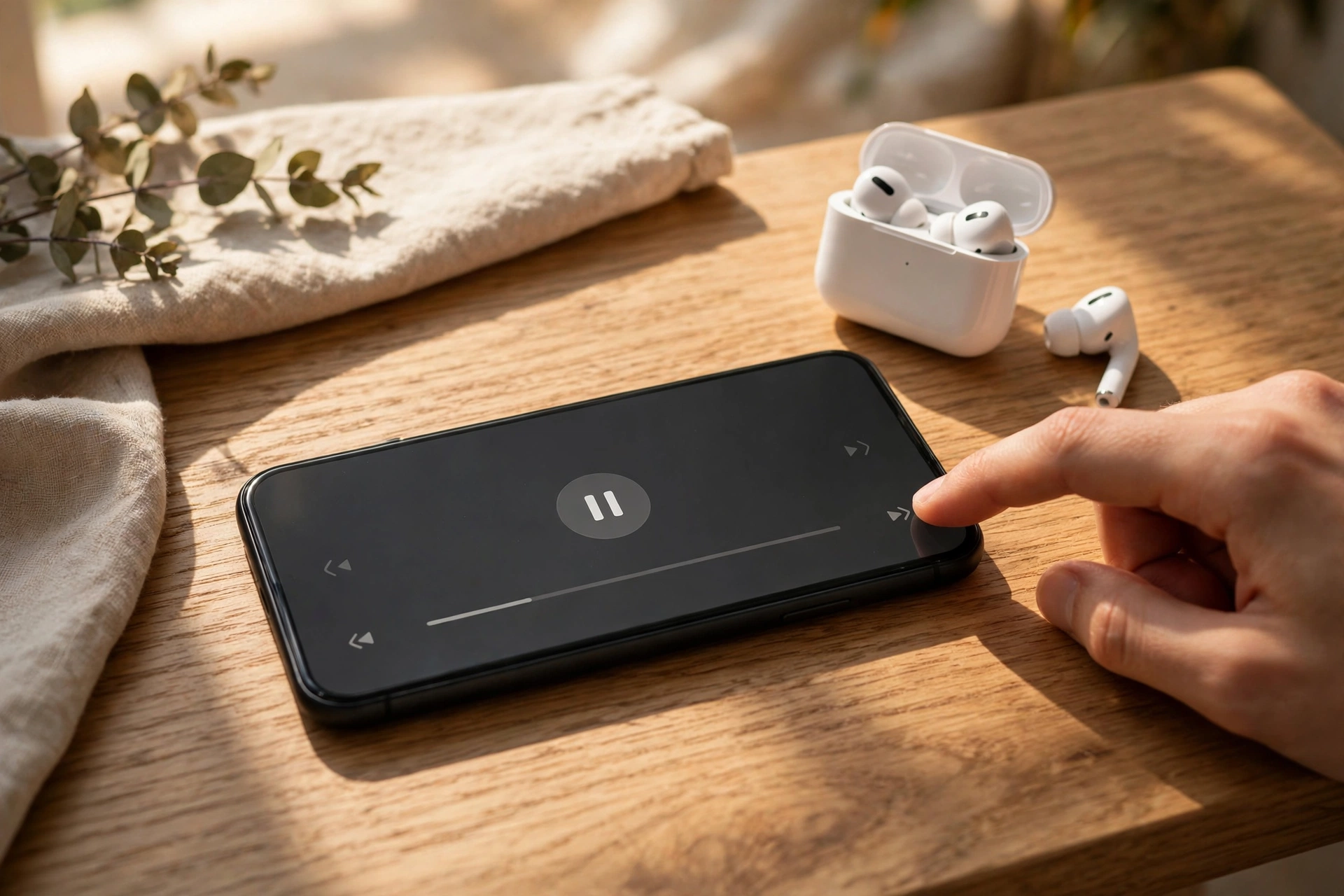
Spotify is playing — the progress bar moves, the song title is right there — but your phone stays silent. Other apps sound fine, so the speaker is OK. Spotify has its own sound world inside the phone: its own volume, its own output picker, its own downloaded files. When Spotify goes quiet, the fault is almost always inside that world, not in the phone.
Video: How to Fix No Sound In Spotify On Windows 11 PC [Solved] — Delft Stack (YouTube)
The 60-second test: Spotify or the phone?
Four quick checks, and you’ll know where the silence lives.
Play a video somewhere else. Open YouTube and play any video. If it sounds fine, your phone’s speaker and media volume work — the problem is Spotify, not the phone. If YouTube is silent too, skip to the phone section at the end.
Check where Spotify is playing. Tap the devices icon in the now-playing screen — it looks like a speaker with a small screen in front of it. It says “Listening on” followed by a device name. If it names anything other than “This phone,” your music is playing somewhere else right now.
Drag Spotify’s own volume slider. On the now-playing screen, look for the volume slider near the bottom. Spotify’s slider is separate from the phone’s volume buttons. If it’s sitting at zero, the song plays silently no matter how high the phone volume is.
Play a different song, streamed not downloaded. Pick a song you haven’t downloaded. If it plays with sound, your downloaded files are the problem, not Spotify itself.
Note which check failed — each points at a different section below.
Spotify Connect is playing on another device
This is the one people miss most, because nothing on the phone looks wrong. Spotify Connect lets your phone control playback on another device — a smart speaker, a TV, a laptop, a car — and it remembers that choice. If Spotify last played on your living room speaker or your computer, pressing play on your phone starts the music there, not on the phone. The screen shows the song playing, the progress bar moves, and the phone itself stays silent.
Tap the devices icon and check “Listening on” — if it names another device, tap “This phone” to move the audio back. Spotify’s own troubleshooting page for no sound lists this first: you might be sending the sound somewhere else.
Spotify’s own volume settings
Spotify has three volume-related settings of its own, and any one of them can make music sound silent on a small phone speaker.
The first is the Volume level. Open Spotify, tap your profile picture, then Settings and privacy, then Playback, and look for Volume level. The options are Quiet, Normal, and Loud. Quiet is meant for sensitive listening, and on a phone speaker it can make songs barely audible — close enough to silent that you’ll swear the app is broken. Set it to Normal or Loud and play a song again.
The second is Audio Normalization (called Volume normalization on Android, under Volume controls). It evens out loud and soft songs so you aren’t reaching for the volume between tracks. It’s a Premium feature, and when it’s on, quiet songs get pulled down toward the same level. If your music sounds faint rather than fully silent, turn normalization off and compare.
The third is Crossfade. It fades one track out while fading the next one in, and a long crossfade can create a gap that feels like a dropout between songs. Turn it off under Playback to rule it out.
You can’t change normalization, the equalizer, or crossfade while Connect is playing on another device — move playback back to your phone first.
Downloads that play silently
If streamed songs sound fine but your downloads don’t, the download itself is broken. Spotify downloads audio as files on your phone, and a download that finished on a weak connection — a moving train, a crowded cafe Wi-Fi — can end up with a damaged file. The song shows as downloaded, the progress bar moves, and no sound comes out.
Play the same song streamed over Wi-Fi, not from your downloads. If the stream has sound and the download doesn’t, the file is corrupt. Delete that download and download it again on stable Wi-Fi. Don’t re-download on mobile data or a weak signal, or you’ll likely get the same broken file.
Two more download traps. Data Saver caps streaming quality on cellular, which can make songs sound thin or cut out — turn it off under Settings and privacy, then Data Saver, to test.
The phone side: media volume, Bluetooth, and a stuck app
If YouTube was silent in the first test too, the fault is the phone, not Spotify — but check these in Spotify’s order before you blame the speaker.
Media volume, not ringer volume. Your phone has separate volume channels, and Spotify uses the media channel. Start a song, then press volume-up while it plays. The indicator should say Media on Android. If you see Ringtone or Call instead, you were adjusting the wrong channel.
Bluetooth. If your earbuds are connected — even in their case — Spotify can send the music to them instead of the speaker. Turn Bluetooth off and test again.
A stuck app. Force-close Spotify completely and reopen it. If that doesn’t help, clear the cache: on Android, open Settings, then Apps, then Spotify, then Storage, and tap Clear Cache. It removes temporary files without touching your downloads or login. On iPhone there’s no cache button, so sign out, close the app, and sign back in.
Tested on
Run this with one song you know well — about two minutes.
- Play a video on YouTube and note whether it has sound.
- In Spotify, tap the devices icon and note what “Listening on” says.
- Drag Spotify’s own volume slider on the now-playing screen to full.
- Open Settings and privacy, then Playback, and check Volume level — set it to Normal or Loud.
- Play a song you haven’t downloaded, streamed over Wi-Fi.
Silent in step one means the phone. Another device in step two means Connect. A streamed song that plays while a download doesn’t means a corrupt download — delete it and re-download on stable Wi-Fi.
Frequently Asked Questions
Why does Spotify play on my TV instead of my phone?
Spotify Connect remembers the last device it played on. If it last played on your TV, pressing play on your phone starts the music there. Tap the devices icon in the now-playing screen and choose “This phone” to move the audio back.
Why is Spotify quiet but not completely silent?
Check the Volume level in Settings and privacy, then Playback. If it’s set to Quiet, songs play far too softly on a phone speaker. Set it to Normal or Loud. Audio Normalization can also pull quiet songs down — try turning it off.
Why do downloaded songs have no sound but streamed ones do?
The downloaded file is probably corrupt — it likely finished on a weak connection. Play the same song streamed over Wi-Fi to confirm, then delete the download and download it again on stable Wi-Fi.
Does clearing Spotify’s cache delete my downloads?
No — it only removes temporary files. Your downloads and login stay untouched. On Android, use Settings, then Apps, then Spotify, then Storage, then Clear Cache. On iPhone, sign out and back in instead.
Related Guides
- No Sound on YouTube? Fix It Fast
- Bluetooth Connected But No Sound? Fix It
- No Sound on Netflix? Fix It
- Fix My Speaker — Free Speaker Cleaner Tool
Run the 60-second test first — most of the time, Spotify is playing somewhere you aren’t.