YouTube Playing Silent on Your Phone? Here’s Where the Sound Went
Your video’s playing, the picture’s moving, and nothing’s coming out of the speaker. Annoying — but when YouTube alone goes quiet while every other app sounds fine, it’s almost never a broken speaker. It’s a setting, a routing choice, or the app itself — start with the checks that take seconds.
Start With the Player Itself: Mute Button and Media Volume
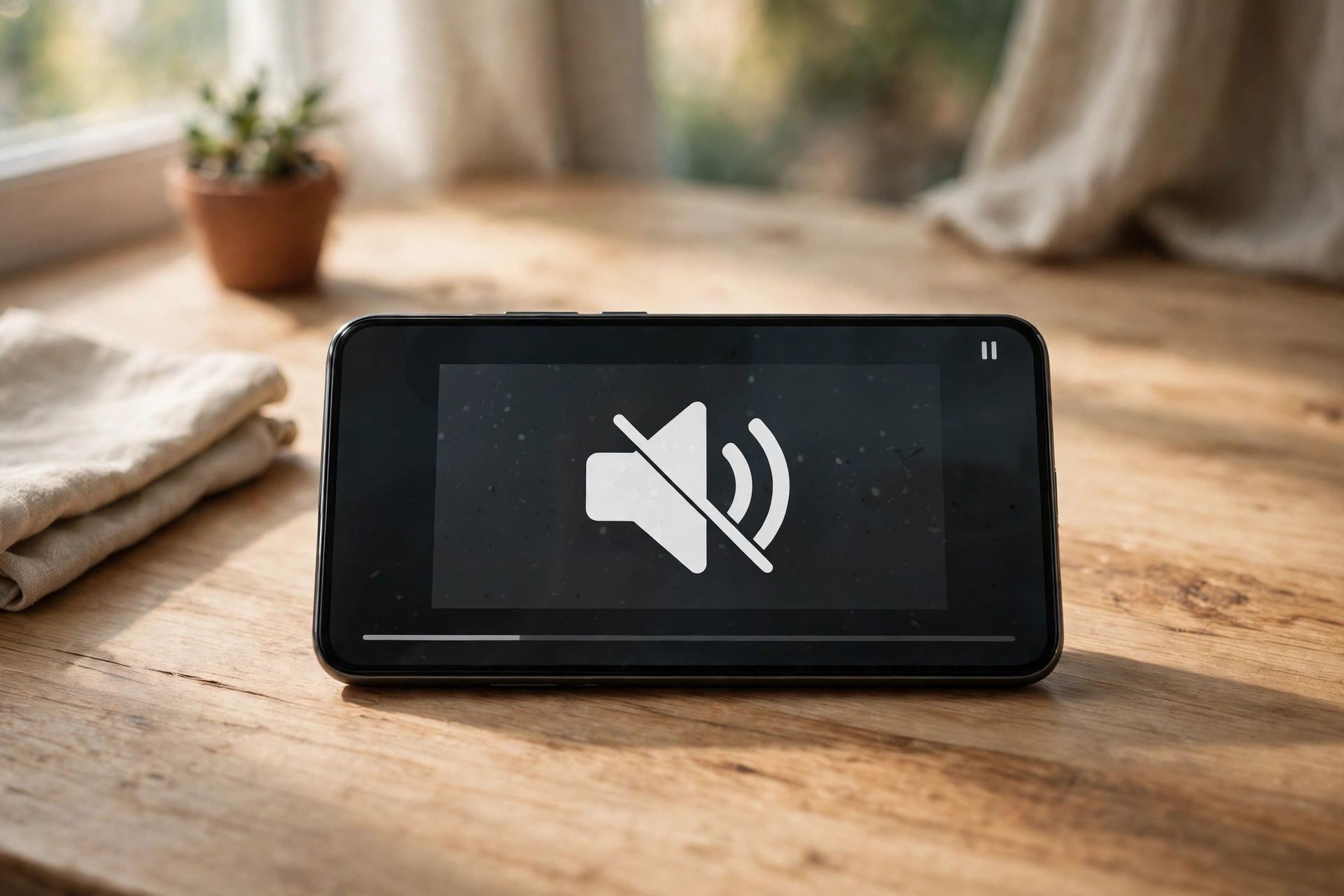
YouTube’s player has its own mute control, and it’s easy to tap by accident. Tap the video so the controls appear, then look at the speaker icon. If it has a line through it, the player is muted — tap it once to bring the sound back.
Then press your phone’s volume-up button while the video is playing. Phone volume splits into separate streams — media, ringtone, alarms — and the media stream may be turned all the way down even when your ringer is loud. A slider should appear on screen; make sure it climbs. If the slider moves but you still hear nothing, try two or three different videos. Some uploads genuinely have no sound track. One silent video means nothing; three silent videos means it’s your phone.
Stable Volume: YouTube’s Own Loudness Setting
Here’s the setting most people miss. YouTube has a feature called Stable Volume that evens out loud and quiet parts of a video so you’re not constantly reaching for the volume button. It’s usually on by default, and it can make quiet videos sound far too soft — or, on some phones, oddly muffled.
While a video is playing, tap the settings gear in the player, then tap Additional settings and look for Stable volume. Try switching it off and replaying the video. If the sound suddenly feels normal again, that was your problem. Two things to know: the toggle doesn’t appear on every video, and it’s switched off automatically for YouTube Music and official music videos. If you don’t see it at all, update the app — older versions don’t have it.
Video Quality Preferences Can Starve the Sound
YouTube decides how much data each video gets, and on a weak connection it can drop the stream so low the audio stutters or cuts out entirely. During playback, tap the settings gear, then Quality. You’ll see Auto, Higher picture quality, Data saver, and Advanced. If it’s sitting on Data saver, switch it to Auto or Higher picture quality and see whether the audio steadies.
Then set the default: tap your profile picture, then Settings, then Video quality preferences. Set mobile networks to Auto and Wi-Fi to Higher picture quality. That stops the app defaulting to its lowest stream every time you open it on the go.
Playback in Feeds: Previews That Play Silent
Scroll your Home feed and you’ll notice videos start playing on their own as you pass them. Those previews often play muted, and on some phones they can leave the app muted when you open a full video afterwards. If your videos keep starting silent, turn the previews off: tap your profile picture, go to Settings, then General, then Playback in feeds, and set it to Off.
Bluetooth and Cast: Your Audio May Be Somewhere Else
This is the most common cause of silent YouTube, and it fools everyone. Your phone may be sending audio to Bluetooth headphones, earbuds, a car stereo, or a speaker that isn’t in your ears — so YouTube looks broken when the audio is playing somewhere else.
Check your status bar for the Bluetooth icon, then open your phone’s Bluetooth settings and see what’s connected. Either disconnect the device or turn Bluetooth off entirely, then replay the video. YouTube also has its own playback destination on some devices — the cast or audio-output icon in the player. Make sure it isn’t set to send audio to a TV or speaker you didn’t intend.
Clear the Cache, Update, or Reinstall
A stale YouTube session can lose its audio track while the video keeps playing, and corrupted cache data is a classic cause of app-specific audio failure. On Android, go to Settings, then Apps, then YouTube, then Storage, and tap Clear cache — not Clear data, which signs you out and resets your settings. On iPhone there’s no per-app cache button, so delete the app and reinstall it from the App Store instead.
Check for an app update first — audio bugs get fixed in updates all the time. If YouTube is already up to date and still silent, uninstall and reinstall it. On Android phones where YouTube is a system app and can’t be uninstalled, tap Uninstall updates to roll back to the factory version, then update again.
The iPhone Silent Switch Quirk
On iPhones, the physical mute switch on the side can affect YouTube playback on some iOS versions, even though it shouldn’t touch media audio. Flip the switch off so you don’t see orange, then retest. Also check the Control Center: if the playback destination there shows AirPlay or a Bluetooth device, tap it and set the output back to iPhone.
Is It YouTube, or Is It Your Speaker?
If every app is silent, not just YouTube, the problem is your phone’s audio, not the app. Restart your phone first. After the reboot, play audio in a different app — your music app, or a voice memo — to see whether the speaker works at all.
If the speaker sounds muffled or dead across all apps, it may be blocked by dust or water in the grille. You can run a free speaker-cleaning tone at Fix My Speaker — it plays an oscillating sound burst that pushes water and dust out of speaker grilles. That only helps with blockage, though. If the speaker is silent because of a hardware fault, the phone needs a repair shop.
Frequently Asked Questions
Why does YouTube have no sound but other apps do?
Because the problem is specific to YouTube — usually audio routing (Bluetooth or cast), a muted in-player control, Stable Volume flattening a quiet video, or a corrupted cache. Work through the app-level fixes above before suspecting your speaker.
I already turned the volume up — why is YouTube still silent?
You may have turned up the wrong volume stream. Press volume-up while a video plays so it adjusts the media stream, not the ringtone. Then check for a connected Bluetooth device and try switching Stable Volume off.
Why is there no sound on YouTube on my iPhone?
The usual suspects on iPhone: the physical mute switch, an outdated YouTube app, or audio routed to AirPlay or Bluetooth. Flip the mute switch, update the app, and check Control Center’s playback destination.
Can clearing the cache delete my YouTube downloads or watch history?
No. Clearing cache removes temporary files only — your subscriptions, watch history, and playlists are tied to your account and stay put. Only Clear data on Android, or deleting the app, resets app-level settings.