
Why Is My Call Volume So Low? Ways to Hear Callers Clearly
You can hear the other person, but only just — a faint, faraway voice even though the volume is turned all the way up. It’s exhausting, and it makes every call feel like hard work. The cause is rarely a broken earpiece. Your phone keeps a separate volume level just for calls, with its own settings and limits.
The Volume Button Lies to You on the Home Screen
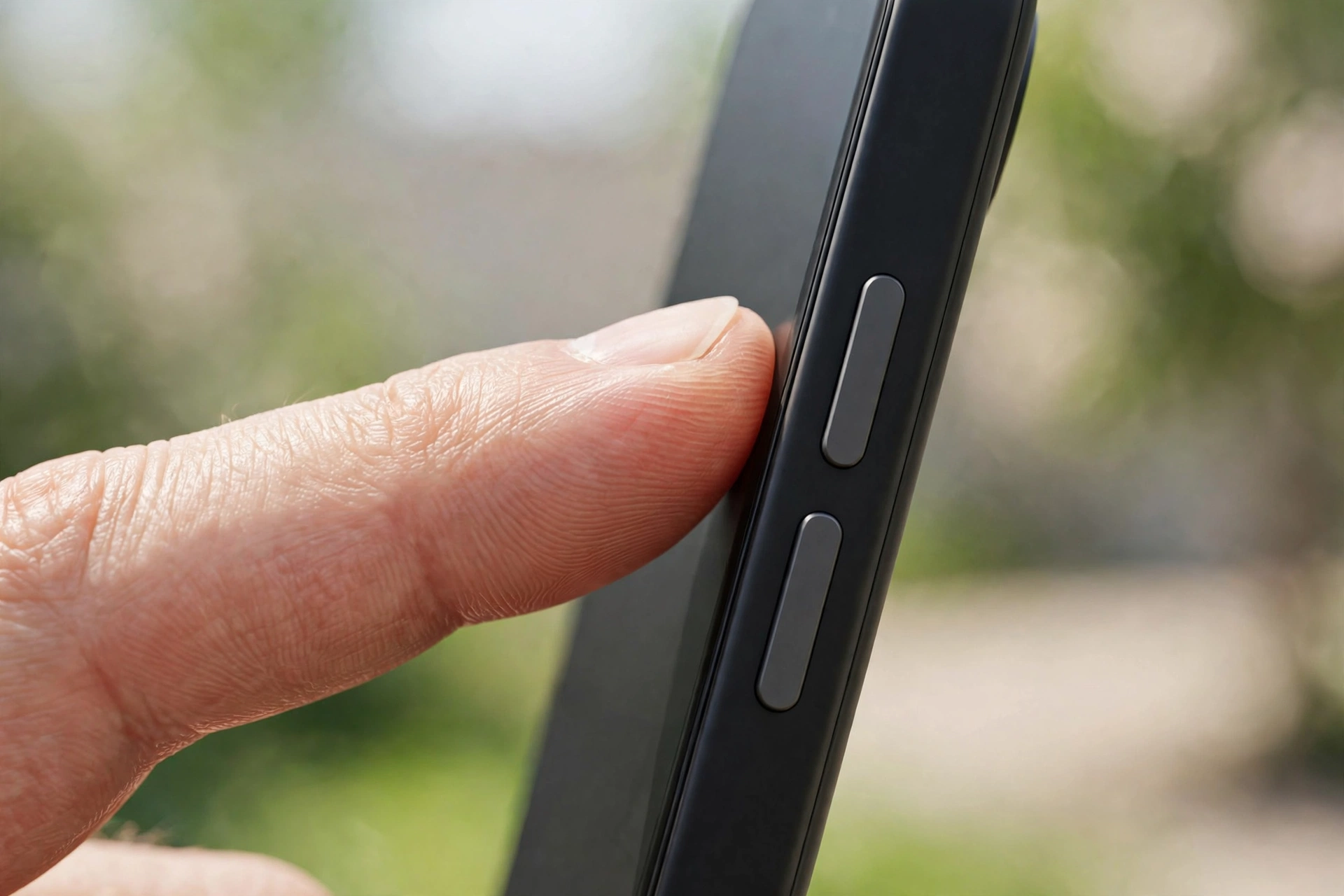
Here’s the trap most people fall into: they press the volume-up button on the home screen, see the slider hit maximum, and assume calls will be loud. They won’t be. Your phone stores separate volume levels for media, ringtones, alarms, and calls, and the call level can only be changed while you’re actually on a call.
Next time someone rings, or when you dial out, press the volume-up button repeatedly during the conversation and watch the on-screen indicator climb.
Where Is Your Call Audio Actually Going?
Your phone might be sending the caller’s voice somewhere you’re not listening. On iPhone, go to Settings, then Accessibility, then Touch, then Call Audio Routing, and make sure it’s set to Automatic.
Android handles this differently depending on the brand, but the quickest check is the same everywhere: look at your connected devices. If a headset, a car, or a smart speaker shows as connected, your call audio may be going there. During the call, tap the speaker or Bluetooth icon on the call screen to pull the audio back to the earpiece.
Earbuds in Your Bag Can Steal Your Calls
This one deserves its own mention, because it’s so easy to miss. Earbuds power on and connect the moment you open their case — or sometimes just from jostling around in your pocket. The caller’s voice then plays through earbuds lying across the room, and what you hear through the phone is a faint leak of that audio.
Before your next call, open your Bluetooth settings and disconnect anything you aren’t actively using, or simply switch Bluetooth off for the length of the call. If the caller suddenly becomes loud and clear, your audio was being hijacked the whole time.
A Safety Cap Might Be Holding Your Volume Down
iPhones have a feature called Headphone Safety, found under Settings, then Sounds and Haptics, then Headphone Safety, then Reduce Loud Sounds. It caps audio output to protect your hearing — and on some devices it also throttles the earpiece volume during calls. Android phones carry similar hearing-protection limits in their sound settings.
If your call volume feels capped no matter how high you turn it up, this is the setting to check. You can raise the decibel limit or switch the feature off entirely. It exists for a good reason, though — very loud in-ear audio over long periods really can damage your hearing.
Mic Modes Can Make Callers Sound Thin
On iPhones, the mic mode you pick during a call changes what you hear as well as what the caller hears. While you’re on a call, open Control Center, tap Mic Mode, and try switching between Standard, Voice Isolation, and Wide Spectrum. A glitched Voice Isolation session can make the caller’s voice sound thin, distant, and quiet.
Some Android phones have a similar option, usually labelled noise reduction or clear calling. Try switching it off for one call. If the caller’s voice suddenly gets louder and fuller, the noise processing was being too aggressive on that particular call.
Sometimes the Connection Is the Problem, Not the Phone
A caller can sound quiet simply because the call quality is poor. A weak signal, a congested network, or a caller on a bad connection makes voices sound distant, choppy, and low — and no volume setting on your phone will fix that.
If you’re indoors with weak cellular signal, try switching on Wi-Fi Calling. On iPhone that’s under Settings, then Phone, then Wi-Fi Calling; Android keeps it in a similar spot in the phone settings.
A Dirty Earpiece Grille Muffles Everything
When every setting looks right and callers are still quiet, the culprit is often physical: dust and lint packed into the little earpiece grille at the top of your phone. It builds up slowly over months, and a partly blocked earpiece makes every caller sound faint.
Power the phone off and brush the grille gently with a soft, dry toothbrush held at an angle. If you want to check whether the earpiece itself still works, play a test tone through the free speaker fix tool and hold the phone to your ear — a clear, loud tone means the hardware is fine and the trouble sits in the call audio path above.
Restart, Update, and Know When It’s Hardware
A stuck audio service can lock the in-call volume at a low level, and a simple restart clears it. This alone sorts out a surprising number of quiet-call complaints. Then check for software updates, which often carry fixes for call-audio bugs.
If callers are still barely audible on every single call after all of this, the earpiece itself may be failing. One tell-tale sign is quietness that improves when you squeeze the top of the phone — that points to a loose connection inside, and that’s a repair-shop job, not a settings fix.
Frequently Asked Questions
Why is my call volume so low even at max volume?
Because the in-call volume is a separate stream from media and ringtone volume, being at maximum on the home screen doesn’t mean the call stream is. Adjust the volume during an active call, then check call audio routing, Bluetooth, and any loud-sound caps.
Why can I hear callers better on speakerphone?
Speakerphone uses the main bottom speaker and a different audio path with its own volume level. If callers are loud on speakerphone but quiet through the earpiece, the issue is isolated to the earpiece path — usually the in-call volume level, the routing, or a dusty grille.
Does Wi-Fi calling make callers sound louder?
Not louder exactly, but clearer. Wi-Fi Calling routes calls over your internet connection instead of a weak cellular signal, which can turn a distant, choppy, seemingly quiet caller into a clear one. It’s worth enabling if your indoor signal is poor.
Why is only one caller’s voice quiet?
If everyone else sounds fine and one person is always quiet, the problem is on their end — their microphone, how far they hold the phone from their mouth, or their network. Ask them to speak closer to the phone or switch off their speakerphone.