
Get Your OnePlus 15 Speakerphone Working During Calls
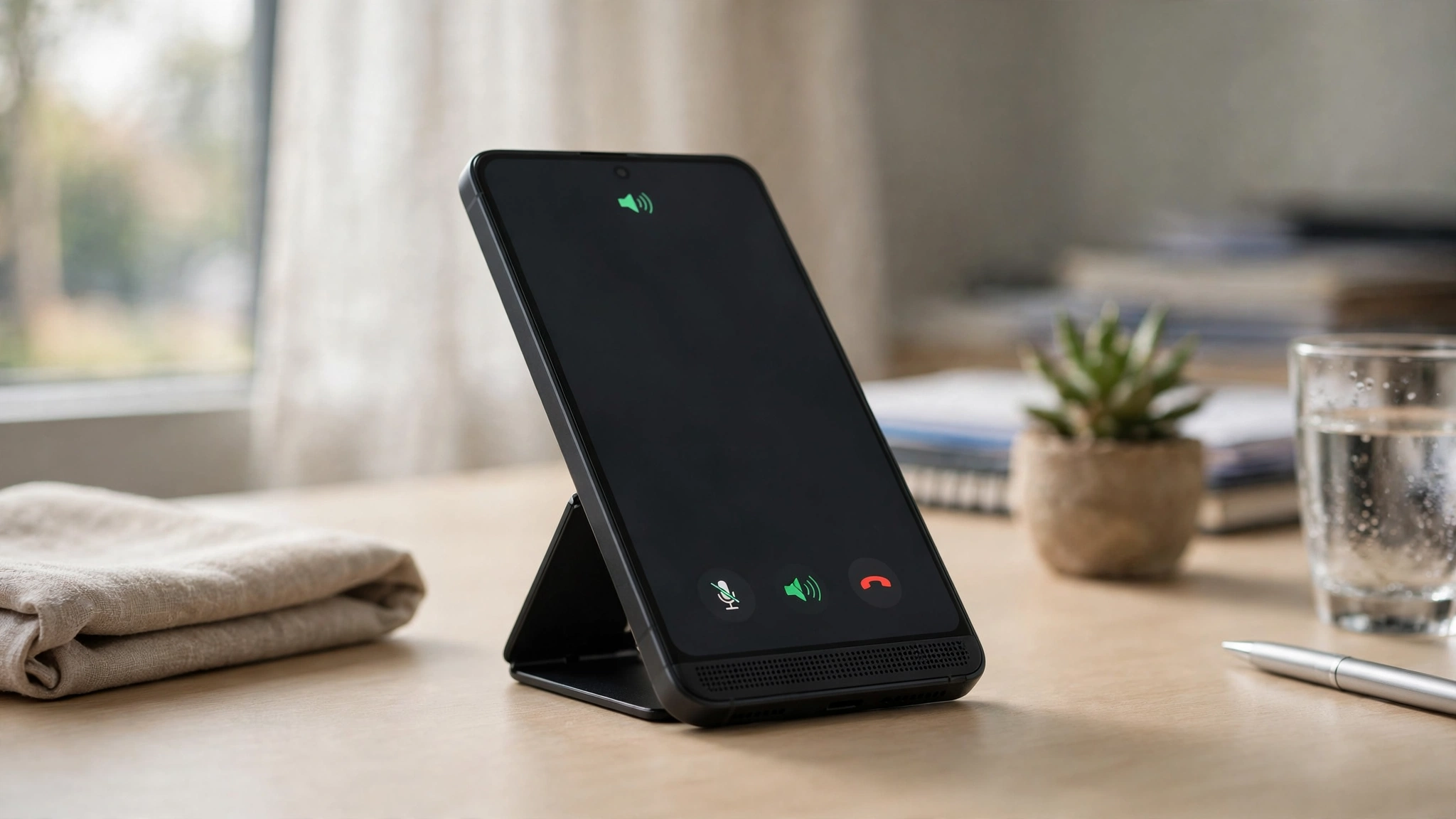
If your OnePlus 15 speakerphone stops working during a call — you tap Speaker and hear the other person only through the earpiece, or not at all — the fault is usually audio routing or app interference, not a dead speaker. Work the checks below in order, testing a call after each.
The key detail is that the speaker is probably fine: if music and videos play loudly, the hardware works. What has gone wrong is the path the call audio takes — to the earpiece, to a Bluetooth device, or nowhere at all.
First, Prove Where the Sound Actually Goes
Before changing settings, find out where the call audio goes. Make a call and tap Speaker. If you hear the other person only with the phone to your ear, audio is stuck on the earpiece. If you hear nothing, check whether a Bluetooth headset, earbuds, or your car is connected — the call may be playing there while the phone sits silent. Then play a song: loud, clear media confirms the hardware works and narrows it to call routing. If media is silent too, skip to the grille clean and Safe Mode — the problem is wider than call audio.
During the same call, try the Speaker toggle: tap it off, wait two seconds, then tap it on again. The button can lose sync after a call is put on hold, merged, or handed between networks, and the toggle often resets it. If it does not switch, leave Speaker on for the next step.
Turn the Volume Up While You Are Still on the Call
Call volume is separate from media volume and can only be adjusted during an active call. Many owners find the speakerphone was “broken” only because in-call volume was turned down. While on a call with Speaker on, press Volume Up repeatedly until the indicator reaches maximum, asking the other person to keep talking so you hear when sound appears. If the voice comes through loudly now, that was the whole fault — media and call volume are independent. If it is already at maximum and you still hear nothing, the routing problem lies elsewhere.
Cut Bluetooth Out of the Call
Bluetooth is the most common cause of missing call audio: earbuds in their case, a car system, or a smartwatch can quietly claim the call while the phone sits silent. Switch Bluetooth off and test a call. If it works, a paired device was stealing the route. Go to Settings, then Bluetooth, and forget any device you no longer use — old earbuds, a previous car, a speaker you gave away — because any of them can grab a call in range. Keep only the devices you use.
Test Wi-Fi Calling — On, Then Off
Wi-Fi Calling changes how the call is carried, and sometimes how audio is routed. A call that breaks only on Wi-Fi, or only on mobile data, points straight at this setting. Make a test call with Wi-Fi Calling on, to the same contact from the same spot. Then switch it off and make the same call over the mobile network. If the speakerphone works on one and not the other, you have found the trigger: leave Wi-Fi Calling on the working setting and report the pattern to your carrier — a network-side fault is theirs to fix.
OnePlus 15 Speaker Not Working? Find the App Hijacking Call Audio
Third-party apps can intercept call audio: call recorders, voice changers, equalisers, and some messaging apps. Safe Mode switches them all off at once — the fastest way to test the theory. Press and hold the power button, then long-press Power off and tap OK to restart in Safe Mode, and make a test call with Speaker on. If it works there, an installed app is the cause: restart normally, then uninstall recently installed calling, recording, or audio apps one at a time — start with anything installed just before the problem began. If it still fails in Safe Mode, no third-party app is involved, and the fault is in the system software or the Phone app itself.
Clear the Phone App Cache and Check for Updates
A corrupted Phone app cache can break speakerphone, microphone, and call routing. Clearing it is safe — it removes temporary files only. Open Settings, then Apps, then Phone, then Storage and cache, and tap Clear cache. Do not tap Clear storage, which would reset the app’s data. Restart, then test a call with Speaker on. While in Settings, check for a system update: the OnePlus 15 launched with OxygenOS 16, and audio fixes can arrive in updates without being named. One more thing: the OnePlus 15 has no classic Alert Slider — it was replaced by a customisable Plus Key. A guide that tells you to move the Alert Slider was written for an older OnePlus.
Clean the Speaker Grille
If the speakerphone is still quiet or muffled, look at the grille along the bottom edge. Dust and pocket lint collect there and muffle the loudspeaker, especially when the phone sits flat on a desk during calls. Brush the grille gently with a soft, dry toothbrush, holding the phone grille-down; never use water, compressed air, or a pin. Test a call after cleaning. Some owners in community discussion have said the OnePlus 15’s speakers sound weaker than the OnePlus 13’s — user discussion, not a measured fact, so judge your phone by the test call.
Tested on
Confirm the speaker hardware in two minutes. Play a song at a comfortable volume, then open the free speaker test at Fix My Speaker and run a tone sweep, listening for buzzing at any pitch. A clean sweep with loud music means the speaker is healthy; the fault is routing. Then make a test call with Speaker on: if the tone test is clean but the call stays silent, the Bluetooth, Wi-Fi Calling, and Safe Mode steps hold it. If the sweep buzzes, the speaker hardware needs a service check.
Frequently Asked Questions
Why does my OnePlus 15 speakerphone stop working during calls?
It is usually audio routing, not a dead speaker: the call goes to the earpiece, a Bluetooth device, or is blocked by another app. If music plays loudly, the hardware is fine.
Why can I hear media but not calls through the speaker?
Call volume and media volume are separate. Raise the volume during an active call with Speaker on, and check Bluetooth has not sent the call to another device.
Does the OnePlus 15 have an Alert Slider?
No. The classic Alert Slider was replaced by a customisable Plus Key on the OnePlus 15, so older guides mentioning the slider do not apply.
When should I contact OnePlus support?
If the speakerphone fails in Safe Mode, the tone test buzzes, or no sound comes from the speaker in any app, contact OnePlus support — the phone may need a warranty hardware check.
Related Guides
- Test your phone speaker with a free tone test
- Fix a phone with no sound at all
- Fix Bluetooth connected but no sound on your phone
More detail is in Sebertech’s OnePlus 15 speakerphone guide; OnePlus Support covers warranty and repair help.
Speakerphone trouble on the OnePlus 15 is almost always routing, not hardware — work the call path: toggle Speaker mid-call, raise in-call volume, kill Bluetooth, test Wi-Fi Calling, and let Safe Mode name any app in the way. If the tone test at Fix My Speaker sounds clean, the fix is in the steps above.