
Silent Zoom Call? Getting Your Phone Audio Back
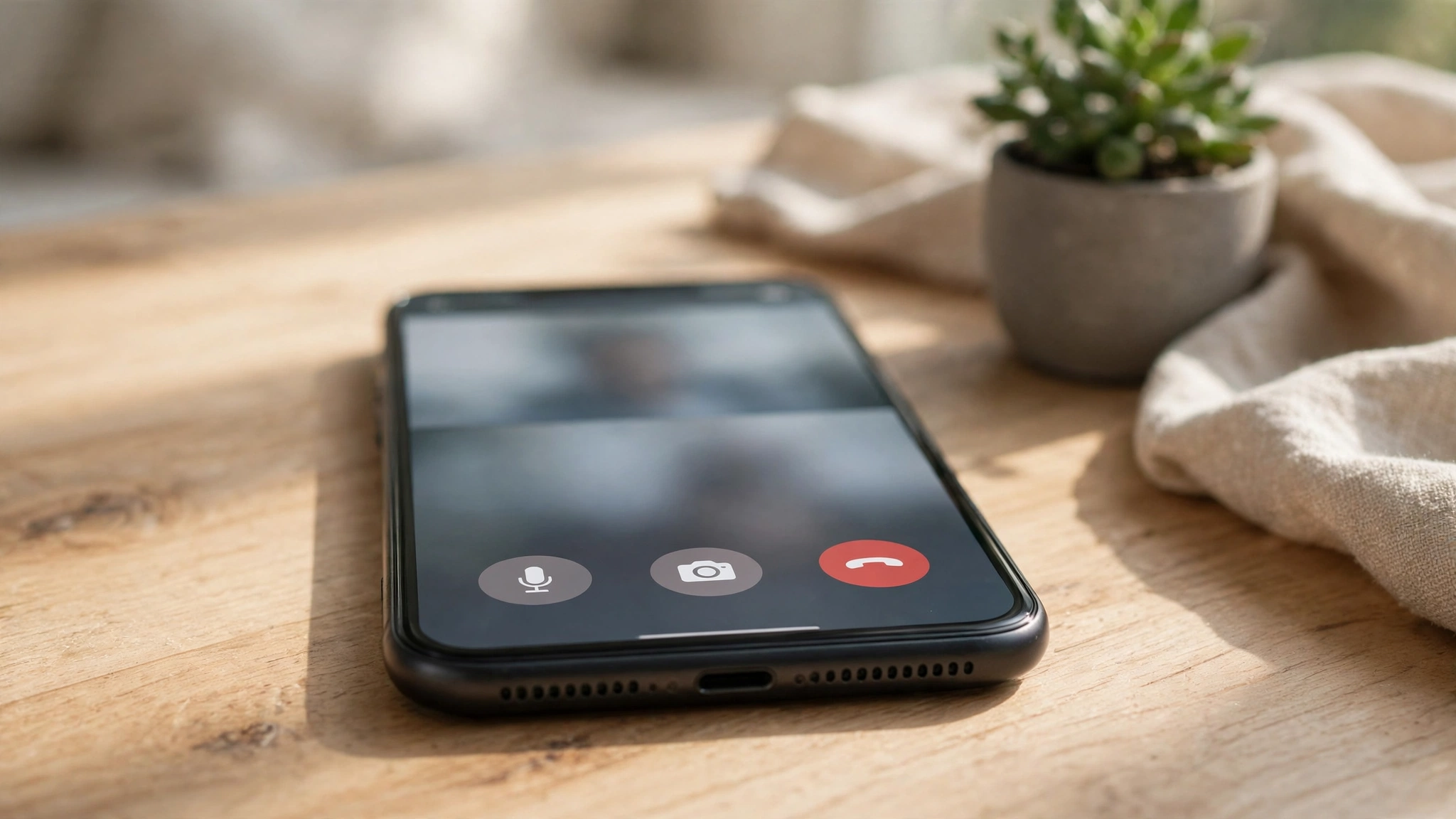
You’re in the meeting, everyone’s lips are moving, and there’s nothing coming out of your phone. Before you blame the speaker, know this: a silent Zoom call is usually a mute, a wrong output, or a missing permission — and most of them are fixed in a couple of minutes.
The Mute Trap Catches Everyone Sooner or Later
Look at the bottom-left corner of your Zoom screen. If the microphone icon has a red line through it, or the speaker icon shows muted, tap it to unmute. It’s embarrassingly easy to join a meeting muted, especially if Zoom is set to hush you automatically when you join — and once you’re in, nobody can hear you either.
Now press the volume-up button while you’re still inside the meeting. Media and call volume on a phone are separate from ringtone volume, so turning the sound up on the home screen might not touch the meeting at all. Raise it during the call, and you’re adjusting the right channel. If a focus mode or Do Not Disturb is active, switch it off for the duration of the call too, since some phones lower media volume while a focus mode is running.
Sometimes the Meeting Itself Needs a Fresh Start
A glitchy connection can leave Zoom stuck in a state where the audio never really starts. Tap “Leave” to exit the meeting completely, then rejoin from the original link or meeting ID. Don’t just switch to another app and come back — Zoom may keep the broken audio session running quietly in the background.
When you rejoin, watch for the audio prompt. Tap “Call via Device Audio” or “Join Audio” rather than skipping past it. Choosing “Join without audio,” or dismissing that prompt in a hurry, is one of the most common reasons a meeting starts silent. If you joined from a calendar link or an email invite, rejoining through that same link is usually the fastest way back in.
Where Is the Sound Actually Going?
Zoom can send your audio to the wrong place without any obvious warning. During a meeting, tap the speaker icon to toggle between the loudspeaker and the earpiece. Hearing sound through one but not the other tells you exactly where the fault sits — and the fix is simply to use the working output for that call.
Bluetooth is the bigger culprit, though. Zoom loves to keep routing audio to the last Bluetooth device you used, even if those earbuds are in another room or switched off. Open your phone’s Bluetooth settings and disconnect any headset, car stereo, or wireless earbuds you aren’t using right now. Wired headphones cause the same headache: if a plug or adapter is still connected, or your phone thinks one is, sound won’t come from the speaker. Unplug them, check the port for lint, and test again.
Permissions Can Silence a Meeting Without a Warning
Zoom needs permission to use your microphone, and on some Android phones it also needs nearby-device access for Bluetooth audio. If a permission was denied during setup, you can join a meeting and hear nothing — or everyone else hears nothing from you.
On iPhone, go to Settings, then Privacy and Security, then Microphone, and make sure Zoom is switched on. On Android, open Settings, then Apps, then Zoom, then Permissions, and allow the microphone. While you’re there, check that Zoom isn’t restricted from running in the background, because aggressive battery saving on some Android phones can cut audio in long meetings. If everything looks right but the sound is still missing, toggle the microphone permission off and back on — reopen Zoom, allow it again when asked, and that refresh can clear a stuck state a restart sometimes misses.
When the App Itself Is the Problem
Close Zoom completely — not just by switching away from it. On iPhone, swipe up from the bottom and swipe Zoom away. On Android, open the recent apps view and swipe it away, or force-stop it from Settings, then Apps. Reopen Zoom and rejoin the meeting.
Then check for an update in the App Store or Google Play Store. Older versions of Zoom can carry audio bugs that are already fixed in newer releases, especially after a phone software update. If updating doesn’t help, uninstalling and reinstalling Zoom is worth trying — it clears corrupted app data a restart can’t reach. Just make sure you know your Zoom login details before you remove it, because you’ll need to sign in again.
Is It Zoom, or Is It Your Speaker?
Here’s the test that settles it. Play a video, a voice note, or a song outside Zoom. Sound everywhere except Zoom? The problem lives inside Zoom’s settings or your meeting setup, and the sections above should have caught it. Silence everywhere? Your phone’s speaker is the problem, not Zoom.
In that case, check the grille for water or dust, which can muffle sound after a spill or a dusty day outdoors. The free tone on myspeakerfix.com can help push water out of a phone speaker — run it at full volume with the speaker facing down, then test your sound again. If the speaker stays silent everywhere even after cleaning and a restart, try wired earphones or Bluetooth earbuds as a temporary workaround for important meetings, and get the speaker checked by a repair shop.
Frequently Asked Questions
Why can I hear others on Zoom but they can’t hear me?
Your microphone is probably muted, or Zoom doesn’t have microphone permission. Tap the microphone icon in the meeting to unmute, then check your phone’s privacy settings to confirm Zoom can use the microphone.
Why is there no sound on Zoom on my phone but it works on my computer?
Your phone may be routing audio to a Bluetooth device, or Zoom on your phone may be missing a permission. Disconnect unused Bluetooth devices, toggle the speaker icon, and check Zoom’s microphone permission.
Does reinstalling Zoom fix no-sound problems?
It often helps when corrupted app data or a bad update is the cause. Update Zoom first, and only reinstall if the sound problem happens in every meeting while other apps play sound normally.
Can a dirty speaker cause no sound on Zoom?
Yes. Dust, lint, or water in the speaker grille can muffle or block sound, and it often shows up first during calls. Clean the grille gently, try a speaker-cleaning tone, and test a video outside Zoom.