No Sound on Google Maps? Silent Navigation, Explained
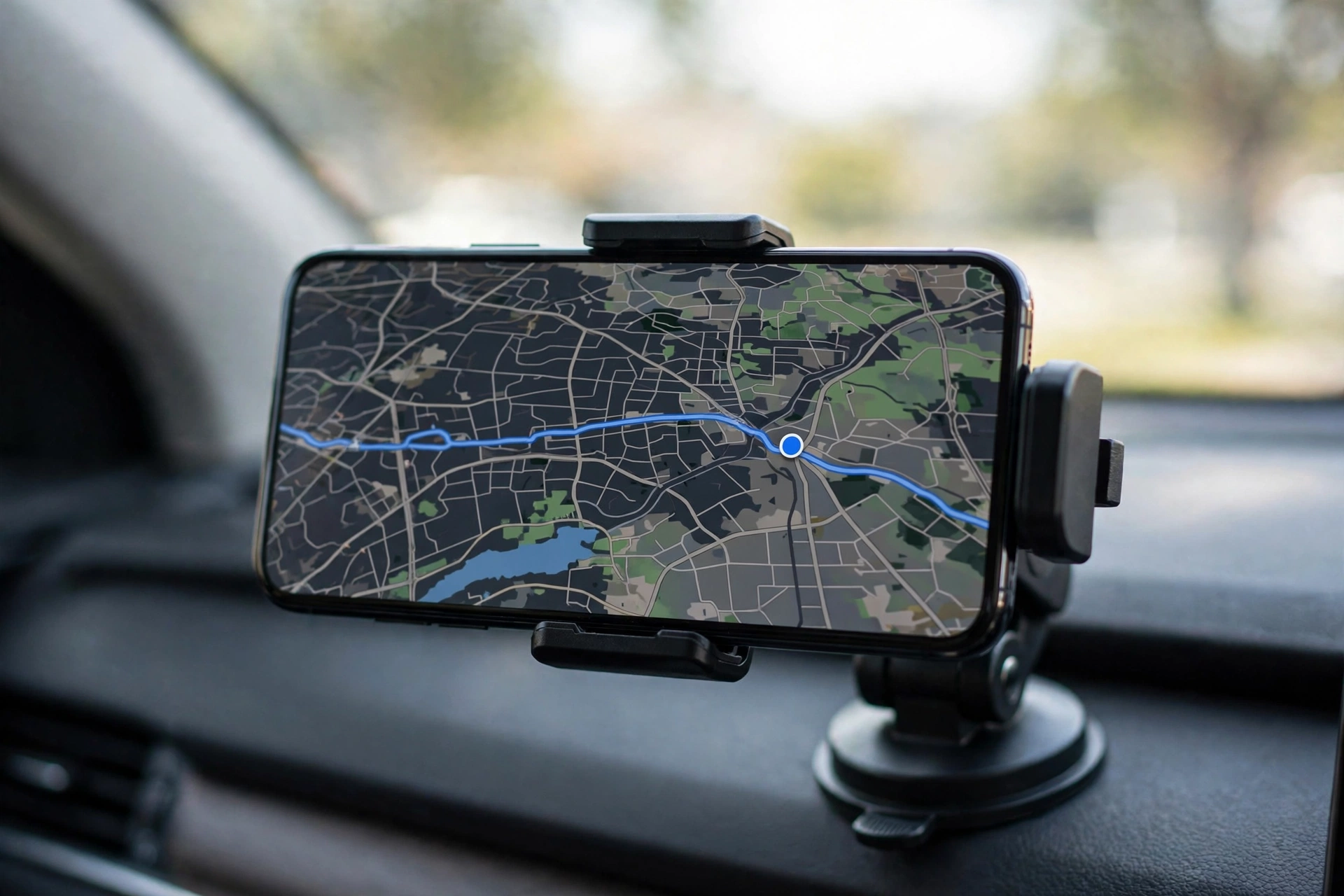
When Google Maps goes silent, the phone speaker is almost never the problem — if music plays fine, the speaker works. The voice is usually muted inside Maps itself, set to alerts only, or sent to a car stereo that is playing another source. Start inside the app, not with the phone.
Is It Maps, or Is It the Phone?
Before changing anything, find out whether the fault is in Maps or in the phone. Play a song or a video: if media plays fine, the speaker works and the problem is inside Google Maps. If everything is quiet, the fault is the phone — check the media volume, Bluetooth routing and the speaker grille first.
Also check the speaker icon on the navigation screen. During navigation, Google Maps shows a speaker icon at the top of the map — tap it and make sure it is not set to muted. If the icon shows a muted speaker, tap it once to unmute and listen for the next prompt.
Inside Maps: The Three Voice Controls
Google Maps has its own voice controls that can silence guidance even when your phone volume is fine. There are three of them, and they sit in different places.
Guidance volume. Open Google Maps, tap your profile picture, then Settings, then Navigation settings. Make sure Guidance volume is set to Louder or Normal — not Softer. Softer is easy to select by accident, and on a noisy road it makes the voice almost impossible to hear.
Alerts only. In the same Navigation settings, check whether the voice is set to “Alerts only”. With this setting you will hear warnings about hazards and speed cameras but not turn-by-turn directions. Switch it back to full voice guidance if you want spoken directions.
Play voice during phone calls. Also in Navigation settings, make sure “Play voice during phone calls” is on if you take calls while driving — otherwise the voice disappears for the whole call and does not always come back cleanly afterwards.
The Car Maze: Bluetooth and Stereo Source
If your phone is connected to your car, earbuds or a Bluetooth speaker, Google Maps voice may be playing through that device instead of your phone speaker — and if the car stereo is on another source, you will hear nothing. Disconnect any audio device you are not using, then test navigation again.
In Google Maps, go to Settings, then Navigation settings, and try toggling “Play voice over Bluetooth”. On some car systems the voice only comes through when this is on, while on others it must be off — there is no universal setting, so test both positions. Also check the car stereo’s source: switch it to Bluetooth audio to hear the directions. If the stereo is on radio or USB, the phone can be sending voice perfectly and you will still hear nothing.
Driving Mode and Focus Are Silencing You
Do Not Disturb can silence navigation voice prompts on some phones, especially when a driving mode or a Focus mode is active. Swipe down to open your quick settings and turn Do Not Disturb off before starting a trip.
On Android, make sure Driving mode in Digital Wellbeing is not muting media audio — it can suppress sounds it considers distracting, including navigation voice. On iPhone, check Settings, then Focus, and confirm that Driving Focus is off or set to allow Google Maps notifications.
The Phone Speaker Itself (When Everything Is Quiet)
If the song test showed that all media sound is missing, the problem is the phone, not Maps. Navigation voice plays through the media audio channel, not the ringtone channel, so raising the ringer volume will not help. While Google Maps is giving directions — or while a navigation preview is running — press the volume-up button and check that the media slider rises. Start navigation first, then adjust, since the buttons may control the ringer when nothing is playing.
A blocked or water-damaged phone speaker can silence navigation voice while the screen still works normally. Brush the speaker grille gently with a clean, dry, soft-bristled toothbrush and check again. If the phone was recently exposed to water, the free speaker cleaner on myspeakerfix.com can help: it plays a tone that vibrates the speaker to push trapped water and dust out of the grille — open it, tap Start, and let it run a few minutes with the phone speaker-down.
Cache, Update, Reinstall
A corrupted cache can break voice guidance after an app update or a bad download. On Android, go to Settings, then Apps, then Maps, then Storage, and tap Clear cache — this deletes temporary files but keeps your saved places and settings. On iPhone, there is no cache button, so offload the app instead: go to Settings, then General, then iPhone Storage, select Google Maps, and tap Offload App, then reinstall it from the App Store.
After clearing the cache, start a short test route and listen for the first voice prompt. If nothing else worked, reinstall Maps completely: on Android, long-press the Maps icon, tap Uninstall, then reinstall it from the Play Store; on iPhone, delete the app and reinstall it from the App Store. Before reinstalling, Android users can also try Settings, then Apps, then the three-dot menu, then “Reset app preferences”, which restores default permissions without deleting data.
Offline Maps and Weak Signal
Voice prompts are generated from downloaded route data, so guidance can continue briefly offline, but a weak connection can delay or skip prompts. If voice cuts out mid-trip, check your signal and download the area’s offline map before your next journey. Download the area’s offline map in advance.
Frequently Asked Questions
Why is Google Maps suddenly silent when it worked before?
The most common causes are the in-app mute state being switched on, the media volume being down, or audio routing to a Bluetooth device. App updates can also reset voice settings or introduce a bug. Check the speaker icon on the navigation screen and your media volume first.
Why can I hear music but not Google Maps voice directions?
Music and navigation use the same media channel, so if music plays, the speaker works. The problem is almost always inside Google Maps: the guidance volume is set to Softer, the mute state is on, or “Alerts only” is selected. Check Navigation settings and the speaker icon on the map screen.
Does Google Maps need an internet connection for voice guidance?
Voice prompts are generated from downloaded route data, so guidance can continue briefly offline, but a weak connection can delay or skip prompts. If voice cuts out mid-trip, check your signal and download the area’s offline map before your next journey.
Why is there no sound on Google Maps in my car?
Your car stereo may be on the wrong source, or the phone may be routing voice to a Bluetooth channel the stereo is not playing. Switch the stereo to Bluetooth audio, toggle “Play voice over Bluetooth” in Google Maps settings, and disconnect other paired devices to test each route one at a time.