
Fix a Silent iPhone 17 Speaker
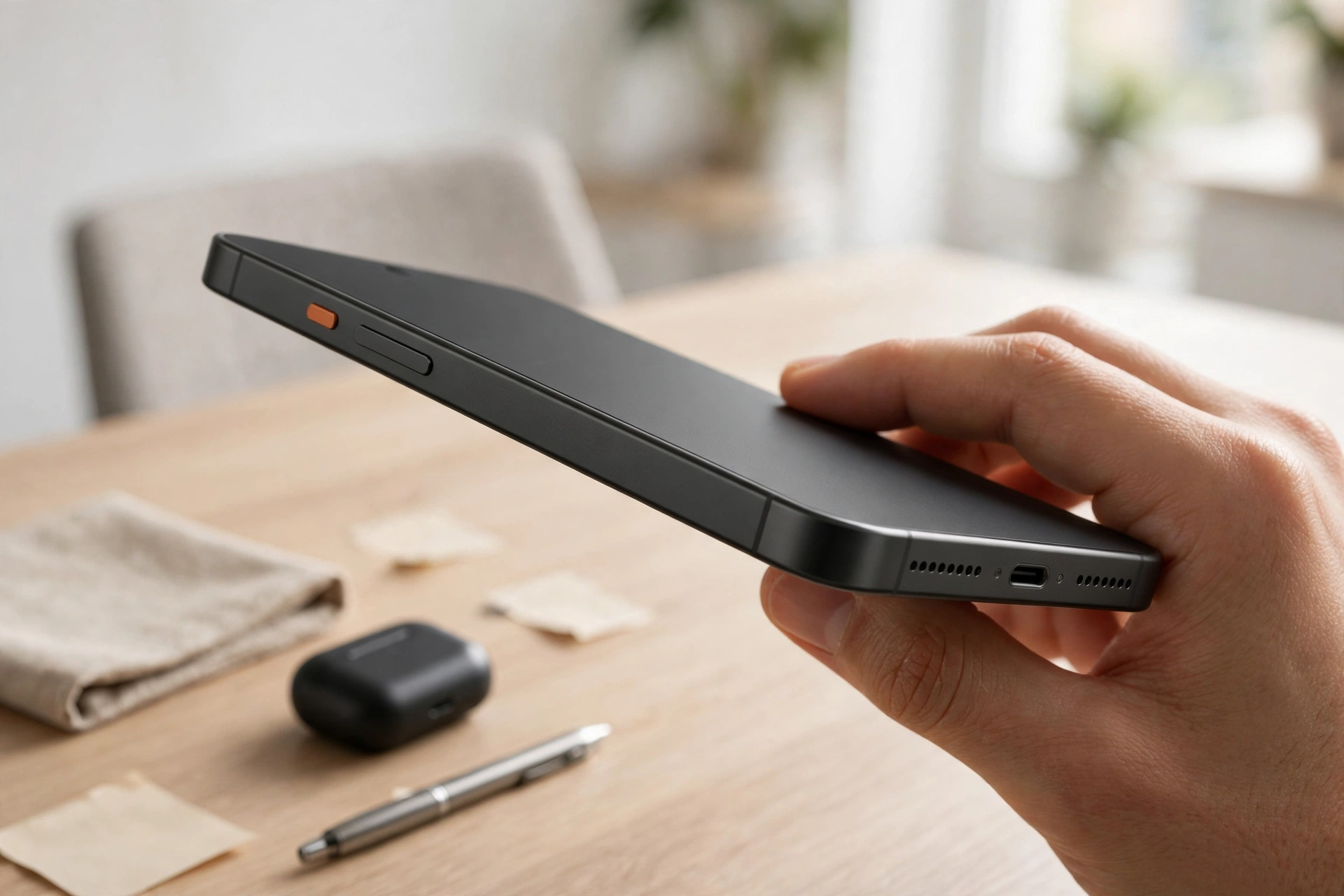
A silent iPhone 17 speaker is usually caused by a setting, not a broken speaker — and the newest model has traps the older ones did not. A Volume Limit can cap every sound, the earpiece grille feeds the stereo speaker, and a rugged case can hold the Action button down. This guide covers the iPhone 17-specific causes first.
First, find out whether it is the speaker or the sound route
Before changing anything, pin down where the sound is going. Open Control Center by swiping down from the top right, tap the AirPlay icon in the music card, and check the tick mark. If it sits on AirPods, a car stereo, a Bluetooth speaker, or an Apple TV, tap iPhone to bring audio back to the built-in speaker. Then go to Settings, then Bluetooth, and disconnect anything marked Connected that you are not using right now.
Now test the speaker directly. Open Settings, then Sounds & Haptics, and drag the Ringtone and Alerts slider up and down — the ringtone should play as you move it. Then play a song and a video.
The Volume Limit setting that quietly caps everything
This is the most common iPhone 17 surprise. Open Settings, then Sounds & Haptics, then Built-In Speaker, and look for Volume Limit. If Limit Maximum Volume is switched on, the phone caps how loud the speaker can go — and if the limit was set low, everything from ringtones to videos sounds faint or almost silent, even with the volume buttons at maximum. Switch it off, or drag the limit up to full, then test the ringtone slider again.
While you are in Sounds & Haptics, check the rest of the screen too. Make sure the Ringtone and Alerts slider is not sitting at the bottom, and switch on Change with Buttons so the side buttons actually control the volume. Also look for Silent mode: press and hold the Action button until you feel a vibration and the bell icon in the Dynamic Island appears without a line through it. Silent mode only affects ringtones, while a low Volume Limit caps everything — that difference tells them apart.
The earpiece and the top speaker are one part
On the iPhone 17, the receiver you hold to your ear during calls and the top speaker that completes the stereo pair are the same physical part. That means a blocked earpiece grille does double damage: calls sound quiet and muffled, and music and videos lose their stereo top channel, sounding thin and one-sided. If your iPhone 17 has no sound on calls but the bottom speaker still plays music, or if stereo playback sounds oddly flat, check the earpiece first.
Look at the thin slot above the screen. It collects skin oil, makeup, and pocket dust, and a clogged slot can silence the earpiece almost completely. Brush it very gently with a soft, dry toothbrush, working along the slot rather than pushing into it, and wipe it with a dry microfibre cloth. Do not use a pin, a needle, or compressed air at close range — the mesh behind the slot is delicate. Make a test call after cleaning and listen to the earpiece, then play a song and check whether the stereo sound has its fullness back. If the bottom speaker is also quiet, clean its grille the same way.
Cases that press the Action button or cover the grille
A brand-new phone usually wears a brand-new case, and cases cause more silent-speaker complaints than people expect. Some rugged cases press the Action button when the phone is squeezed in a pocket or a bag, toggling Silent mode without you noticing. Others have speaker cutouts that do not quite line up with the iPhone 17’s grille, covering part of it and muffling every sound. A case with a raised lip around the bottom edge can do the same thing.
Take the case off completely and test the ringtone slider and a song. If the sound comes back, the case is the problem, not the phone. Check the cutouts against the speaker grille and the Action button, and try a different case — preferably one made specifically for the iPhone 17 rather than a generic fit. The free speaker-cleaning tool on myspeakerfix.com can also help here: it plays a tone designed to vibrate dust and debris out of the speaker, and running it once with the case off tells you whether the grille itself was partly blocked.
When a restart and a reset do not help
If the speaker stayed silent through every check above, the fault is most likely software or hardware. Force restart the phone: press and release Volume Up, press and release Volume Down, then press and hold the Side button until the Apple logo appears. This clears temporary audio glitches without deleting anything. Then open Settings, then General, then Software Update, and install any update waiting — Apple regularly fixes audio bugs in small updates, and a brand-new model gets them often in its first months.
If the restart and update change nothing, reset all settings. Go to Settings, then General, then Transfer or Reset iPhone, then Reset, and choose Reset All Settings. Photos, messages, and apps stay, but Wi-Fi passwords and sound settings return to defaults. Retest the speaker afterwards. If it is still silent — especially if the speaker button stays dimmed during calls, or the sound is distorted at every volume — back up the phone and contact Apple Support. Apple can run a remote diagnostic on the speaker before you visit a store. Do not open the phone yourself; that can void the warranty.
Frequently Asked Questions
Why is my iPhone 17 speaker so quiet even at full volume?
Check Settings, then Sounds & Haptics, then Built-In Speaker, then Volume Limit. If Limit Maximum Volume is on and set low, it caps every sound no matter how high you push the volume buttons.
Why does my iPhone 17 have no sound on calls but music still plays?
Calls use the earpiece, which is also the top stereo speaker on the iPhone 17. A blocked earpiece grille silences calls and weakens stereo playback, so clean the slot gently with a soft brush.
Can my new case silence my iPhone 17 speaker?
Yes. A case can press the Action button and switch on Silent mode, or its cutouts can cover part of the speaker grille. Remove the case and test the speaker to find out.
Should I reset all settings if my iPhone 17 speaker is silent?
Only after checking the Volume Limit, Silent mode, Bluetooth, and the grilles. A reset clears stuck audio settings and often fixes software-caused silence, and your photos and apps stay.