
Why Is My iPhone 16 Speaker Not Working?
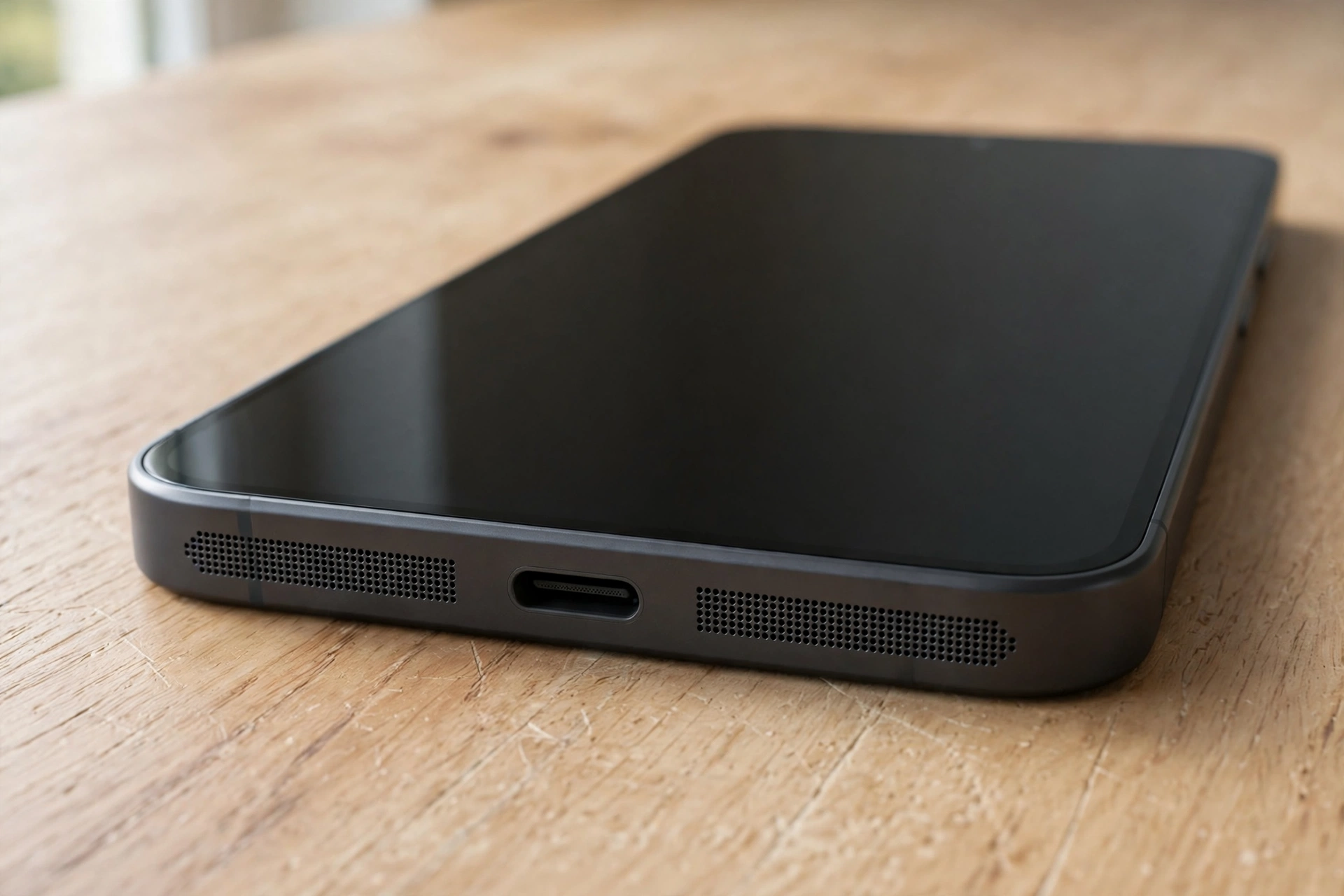
Your iPhone 16 speaker is most likely silent because of a setting, a blocked grille, or a software glitch — not a broken speaker. The Action button, a Bluetooth device, or lint in the USB-C port are the usual suspects. Work through the checks below and most speakers come back to life in a few minutes.
Start with the Action button — the mute switch moved
The iPhone 16 has no Ring/Silent switch. In its place is the Action button above the volume buttons, and a long press toggles Silent mode. It is easy to hold it by accident while picking the phone up, especially with a tight case. Look at the Dynamic Island: a small bell with a line through it means Silent mode is on. Press and hold the Action button until you feel a short vibration and the bell appears without the line.
If the button does nothing, check what it is set to do. Open Settings, then Action Button, and see which action is assigned — if someone set it to open the camera or run a shortcut, it will not toggle Silent mode at all. Change it back to Silent Mode, then press and hold it again.
The 30-second speaker test: the Ringtone and Alerts slider
Open Settings, then Sounds & Haptics, and drag the Ringtone and Alerts slider from one end to the other. The phone should play the ringtone as you move it, and the volume should rise and fall with the slider. This is the fastest honest test of the bottom speaker, because it bypasses every app and every audio route and talks to the speaker directly.
If the ringtone plays clearly, the speaker hardware is fine and the fault is a setting or an app. If the ringtone is very quiet, crackly, or missing entirely even with the slider at the top, the problem is either a blocked grille or the speaker itself.
What a dimmed speaker button is telling you
During a call, tap the speaker button on the call screen. On a healthy iPhone 16 it lights up and the call audio moves to the loudspeaker. If the speaker button is greyed out or dimmed and you cannot tap it, that is a meaningful clue: the phone itself believes the speaker is unavailable. A dimmed button usually points to a software fault, a failed audio component, or — after a drop or water exposure — a loose or damaged speaker connection.
Do not keep tapping it. First force restart the phone: press and release Volume Up, press and release Volume Down, then press and hold the Side button until the Apple logo appears. This clears temporary audio faults without deleting anything. Make a test call afterwards and check the speaker button again. If it is still dimmed after the restart and a software update, back up the phone and book an Apple diagnostic — a dimmed speaker button that survives a restart is one of the few symptoms that genuinely points toward hardware.
Lint in the USB-C port and water in the grille
The iPhone 16 charges through USB-C, and the port sits right beside the bottom speaker grille. Pocket lint packs into both, and lint in the port can even make the phone think headphones are connected, which silences the speaker. Shine a light into the port: if you see grey fluff, pick it out very gently with a wooden toothpick or a soft brush. Never use metal, and never force anything deep into the port.
For the speaker grille itself, brush it lightly with a soft, dry toothbrush and wipe it with a dry microfibre cloth. If the phone got splashed, water can sit in the grille and muffle the sound until it clears — hold the phone speaker-down and shake it gently once or twice. The free speaker-cleaning tool on myspeakerfix.com plays a tone designed to vibrate water and dust out of the speaker, and it runs in the browser with nothing to install. Run it for a short session with the volume up and the speaker facing down, then test the ringtone slider again. Never use a hair dryer on high heat and never push a pin into the grille — the mesh tears easily.
Software glitches: force restart and iOS updates
If the speaker stopped working right after an update, software is the likely cause. Apple ships audio fixes in small iOS updates, so open Settings, then General, then Software Update, and install anything waiting.
If nothing above helped, reset all settings. Go to Settings, then General, then Transfer or Reset iPhone, then Reset, and choose Reset All Settings. Your photos, messages, and apps stay untouched, but Wi-Fi passwords, wallpaper, and sound settings return to defaults — which is exactly the point, since it clears any stuck audio configuration. Set the Ringtone and Alerts slider again afterwards and retest. If the speaker works after the reset, a bad setting was the cause all along.
When the speaker itself is the problem
A few signs point to hardware rather than settings. Sound that is distorted at every volume, crackling when you press gently near the grille, or audio that cuts out when you tilt the phone all suggest a damaged speaker or a loose connection. The same applies if the problem started immediately after a hard drop onto a hard floor.
If the speaker stays silent after a force restart, a software update, and a reset of all settings, contact Apple Support. Back up the phone to iCloud or a computer first, and note when the problem started and whether water or a drop came first. Apple can run a remote diagnostic on the speaker, and a phone still under warranty or AppleCare may be repaired or replaced without a fee. Do not open the phone yourself — that can void the warranty and turn a simple repair into an expensive one.
Frequently Asked Questions
Why is my iPhone 16 speaker suddenly not working?
Most often it is Silent mode on the Action button, a Bluetooth device taking the audio, or lint in the USB-C port. Check the Action button, disconnect Bluetooth, and force restart the phone.
Why is the speaker button dimmed on my iPhone 16 during calls?
A dimmed speaker button means the phone believes the speaker is unavailable, usually from a software fault. Force restart the phone and check again; if it stays dimmed, book an Apple diagnostic.
Can lint in the USB-C port silence my iPhone 16 speaker?
Yes. Lint in the port can make the phone think headphones are plugged in, which routes sound away from the speaker. Clean the port gently with a wooden toothpick and test again.
Will resetting all settings fix my iPhone 16 speaker?
It often fixes software-caused silence because it clears stuck audio settings. Your photos and apps stay, but Wi-Fi passwords and wallpaper settings return to defaults.