
Your iPhone Speaker Is Silent — Start With These Checks
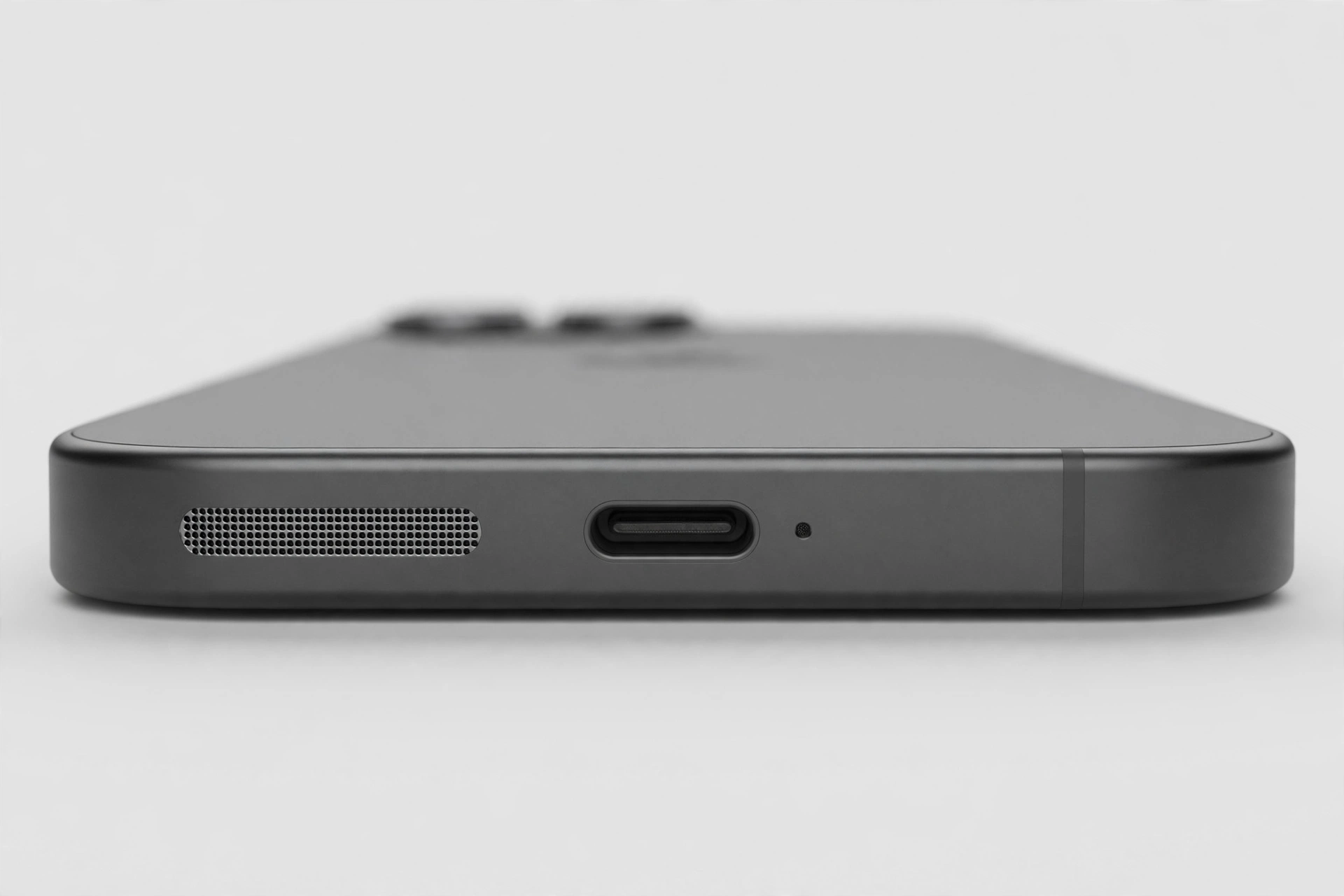
An iPhone speaker that goes silent is usually silenced by something iPhone-specific: the Ring/Silent switch, an AirPlay handoff, or a Focus mode. Before you book a repair, run the checks that are unique to iPhones — they fix most cases in a few minutes, and they work on every model from the iPhone SE to the latest Pro.
The Ring/Silent Switch — iPhone’s Most Common Culprit
The small switch on the left side of the iPhone, above the volume buttons, is the first thing to check. If you can see orange, the phone is silenced and ringtones and alerts will not play. Flip the switch back toward the screen so the orange is hidden, then press the volume-up button while music is playing and confirm the on-screen slider rises.
Media volume and ringer volume are separate on iPhone, so also open Settings, then Sounds & Haptics, and turn both sliders up. Make sure “Change with Buttons” is switched on, so the side buttons actually control the ringer. On iPhone 15 Pro and later models the switch is replaced by the Action Button — if yours is set to Silent Mode, a long press toggles silence, and you can change its assignment in Settings, then Action Button.
Where Is the Sound Going? AirPlay and Bluetooth
Your iPhone may be sending sound to AirPods, a Bluetooth speaker, a car stereo or an Apple TV without you noticing. Open Control Centre and check the audio output in the music panel — if it shows anything other than iPhone, tap it and select iPhone.
Then go to Settings, then Bluetooth, and turn Bluetooth off completely to rule out a forgotten connection. Also check Settings, then General, then AirPlay & Handoff, and make sure audio is not set to transfer automatically to another device when you walk near it.
Focus and Do Not Disturb Are Silencing You
Do Not Disturb and Focus modes silence calls, alerts and notifications, which can look exactly like a broken speaker. Open Control Centre and check whether the Focus icon is active — if it is, tap it to turn it off.
Then go to Settings, then Focus, and check each mode for a schedule. A Sleep schedule, a Work schedule or a Driving Focus can switch on automatically at certain times of day and silence your phone without any visible warning. Also confirm your ringtone is not set to None in Settings, then Sounds & Haptics.
The Voice Memos Test
Voice Memos gives you a clean test that separates a speaker problem from an app problem. Open Voice Memos, record a few seconds of speech, then play it back with the volume turned up. If you hear it clearly, the speaker works and the fault is in the app that was silent. If you hear nothing, try playing a song in Apple Music and a video in Safari — if all three are silent, the problem is system-wide and the remaining steps apply.
Cleaning the Bottom Grille (and the Earpiece Slot)
The speaker grille at the bottom of the iPhone collects pocket lint and dust, which muffles the sound over time. Hold the phone speaker-side down and brush the grille gently with a soft, dry toothbrush, using short strokes to flick the dust out. A clean grille often makes an iPhone noticeably louder straight away.
Do not use liquids, and never poke the grille with a SIM tool or a pin — the speaker sits just behind the holes and is easy to damage. The same applies to the earpiece slot above the screen: if calls sound muffled, clean it the same way.
Water in the Speaker: The Tone Test
If the speaker sounds muffled after your iPhone got wet, a low-frequency tone can vibrate the water out of the speaker chamber. The free speaker-cleaner tool on myspeakerfix.com plays a tone made for exactly this — turn your media volume to maximum, place the iPhone speaker-side down on a dry towel, and run the tone for a few minutes. Repeat it two or three times, letting the phone rest in between. This helps with water and loose dust only; if the speaker crackles or stays silent, move on to the software steps below.
The iOS Reset Ladder
If the speaker is still silent, work up this ladder, testing after each rung:
- Restart the iPhone. On iPhones with Face ID, hold the side button and either volume button together, then slide to power off; on iPhones with a Home button, hold the side button alone. Wait ten seconds, then hold the side button until the Apple logo appears.
- Update iOS. Go to Settings, then General, then Software Update, and install any update that is waiting — connect to Wi-Fi and charge the phone first. Apple regularly ships fixes for audio bugs, and a speaker problem that appeared after an update is often patched in the next one.
- Reset all settings. Go to Settings, then General, then Transfer or Reset iPhone, then Reset, then Reset All Settings. This clears Wi-Fi passwords and Bluetooth pairings, so make sure you know your Wi-Fi password first. It keeps your photos and apps.
- Get a diagnosis. If the speaker crackles, buzzes or distorts at every volume, the speaker unit has probably failed. Contact Apple Support or visit an Apple Store or an authorised repairer. Do not open the iPhone yourself — this can void the warranty.
Frequently Asked Questions
Why is my iPhone speaker not working after an update?
An iOS update can change audio settings or introduce a bug that mutes the speaker. First check the Ring/Silent switch and the volume, then restart the iPhone and disconnect Bluetooth. If the problem started with the update, install the next iOS patch — Apple often fixes audio bugs quickly.
Why is my iPhone speaker muffled?
A muffled iPhone speaker is usually caused by dust or lint in the grille, water in the speaker chamber, or a case covering the speaker holes. Clean the grille gently, run a speaker-cleaning tone if the phone got wet, and try the phone without its case.
Why does my iPhone only play sound through headphones?
If sound only comes through headphones, the iPhone thinks headphones are still connected. Unplug any wired headphones, turn Bluetooth off, and check the audio output in Control Centre. A faulty Lightning or USB-C adapter can also trick the phone, so try a different adapter or remove it entirely.
How do I test my iPhone speaker?
Play a song in Apple Music, then a video in Safari, then record and play back a Voice Memo — if all three are silent, the problem is system-wide. Also play a ringtone in Settings, then Sounds & Haptics. If the speaker works in some apps but not others, the fault is in the silent app, not the speaker.