
Silent Video, Working Camera: Finding the Missing Sound
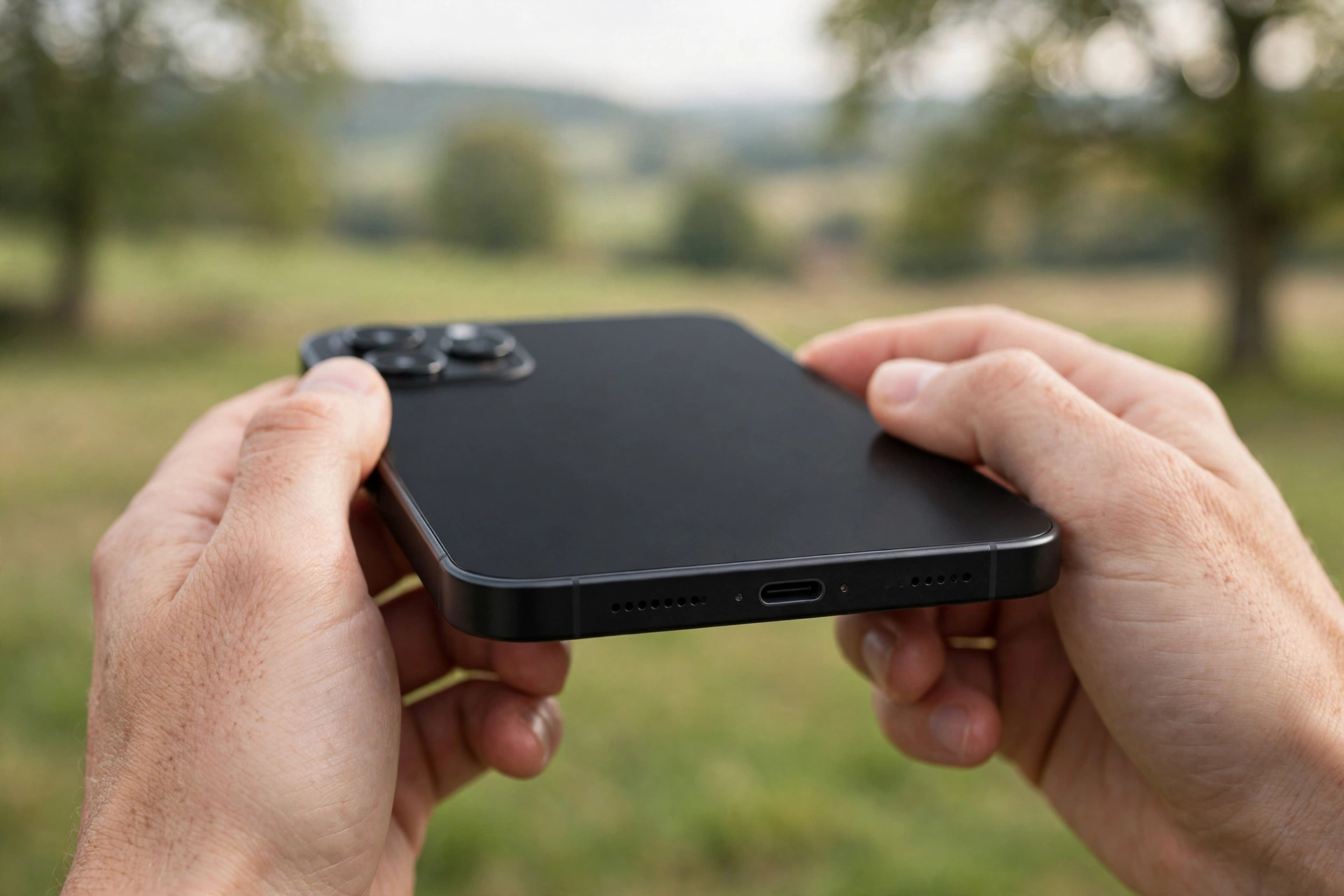
Your video looks great and sounds like nothing at all. The camera did its job, but the audio track never got recorded, so playback is silent on every device. The fix is usually small — a permission that got switched off, a mute icon tapped by accident, or a mic hole hiding under your case. Here’s how to find which one it is.
The 30-second test that tells you where the fault lives
Play the clip on a different device first — send it to a friend, open it on a laptop, or cast it to a TV. If they hear your voice and you don’t, the recording is fine — check your media volume, the silent switch, and whether audio is sneaking out to earbuds still in range. If nobody hears anything anywhere, the sound was never captured in the first place, and the microphone side of the phone is where the fault lives. That one check splits the problem in half.
The permission that quietly kills video sound
A camera app can record beautiful video with zero audio when its mic permission is off, and the phone won’t warn you. It’s the most common cause of this fault, and it often starts after an update resets permissions or a stray tap on “Don’t allow.”
On an iPhone, open Settings, then Privacy & Security, then Microphone, and check the toggle next to your camera app — if it’s off, switch it on. On Android, open Settings, then Apps, then your camera app, then Permissions, and set Microphone to Allow while using the app. Force-close the camera app, reopen it, and record a short test clip. Check other recording apps too — a social app can have its own permission off while the built-in camera works fine.
The mute button hiding in plain sight
Some apps hide a mute switch right on the recording screen, usually a small microphone icon in a corner, and it’s easy to tap by accident when you’re framing a shot. Before you press record, look for that icon and make sure it isn’t crossed out or greyed out. Slow-motion and time-lapse modes record without sound by design on some phones, so test with standard video mode first. Some apps expect an external mic and record silence when it isn’t connected, even though the built-in mic is healthy. If the icon keeps switching itself back on, look for a “record without audio” option in the app’s settings and switch it off.
Your case might be covering the mic
Phones carry more than one microphone — one along the bottom edge, one near the top, and sometimes one beside the rear camera — and covering any of them can hush a recording. Cases are the usual suspect: a new case with a slightly misaligned cutout can sit right over the bottom mic, and a case flap can do the same at the top. Take the case off and record a test clip. If the sound returns, the fix is a better-fitting case, not a repair. While the case is off, clear the mic holes of lint with a soft, dry brush. Never push a pin, needle, or SIM tool into a mic hole. One poke can damage the mic for good, turning a free fix into a repair bill.
When a restart and an update are actually worth trying
If the permission is on, nothing is muted, and the mic holes are clear, the fault is probably a stuck audio process. Force-close the camera app completely — swipe it away from the recent-apps screen — then reopen it and record another test clip. Still silent? Restart the phone — it clears audio sessions that survive an app close. After the restart, check for a system update: a bug in one version can break recording audio, and the patch often lands quietly in the next update. On an iPhone that’s Settings, then General, then Software Update. On Android it’s usually Settings, then System, then Software update.
A quick mic check that separates a settings fault from a broken mic
First, record a voice memo. If it sounds fine but your videos are silent, the mic hardware works and the trouble sits in the camera app. Next, call someone — calls often use a different mic path, so clear call audio with silent video points the same way. Then record one clip with each camera, since some faults only touch one mic. If every recording and every call is silent, the mic itself may have failed, and that’s more likely after a drop or a dunk in water. If only one app is silent, delete it and install it again — a fresh install clears corrupted settings no toggle can reach.
When it’s time to book a repair
Book a repair when every app and every call is silent, when the mic died right after a drop or a repair, or when the phone went underwater and the mic never recovered. Crackling, cutting out, or very quiet audio are also signs the mic itself is failing. Get a price first, and ask whether the shop replaces the mic module or the whole board — the two jobs cost very different amounts. If the phone is still under warranty, call the manufacturer first, since a third-party repair can void it. A repair shop can’t help with one thing, though: a speaker muffled after water got in. For that, the free speaker-cleaning tool at myspeakerfix.com plays a tone that helps push water out of the speaker — but it can’t revive a dead microphone, so don’t expect it to fix silent recordings.
Frequently Asked Questions
Why do my calls sound fine but my videos have no sound?
Calls and video recording often use different microphones and different permissions. A camera app with its mic permission off, or a muted in-app setting, silences video while calls stay perfectly normal.
Can a phone case really silence a video recording?
Yes. A case with a misaligned cutout can cover the bottom or rear microphone completely. Take the case off and record a test clip to check.
Why is there sound on my old videos but not on new ones?
Something changed just before the silence started — a permission reset by an update, a new case, or a new recording app. Undo that change first.
Should I factory-reset my phone to fix silent recordings?
No, not as a first step. Work through permissions, app settings, mic holes, a restart, and a mic test first. A reset is only worth it when every test points to a deep software fault, and you should back up everything before you try it.