
Why Is My Pixel 6 Speaker Not Working?
Your Pixel 6 handset has lost its voice. Did a toggle get knocked by accident? Did a rogue download hijack the audio? Has fluff choked the speaker openings? Or has the little driver inside simply given up?
Here’s the twist: one two-minute try-out cuts the mystery in half. Fire up Safe Mode, trigger a ringtone, and you’ll know which path you’re on.
Audio back in Safe Mode? A download you added is the villain — the hardware’s healthy. Still hush? No download is responsible — the trouble lives in the handset’s controls, or in the hardware itself.
One handy clue: if your alarm still buzzes while clips stay hush, the speaker isn’t dead — a level or route is wrong.
Two Roads From One Test
Safe Mode runs only the programs your handset shipped with.
Squeeze the power key, then press and hold “Power off” until your handset offers Safe Mode. Tap OK and wait — “Safe mode” appears at the bottom of the display.
Once inside, trigger a ringtone from the controls — not a tune or a clip.
Audio here signals Branch A; hush signals Branch B.
Branch A: Sound Comes Back in Safe Mode
First, breathe easy — the hardware’s healthy, there’s no repair bill looming. Some add-on you loaded is grabbing the audio lane — now hunt it down.
Think back to what you loaded or refreshed just before the audio vanished — that’s your prime suspect, usually a loudness booster, an equaliser program, a call recorder, or a game.
Reboot into the normal setup, delete that one program, and trigger a ringtone. Still hush? Move along to the next newest download, trying the audio after every deletion.
If no single program stands out, think about the last thing that changed — a program that asked for microphone or audio permission lately deserves a second look.
If the trouble began right after a refresh, wipe that program’s temporary files first: controls, Apps, the program, Storage, then clear its temporary files. Leave the storage-wipe button alone — it erases saved material and logs you out.
Also check for a newer build: controls, then System. Once the audio’s back, bring programs home one at a time, trying the audio after every reinstall — if the hush returns, the villain stands revealed.
Branch B: Still Silent in Safe Mode
Right — no download is doing this. The trouble is a control, a hiccup, or the speaker itself.
Begin with the loudness levels — Pixels keep separate sliders for media, calls, ringtones, and alarms. Squeeze a side loudness key, tap the menu mark, and inspect every slider. If playback sits at zero, clips stay hush while your ringtone rings loud. Also glance at the audio symbol in the pull-down controls — confirm it isn’t on hush or buzz-only.
Next, Do Not Disturb and Adaptive Sound. Do Not Disturb hushes ringtones and notifications, and a timetable can still hush your evenings — check the shortcut and timetable under Controls, then Sound and vibration, then Do Not Disturb. Adaptive Sound reshapes the output to match the room, which can leave audio thin and weak; disable it under Controls, then Sound and vibration, then Adaptive Sound.
Now the big one: Bluetooth. Your Pixel 6 remembers every gadget it ever paired with, and it’ll reconnect — then send audio there. Disable Bluetooth and trigger a ringtone. If the audio returns, the mystery’s solved. Enable it again, open Connected devices, and cut media playback for anything that shouldn’t receive audio — or drop the gadget entirely.
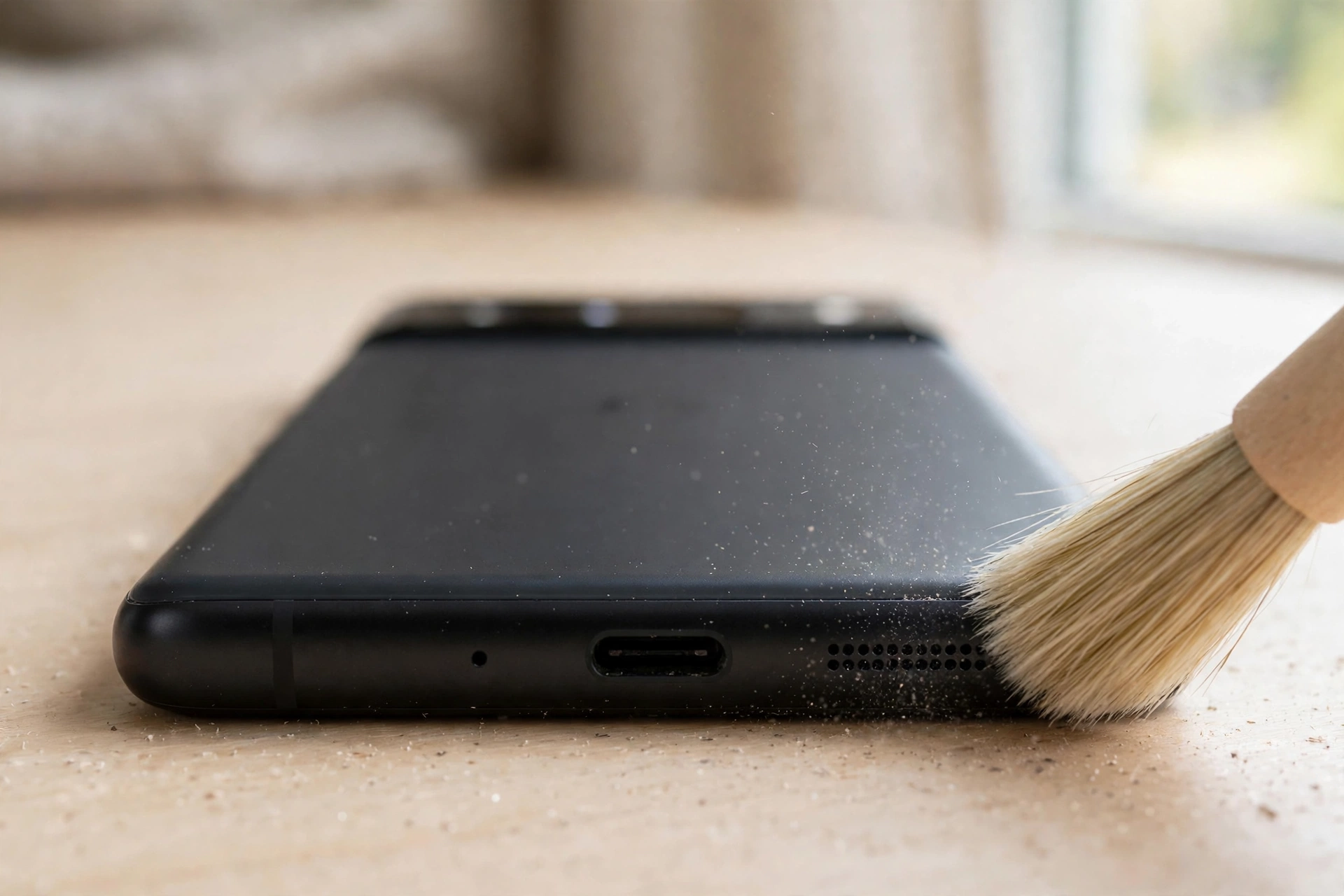
If Bluetooth isn’t the villain, inspect the bottom openings — tiny openings along the bottom edge gather pocket fluff and dust, and a choked one makes audio faint, fuzzy, or buzzy. Power the handset down, hold it openings-down, and sweep the slots gently with a dry, soft paintbrush. Never use water, and never jab a pin or a SIM ejector gizmo into the slots — that shoves grime deeper or harms the fine screen inside. Power it up and trigger a ringtone — louder or clearer audio signals dust played a part. You can also run our free speaker cleaner tool — it plays a tone that shakes loose water and dust.
Still nothing? A return to out-of-the-box state is the final software move before concluding the speaker itself has failed. Back up first and confirm you know your Google sign-in password. Head to Controls, then System, then the wipe-everything choice, confirm it, and trigger a ringtone before bringing programs back. Still hush? The hardware has likely failed — time for a repair visit.
Tested on
You don’t need any gear — just your handset and two minutes.
Step 1 — The fork: Safe Mode. Squeeze the power key, then press and hold “Power off” until Safe Mode is offered. Tap OK, wait, then trigger a ringtone from Sound and vibration. A pass signals you catch it loud and clear. A fail signals nothing, or only a faint hum. A pass leads to Branch A; a fail leads to Branch B.
Step 2 — Branch A: hunt the program. Reboot normally, delete the newest program, and trigger a ringtone. A pass signals the audio’s back — leave it deleted. A fail signals it’s still hush — try the next newest program.
Step 3 — Branch B: inspect the loudness levels. Squeeze a side loudness key, tap the menu mark, lift every slider, and trigger a ringtone. A pass signals the audio’s back — a slider sat at zero. A fail signals they were already raised.
Step 4 — Branch B: disable Bluetooth. Disable Bluetooth and trigger a ringtone. A pass signals the audio returns — audio was heading elsewhere. A fail signals it’s still hush with Bluetooth disabled.
Step 5 — Branch B: sweep the openings. Power the handset down, hold it openings-down, and sweep the openings gently with a dry, soft paintbrush. Power it up and trigger a ringtone. A pass signals louder or clearer audio — dust was smothering it. A fail signals it sounds the same.
Step 6 — Either branch: reboot and look for a newer build. Squeeze the power key, tap reboot, and trigger a ringtone once it’s awake. Then look under Controls, then System, for a build refresh, and load anything queued. A pass signals the audio’s back. A fail signals it’s still hush — on Branch B, a wipe after a backup is the final move before a repair visit.
Frequently Asked Questions
Why does my Pixel 6 speaker work for calls but not for videos?
Calls and media use separate loudness streams, so ring loudness can be healthy while the playback level sits at zero. Lift the playback slider in the full loudness panel. If that doesn’t help, disable Bluetooth.
What does it mean if my speaker works in Safe Mode?
It means the speaker hardware is healthy and an add-on you loaded is hushing you. Reboot into the normal setup and delete recent downloads one at a time — starting with loudness boosters and call recorders — trying the audio after every deletion.
Can dust really make my Pixel 6 speaker stop working?
Dust usually makes audio faint or fuzzy, not dead outright, but a badly choked set of openings can sound dead. Sweep the bottom openings gently with a dry, soft paintbrush, handset held openings-down — never jab it with a pin.
Should I factory reset my Pixel 6 if the speaker is silent?
Only as a final move, after every look above has failed. Save a backup of everything first.