
Samsung Galaxy A54 Speaker Not Working: Causes and Fixes
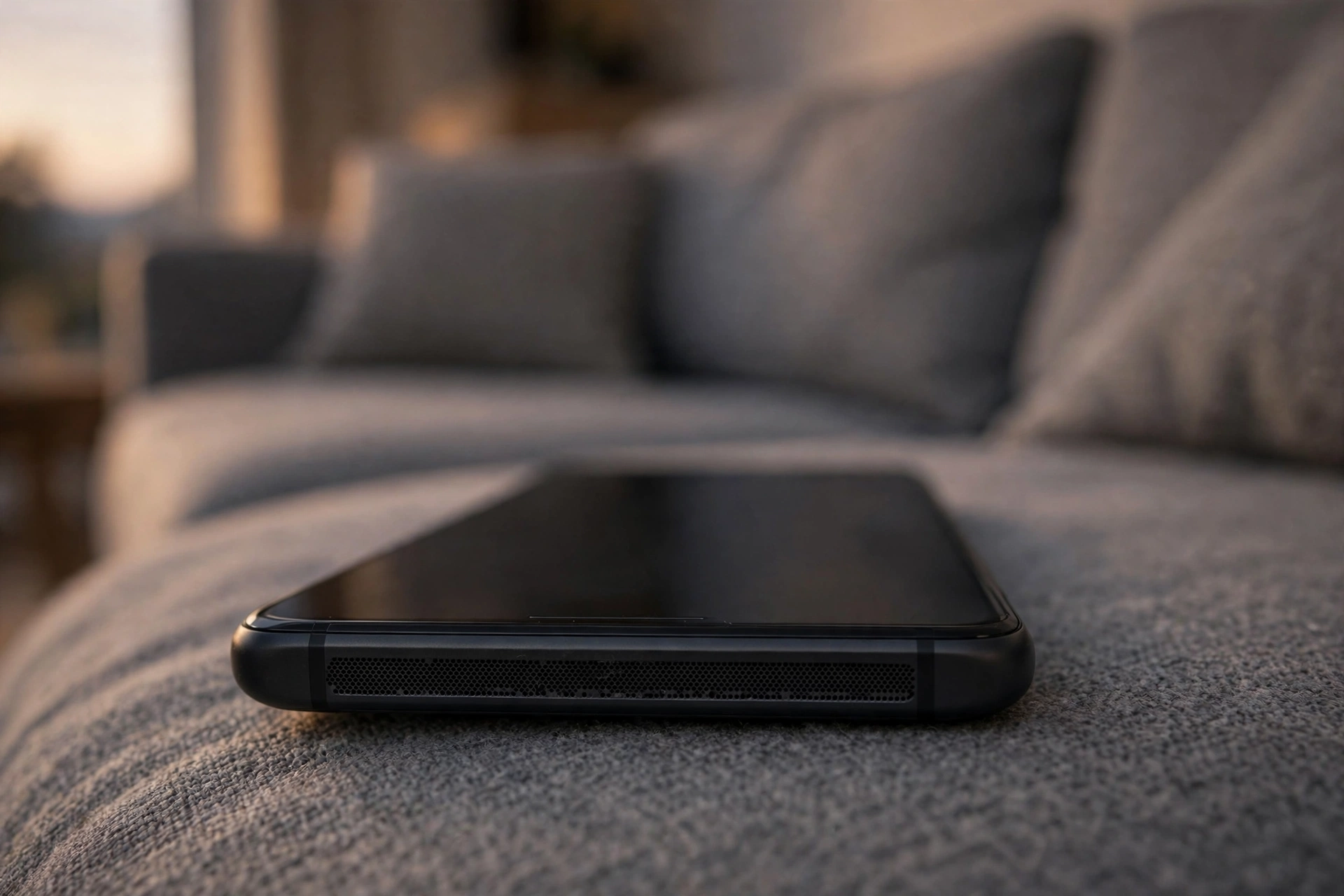
The Samsung Galaxy A54 speaker usually stops working because sound is muted, routed to a Bluetooth device, blocked by dust in the bottom grille, or held back by a software glitch. Work through the settings and cleaning checks below before assuming the speaker is broken — most A54 owners get sound back without a repair.
The silent-mode trap: check volume, mute, and Do Not Disturb first
The A54 has separate volume levels for media, ringtone, notifications, and system sounds, so one can be silent while the others work. Press Volume Up, tap the three dots on the volume panel, and check every slider — media, ringtone, notification, and system — making sure none sits at zero. Then open Settings, then Sounds and vibration, and confirm that the ringtone and notification volumes are raised and that the phone is not set to Mute or Vibrate only.
Do Not Disturb is a frequent culprit on the A54 because it can silence calls and media without any obvious icon. Swipe down twice for Quick Settings and check whether the Do Not Disturb tile is lit. If it is, tap it off. Also open Settings, then Notifications, then Do Not Disturb, and look for a schedule that turns it on at certain hours. Test sound with a ringtone from Settings, then Sounds and vibration, then Ringtone — if the ringtone plays but YouTube is silent, the problem is inside that app.
Bluetooth, USB-C, and the wrong audio output
The Galaxy A54 hands audio to the last connected device very willingly. AirPods, Galaxy Buds, a car stereo, or a Bluetooth speaker in another room can all steal the sound. Swipe down for Quick Settings and check the Media output button, or open Settings, then Connections, then Bluetooth, and look for any device marked Connected. Disconnect it and test the speaker again. Turn Bluetooth off entirely for a minute as a clean test — if sound returns, a paired device was the cause.
Check the USB-C port too. A damp or faulty USB-C adapter, a headset dongle, or a charging dock can make the A54 think headphones are plugged in. Unplug everything, then restart the phone. If the phone was recently near water, inspect the port for moisture and let it dry fully before plugging anything back in.
A blocked grille, a thick case, and the A54 bottom speaker
The Galaxy A54 speaker sits in the bottom edge next to the USB-C port, and that grille collects pocket lint fast. Hold the phone under a bright light: if the tiny holes look grey or filled in, they are partly blocked. Use a soft, dry brush — a clean toothbrush works well — and sweep gently across the grille. Press a strip of low-tack tape over it and lift to pull lint out. Wipe with a dry microfibre cloth. Do not push a needle or SIM tool into the holes, and do not blast compressed air straight into the grille, because both can damage the mesh or push dirt further in.
Take the case off and test again. Some A54 cases cover the grille edge or press a flap over it, and a case that has warped slightly can muffle sound by half. If the speaker sounds thin or distant only with the case on, the case is the problem, not the phone.
Water in the speaker: what to do on the A54
The A54 carries an IP67 rating, which means it can survive a brief dip, but water can still sit in the speaker grille and make sound muffled or crackly until it clears. If the phone got wet, hold it with the speaker grille facing down and shake it gently once or twice. Leave it in a dry, ventilated spot with the port and grille facing down. Do not use a hair dryer on hot air and do not charge the phone while the USB-C port is wet — the A54 will usually warn you about moisture in the port, and you should wait until that warning clears.
A sound-based cleaning tone can help push the remaining water out. The free speaker-cleaner tool on myspeakerfix.com plays a tone that vibrates water and dust out of the speaker; open it in the browser, turn the media volume up, and hold the phone speaker-down for a short session, then test a song. If the sound is still distorted after the phone is fully dry, the speaker may need a look from a technician.
Software bugs, Safe Mode, and the app-by-app test
A bad update or a misbehaving app can mute the A54 speaker across the whole system. Start with a restart: hold the Side button and Volume Down together, tap Restart, and test sound when the phone comes back. Then open Settings, then Software update, then Download and install, and install any waiting update — Samsung ships audio fixes in these updates.
To find whether one app is the cause, boot into Safe Mode. Hold the Side button and Volume Down, tap and hold the Power off option on screen until “Safe mode” appears, then tap it. In Safe Mode only the pre-installed apps run. Play a song or a ringtone: if the speaker works in Safe Mode, a downloaded app is interfering — most often a volume booster, an equaliser, or a call-recording app. Restart normally to leave Safe Mode, then uninstall recently added audio apps one at a time, testing after each. If the speaker is silent even in Safe Mode, the cause is system-wide or hardware.
Reset settings, then check the hardware
If Safe Mode does not help, reset the phone’s settings. Open Settings, then General management, then Reset, then Reset all settings. This restores sound, network, and display settings to defaults without deleting photos or apps. You will need to rejoin Wi-Fi and re-pair Bluetooth devices afterwards.
After the reset, run a hardware check in the Samsung Members app: open it, tap Support, then Phone diagnostics, then Speaker, and follow the on-screen test. Also try a voice recording played back through the speaker and a call on speakerphone. If the earpiece works during calls but the bottom speaker stays dead for media and ringtones, or the sound crackles at every volume and cuts out when you tilt the phone, the speaker unit or its connection is likely faulty — especially if the problem began right after a drop. Back up your data and take the phone to Samsung or a trusted repair shop, and tell them which steps you already tried.
Frequently Asked Questions
Why is my Galaxy A54 speaker not working after an update?
Updates can reset audio settings or introduce a bug. Restart the phone, check for a newer update, and test in Safe Mode to see if an app is interfering.
How do I test the speaker on a Galaxy A54?
Use the Samsung Members app, then Support, then Phone diagnostics, then Speaker. You can also play a ringtone and a song to check media and alerts separately.
Can water damage the Galaxy A54 speaker even though it is water resistant?
Water can sit in the grille and muffle sound until it dries or is vibrated out. If sound stays distorted after the phone is fully dry, get the speaker checked.
Will resetting all settings delete my photos on the A54?
No. Reset all settings restores sound and network settings to defaults but keeps photos, messages, and apps. Wi-Fi passwords and Bluetooth pairings are cleared.