
Every Call Lands on Speakerphone and You Never Tapped It
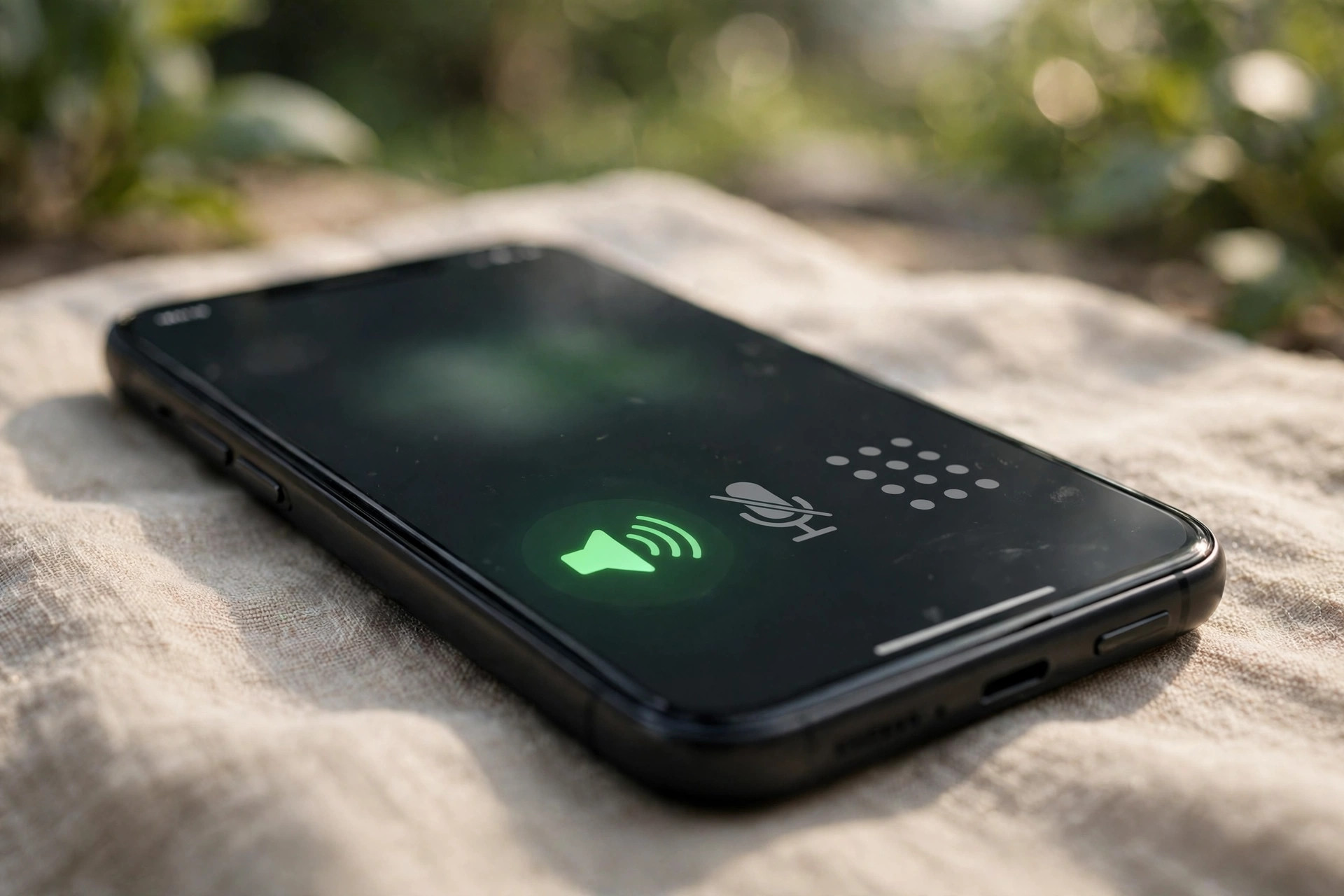
You answer a call, hold the phone to your ear, and hear nothing — the sound is blasting out of the loudspeaker for the whole room. You never tapped the speaker button. Something told your phone to route every call to the speaker, and once you find that instruction and switch it off, the problem goes away for good.
The iPhone Setting That Hijacks Every Call
On iPhone, one buried setting causes this more than anything else. Open Settings, then Accessibility, then Touch, then Call Audio Routing. If it says Speaker instead of Automatic, every call you make or answer defaults to speakerphone — incoming, outgoing, all of them.
Switch it back to Automatic and your calls go to the earpiece again.
If you don’t remember touching that setting, you probably didn’t — an iOS update, a family member poking around in Accessibility, or five minutes in a child’s hands can flip it. Check it, fix it, and make a test call to confirm the earpiece picks up again.
While you’re in Accessibility, check the Hearing section too — hearing devices, RTT or TTY settings, anything that streams call audio away from the earpiece. If you don’t use those features, turn them off; on by accident, they reroute your calls without asking.
Android Has Its Own Version of the Same Trap
Android doesn’t put this in one tidy place. Start in your Phone app’s settings and look for anything labelled calling accounts, call audio, or default audio device — some phones bury a speakerphone default in there, and it survives updates because it’s a setting, not a glitch.
Then open Settings, then Accessibility, and read through everything under hearing or audio. Options that stream call audio to hearing aids or external devices can leave the earpiece bypassed entirely, and updates can switch them on without warning. Switch any call-audio option back to the phone’s default and test again.
Your Bluetooth Gear Is Answering Your Calls for You
Your car, earbuds, or smartwatch grabs every call the second it comes in. The audio routes to the accessory — which might be in another room — and from your side it feels like the phone is stuck on speaker.
Test it: turn Bluetooth off completely, then make a call. If the call goes to the earpiece like it should, a Bluetooth device was the culprit.
To fix it for good, unpair the device, or keep it paired and take away its call privileges: open Settings, then Bluetooth, tap the info icon next to the device, and switch off call audio or auto-answer while leaving media audio on. Car systems are the biggest offenders — many auto-answer by default.
Some earbuds stay connected even in their charging case, which is enough for the phone to hand them a call. If your calls only misbehave when the earbuds are nearby, that’s your answer.
The Proximity Sensor Test Takes Thirty Seconds
During a call, your phone uses the proximity sensor — that little window near the top of the screen — to tell whether it’s against your ear. If the sensor is stuck or blocked, the phone thinks it’s lying flat on a table, and some phones switch the call to speakerphone on their own.
Test it on a call: start on speakerphone, then cover the top inch of the screen. It should go dark within a second, and wake up when you lift your hand. If nothing happens, the sensor isn’t seeing your hand.
The classic cause is a screen protector creeping over the sensor area — a cheap one with the wrong cutout blocks it completely. A case lip or a smudge of grime along the top edge can do the same thing, so wipe it clean and test again.
On iPhone there’s no manual sensor calibration, so a restart usually clears a stuck sensor. If it stays stuck after a restart and a clean-up, it’s a repair-shop job.
When an App Is the One Forcing Speakerphone
If only one app — WhatsApp, Messenger, or another calling app — misbehaves while regular calls are normal, the app has its own speakerphone habit and your system settings are innocent.
Open the app’s settings and look for call or audio options. Voice and video calls in these apps often default to speakerphone independently of the phone’s routing, and the toggle lives inside the app, not in your system settings. Change it there and the behaviour stops.
If regular calls misbehave too, check whether you’re using a third-party dialer instead of the built-in Phone app. Third-party dialers can carry their own speakerphone default and don’t always respect the system routing settings. Switch back to the stock dialer for a day — if the problem disappears, the dialer was the cause.
Then update the Phone app and your OS — Android: Settings, then System, then Software update; iPhone: Settings, then General, then Software Update. Call-routing bugs do get patched. Finish with a restart, because the call-audio service that applies these routing rules can get stuck and needs the reboot to re-read your settings.
How to Tell Whether Your Earpiece Is Actually Dead
It’s worth separating two very different problems here. If your phone defaults to speaker but the earpiece works fine when you tap the speaker button mid-call, your earpiece is healthy — this is a settings problem, and everything above applies.
If the earpiece stays silent even when you switch to it manually, that’s a different fault — your phone may be falling back to speakerphone because the earpiece itself has died, and no settings change will bring it back. Run the free speaker test on myspeakerfix.com to check both speakers; if the earpiece is truly dead, it’s a repair-shop job.
Either way, you now know which problem you have.
Frequently Asked Questions
Why do all my calls automatically go to speakerphone?
Something told your phone to do it: call audio routing set to Speaker on iPhone, an accessibility or hearing-device option, a Bluetooth accessory auto-answering, or a stuck proximity sensor. Work through the checks above and you’ll find it.
Is my earpiece broken if my phone only uses speakerphone?
Not necessarily. If the earpiece works when you switch to it manually, it’s healthy and this is a settings problem. If it’s silent even then, that’s a different fault — a dead earpiece forcing you onto speakerphone.
Why does speakerphone turn on only when I’m connected to Bluetooth?
That’s your Bluetooth accessory’s doing, not your phone’s. Many car systems, earbuds, and smartwatches auto-answer and route call audio to themselves. Disable call audio or auto-answer for that device in your Bluetooth settings and the behaviour stops.
Will resetting call audio routing delete any of my data?
No. Changing call audio routing, accessibility audio options, or Bluetooth settings only affects how calls are handled — your photos, messages, apps, and accounts are untouched. Even reset-all-settings keeps your data while restoring system defaults.