
TCL Phone Speaker Not Working: Causes and Fixes
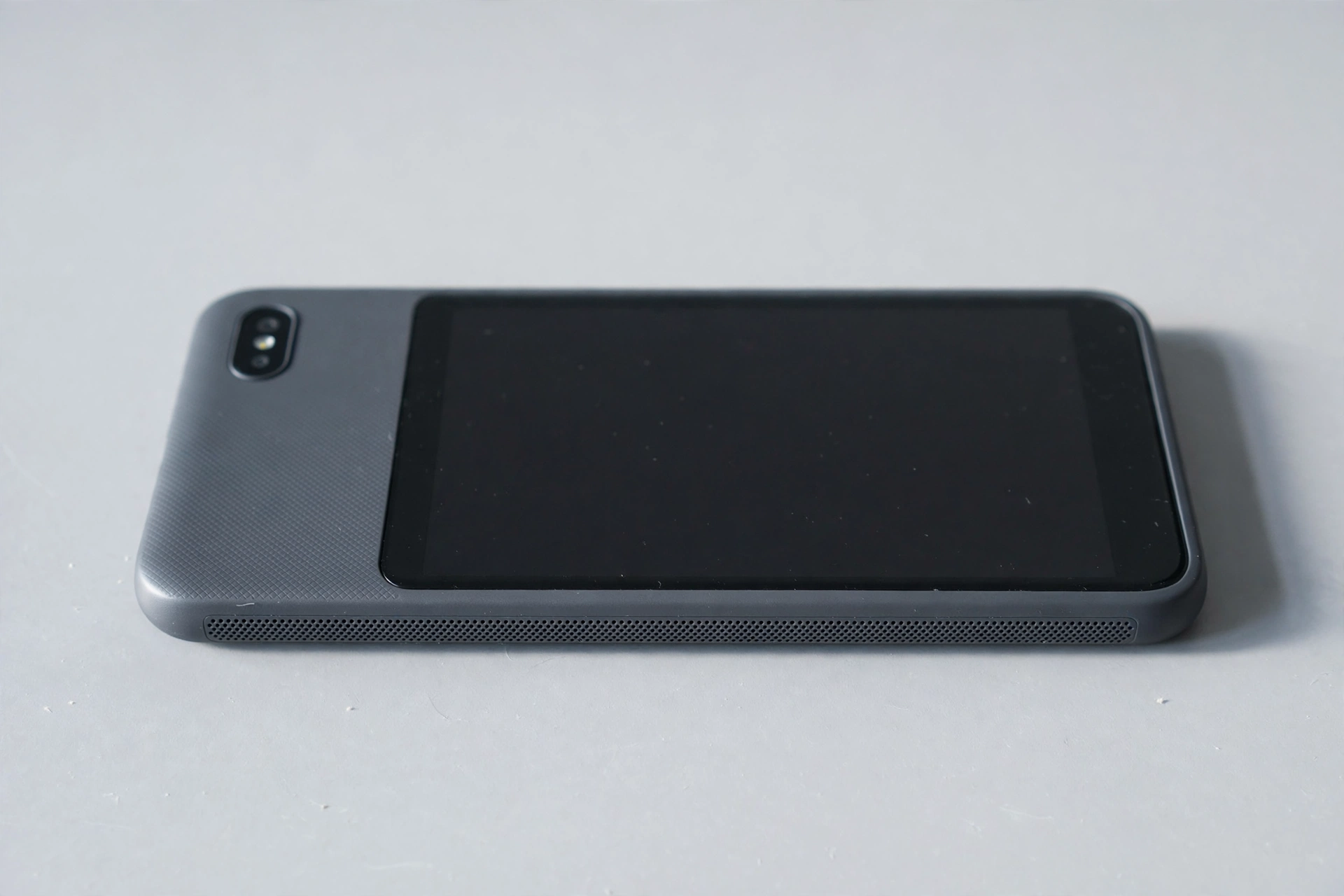
A TCL phone speaker that stops working is usually caused by a muted media volume, a connected Bluetooth device, a blocked speaker grille, or a software glitch after an update — not by a dead speaker. Work through the checks below in order to find the cause.
What TCL Models Are Affected?
This guide covers TCL phones running TCL UI on Android, including the TCL 20, TCL 30, and TCL 40 series. The steps are the same across these models, although menu names can differ slightly between Android versions. TCL phones use a standard Android audio system, so the menu paths below are written for TCL UI.
First, Pin Down the Symptom
The exact symptom tells you a lot about the cause, so check these before changing settings.
- No sound anywhere: no ringtones, no media, no alarms — a system-wide setting, a connected Bluetooth device, or a hardware problem.
- No sound in media only, but ringtones work: the media volume is probably muted or very low, since media and ringtone volume are separate sliders on Android.
- Sound works with headphones but not the speaker: the phone may think headphones are still connected, or the speaker may be blocked or damaged.
- Sound is muffled or crackly: the speaker grille is likely blocked by dust, pocket lint, or water.
- Sound stopped after an update or a drop: a software glitch or a loose internal connection is the likely cause.
Check Volume, Mute, and Do Not Disturb
Press the volume-up button on the side of the phone while playing a video. TCL phones show a small volume panel — tap the three dots on that panel to open the full controls, with separate sliders for Media, Ringtone, Notifications, and Alarms. Drag Media all the way up.
Next, check Do Not Disturb and Silent mode. Swipe down to open Quick Settings — if Do Not Disturb is on, turn it off, and if the sound mode icon shows a crossed-out speaker, tap it until it shows normal sound mode.
Disconnect Bluetooth and Check the Headphone Jack
A TCL phone will keep sending audio to a Bluetooth device even when you have put the earbuds back in their case. Go to Settings > Connected devices > Bluetooth and turn Bluetooth off completely, then play a video. If the sound comes back, a paired device was taking the audio — forget devices you no longer use.
If your TCL model has a headphone jack, plug wired headphones in and out a few times, then test the speaker. Dust in the jack can make the phone think headphones are connected when they are not.
Clean the Speaker Grille
The speaker grille sits on the bottom edge of most TCL phones, next to the charging port. It collects pocket lint and dust easily, and a blocked grille can silence the speaker almost completely.
Hold the phone with the speaker facing down and brush the grille gently with a soft, dry toothbrush. Do not push anything sharp into the holes, and do not use compressed air at close range. If the phone got wet, water may be trapped in the speaker — the free speaker-cleaner tool on myspeakerfix.com plays a tone designed to push water and dust out of the speaker, so run it a few times with the volume turned up.
Restart, Then Try Safe Mode
A simple restart fixes many temporary audio glitches. Hold the power button, tap Restart, and test the speaker once the phone is back on. If the problem continues, boot into Safe Mode to check whether a third-party app is causing it. Hold the power button, then press and hold Power off until the “Reboot to safe mode” prompt shows, and tap OK. In Safe Mode, only the apps that came with the phone can run. If the speaker works in Safe Mode, an app you installed is interfering — usually a sound booster, equalizer, or cleaner app — so uninstall such apps one at a time, starting with the most recently installed. To leave Safe Mode, restart the phone normally.
Clear the Cache and Check for Updates
A corrupted system cache can stop the speaker from working after an app or system update. On a TCL phone, go to Settings > Apps > See all apps, find the app that has no sound, tap Storage & cache, and tap Clear Cache. Then check for system updates: Settings > System > System update, and install any update available — TCL often ships audio fixes in these updates. Update your apps from the Play Store too.
If the problem started right after a system update, a factory reset is the last software step to consider — but back up your photos, contacts, and files first, because a reset erases everything. Go to Settings > System > Reset options > Erase all data only if every other step has failed.
Test the Speaker Properly
- Open the phone dialer and call a number. Put the call on speakerphone — if you can hear the other person, the speaker hardware works and the problem is software.
- Play a video in the YouTube app and a song in a music app. If both are silent, the problem is system-wide rather than tied to one app.
- Go to Settings > Sound and tap the ringtone. If the preview is silent while the volume slider is up, the speaker output itself is affected.
- Try the speaker after removing the phone case. A thick case can cover the speaker grille on some TCL models.
If the speaker works in some tests but not others, the fault is almost certainly software. If it is silent in every test, including the ringtone preview, and cleaning and a restart did not help, the speaker hardware may be damaged.
When to Get the Phone Repaired
Take the phone to a repair shop or a TCL service centre if the speaker stays silent in every test after a restart, a Safe Mode test, and a cache clear, or if the sound stopped right after the phone was dropped in water or onto a hard surface. A drop can loosen the speaker connection inside the phone, and water can corrode the speaker contacts. Tell the technician when the problem started and which tests you ran — this helps them decide whether the speaker needs cleaning, reseating, or replacing.
Frequently Asked Questions
Why is my TCL phone speaker not working after an update?
Updates can change audio settings or introduce a glitch. Restart the phone, check the media volume slider, clear the affected app’s cache, and install any follow-up system update.
How do I test if my TCL speaker is broken or just muted?
Make a call on speakerphone and play a ringtone preview in Settings > Sound. If both are silent with the volume up and Bluetooth off, try Safe Mode — if it works there, an app is at fault; if not, the speaker may need repair.
Why does my TCL phone only play sound through headphones?
The phone may still think headphones are connected. Turn Bluetooth off, plug wired headphones in and out a few times, and clean the headphone jack gently.
Can water damage cause a TCL speaker to stop working?
Yes. Water trapped in the speaker grille muffles or silences sound. Dry the phone, hold it speaker-down, and run a speaker-cleaner tone to push the water out.