
Calls Come Through but Videos Stay Quiet — and What to Do About It
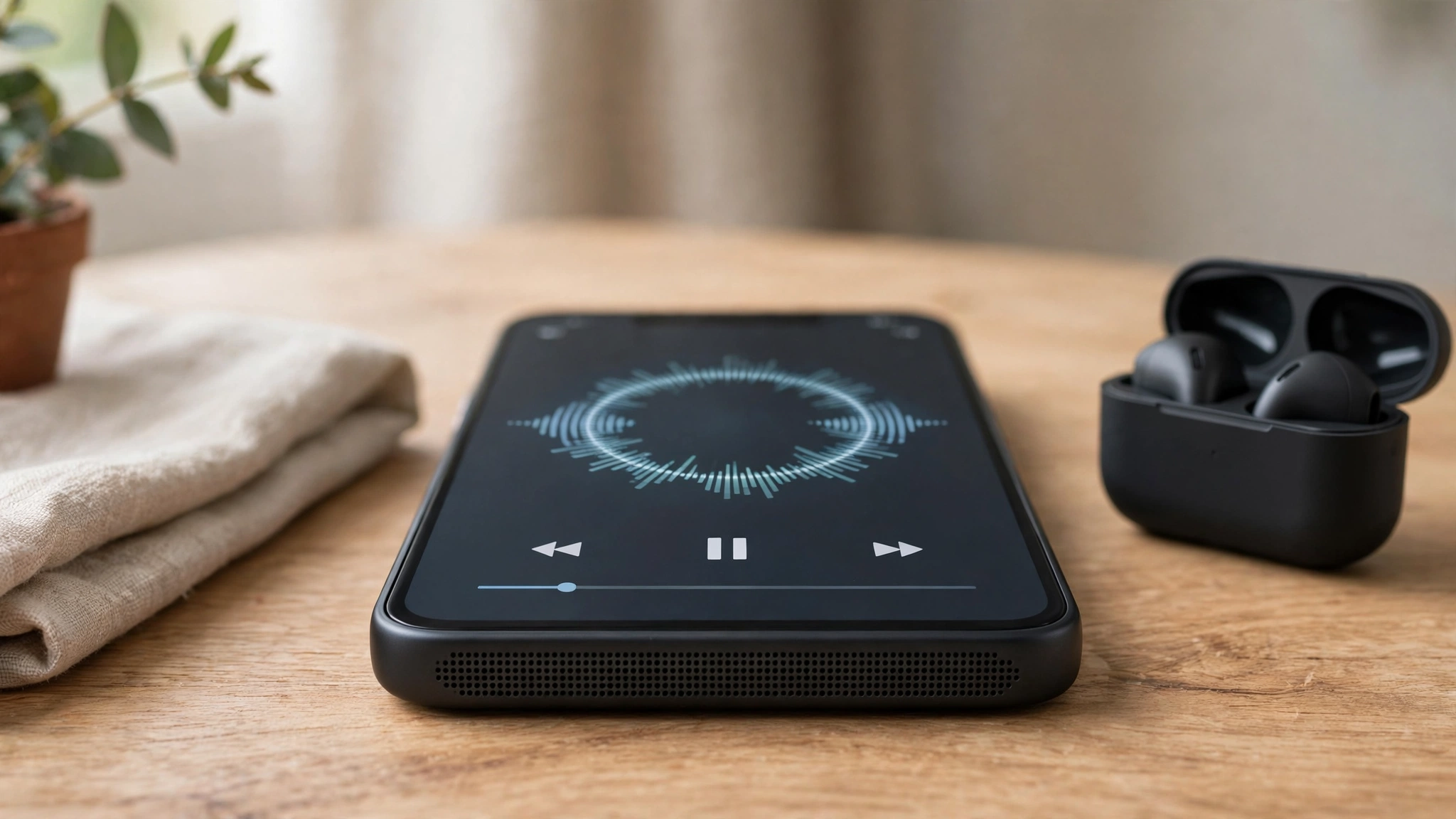
Your phone rings, calls sound fine, and yet videos and music play in total silence. That split almost always means the speaker is fine — calls and media use different speakers, different volume sliders, and sometimes different outputs entirely. Here’s how to find which one of those is letting you down.
Two Speakers, Two Sliders — That’s the Whole Mystery
On most phones, a voice call comes through the small earpiece at the top, while music and video play through the larger loudspeaker at the bottom. So “calls work” only proves the earpiece works, not the loudspeaker. A muted media stream, audio routed elsewhere, or a blocked loudspeaker can all silence media while calls sound normal.
Media volume is also a separate slider from ringtone and call volume. Turning up the volume during a call changes call volume, not media volume. Once you know that, the whole problem gets a lot less strange — and a lot easier to fix.
Turn Up the Right Slider
Play a video or song, then press volume-up while it plays: the slider that appears is the media slider. If it’s already at maximum with no sound, open the full volume panel — on Android, press a volume button and tap the three dots — and check each slider on its own.
Raise the Media slider specifically, not just Ring or Alarm, and check that Media isn’t muted by a separate mute toggle. Turn off any volume-limit setting that caps media playback, since a limit set long ago can quietly keep everything at zero. Then test a second app to see whether the problem is system-wide or limited to one app. If the media slider moves but no sound comes out, the audio is probably going somewhere else.
Where’s the Sound Actually Going?
Phones remember the last audio device they used. If yours was last connected to earbuds, a car stereo, a smart speaker, or a television, it may still be sending media there, even if that device is in another room or switched off. Calls can still come through the phone, because call and media audio can route to different outputs — which is exactly why this symptom is so confusing.
On iPhone, open Control Center during playback, tap the AirPlay icon, and make sure iPhone is selected, not a television, speaker, or earbuds. On Android, swipe down to the media notification, tap its output button, and choose “This phone” or “Phone speaker”. Also unplug any headphone adapter or USB-C dongle, which can keep the phone in external-audio mode; if sound returns, the accessory was the cause.
Bluetooth and Casting: the Usual Thieves
Bluetooth is one of the most common causes of this exact problem. Earbuds sitting in a bag, a smartwatch, or a car system can stay connected and quietly receive all media audio. The phone looks normal, the video appears to be playing, and yet the room is silent.
Turn Bluetooth off completely, not just disconnect one device, and test again: on iPhone, Settings, then Bluetooth; on Android, swipe down twice and tap the Bluetooth tile. If sound returns, forget the device that was stealing the audio and reconnect it only when needed. Do the same for casting: if you recently cast to a television, open that app and stop casting, as some apps keep the session alive in the background long after you’ve stopped watching.
One App Silent, the Rest Fine
If only one app is silent while others play sound normally, the problem is in that app, not the phone. Video apps, games, and social apps each have their own mute buttons and volume controls, easily changed by accident — one stray tap on a video’s speaker icon and the whole app goes quiet.
Tap the speaker or mute icon inside the video or game and make sure it’s unmuted, and check the app’s settings for a volume slider or “play sound” toggle. Then force-close and reopen the app, because a stuck audio session can stay silent until it restarts. On Android, you can also clear the app’s cache via Settings, then Apps, then Storage and cache — don’t clear data unless you’re happy to sign in again. On iPhone, deleting and reinstalling the app is the equivalent step.
The Loudspeaker Itself: Blocked, Wet, or Dead
If every app is silent for media, Bluetooth is off, the output is set to the phone, and the media slider is up, the loudspeaker itself may be blocked or damaged. Remember, calls use the earpiece, so a blocked bottom speaker fits this symptom exactly. Look at the speaker grille at the bottom of the phone for dust or lint, and clean it gently with a soft, dry brush. Never poke anything sharp into the grille, because that can puncture the speaker membrane.
If the sound is muffled rather than absent, or it comes and goes after the phone got wet or dusty, you can also try the free speaker-cleaning tool on myspeakerfix.com, which plays a tone designed to shake water and loose dust out of the speaker. If the loudspeaker stays silent after cleaning and a settings reset, the speaker unit itself may have failed; a repair shop can test and replace it, a common and inexpensive repair worth quoting before replacing the phone.
Frequently Asked Questions
Why does my phone ring but have no sound on videos?
Ringtones, call audio, and media audio use separate sliders and audio paths. A phone can ring normally while media stays silent because media volume is muted, media is routed to a Bluetooth device or television, or the media loudspeaker is blocked while the call earpiece still works.
Why is there no sound on YouTube but calls work fine?
If only one app is silent, check that app first: unmute the video, check the app’s sound settings, force-close and reopen it, and confirm the phone is not casting to a television. If other apps play sound normally, the speaker is fine and the app is the problem.
Can Bluetooth cause media to go silent while calls still work?
Yes, and it is one of the most common causes: connected earbuds, a car stereo, or a smart speaker can receive all media audio while calls still come through the phone. Turn Bluetooth off completely and test again; if sound returns, forget the offending device.
How do I know if my loudspeaker is broken or just muted?
Turn Bluetooth off, set the output to the phone speaker, raise the media slider while a video is playing, and test several apps. If every app is silent but calls work, and a restart and settings reset change nothing, the loudspeaker is likely blocked or damaged. Gentle cleaning may help; if not, a repair shop can confirm and replace the speaker.