
Phone Speaker Not Working in Safe Mode: What It Means and What to Do Next
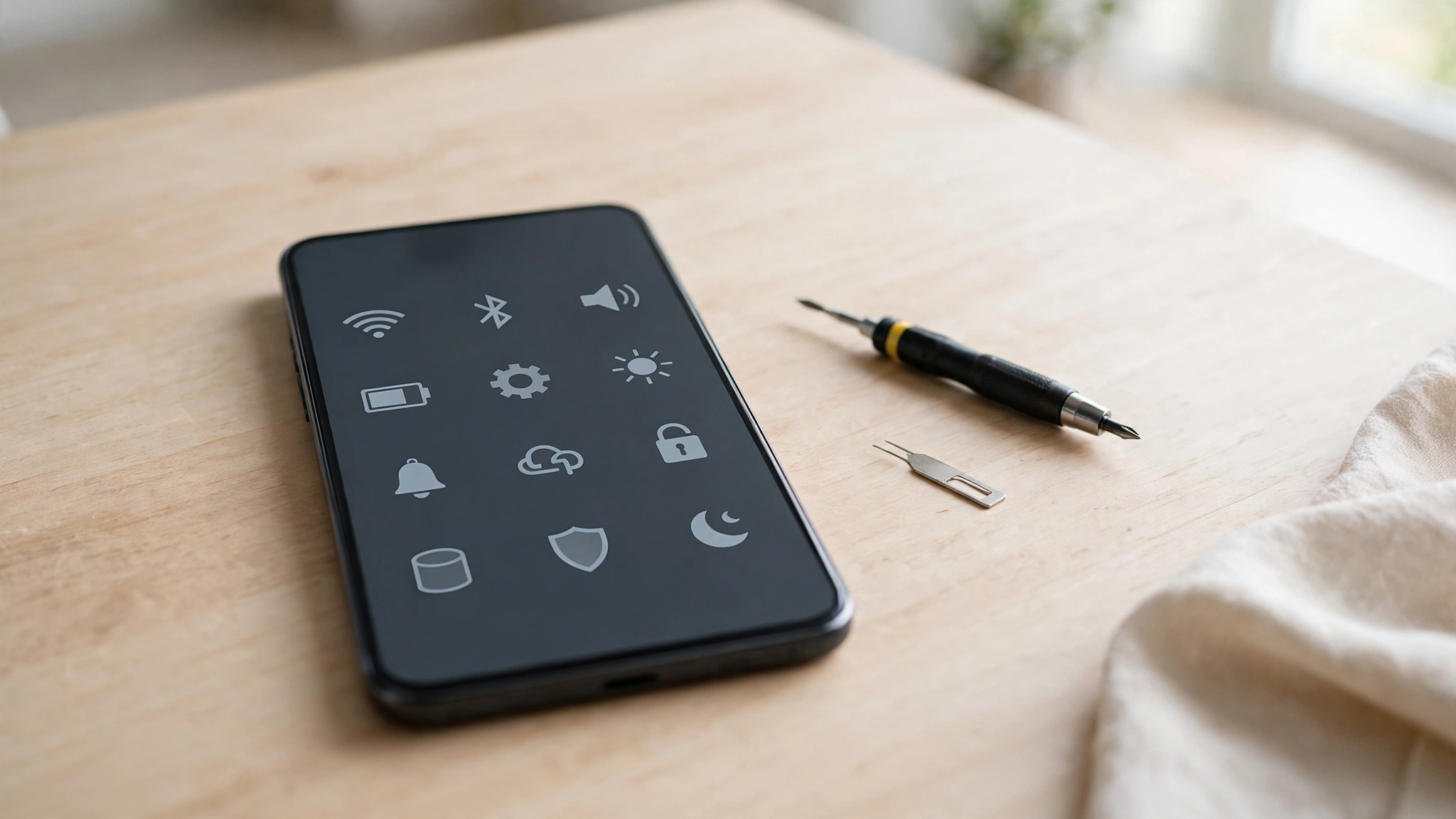
Safe mode starts your phone with only the apps it shipped with, switching off everything you installed. If the speaker works there, an app you installed is interfering with your audio. If it’s still silent, no app is to blame — the fault is in the system software or the speaker hardware itself.
What Safe Mode Actually Does — and Doesn’t Do
Safe mode deletes nothing: your apps and data stay where they are, they simply don’t run while it’s active. Widgets disappear, downloaded apps grey out, and only the original apps work — the words “Safe mode” appear in a corner.
This isolates the cause cleanly: a third-party app — an equaliser, a call recorder, a sound-profile manager — can grab the audio channel or clash with the system and silence the speaker. In safe mode none of those apps can run, so whatever happens to the speaker is down to the phone itself.
Safe mode can’t tell you which app is at fault — only that one of them is.
Getting Into Safe Mode on Your Phone
Most Android phones (Pixel, Motorola, OnePlus, and others): press and hold the power button until the power menu appears, then press and hold the “Power off” option on the screen — not the physical button — until a prompt offers safe mode. Tap “OK” and wait for the restart.
Samsung Galaxy phones: turn the phone off completely. Press and hold the power button until the Samsung logo appears, then immediately press and hold volume-down until the phone finishes starting — you’ll see “Safe mode” in the bottom-left corner. Some newer Samsung models also support the long-press on “Power off” method, so try that first.
If neither method works, check your phone maker’s support page for your model. And if your phone boots into safe mode every time without you asking, check the volume-down button isn’t stuck or jammed by a case — holding it during startup triggers safe mode.
iPhone users: there is no safe mode on iOS — the closest equivalent is covered below.
Testing the Speaker While You’re in Safe Mode
Once safe mode is active, test properly. Play a song or video at full volume in a built-in app, then make a test call on speakerphone to check the main speaker and the earpiece. Also play back a voice recording.
Note exactly what you hear: complete silence, muffled sound, crackling, or clear audio are four different results. Write it down before you exit safe mode — it’s easy to forget the detail once you’re back in normal mode.
Reading the Result: Two Outcomes, Two Very Different Answers
The speaker works in safe mode. A third-party app is the cause. Restart normally, then hunt it down — start with what changed recently: which app did you install or update before the sound stopped? The usual suspects are equalisers, call recorders, and sound-profile managers. Uninstall the most recent suspects one at a time, testing the speaker after each removal. The last app you removed before the sound came back was the culprit. If you can’t identify one, check which apps can modify audio settings and revoke that permission.
The speaker is still silent, muffled, or distorted in safe mode. Third-party apps are cleared — the fault is in the system software or the hardware, so don’t waste time uninstalling apps. Restart normally, then check for a system update in Settings under System or Software update — manufacturers fix audio bugs in updates. Check the speaker grille for dust, make sure no case covers the opening, and check whether water got in — try the free tool on myspeakerfix.com first: it plays a tone designed to push water and dust out of the speaker.
If the software is up to date and the grille is clean, run a hardware diagnostic. Samsung phones have one in the Samsung Members app, under Support then Diagnostics, with a speaker test included. Many other Android phones have a hidden test menu — on several models a code dialled in the phone app opens it, though the code varies. If the hardware test also shows no sound, the speaker is likely faulty and needs professional repair.
iPhone: No Safe Mode, But You Can Run the Same Test
iPhones don’t have safe mode, so you get the same information a different way: remove the apps that could interfere, then test. It’s just slower, because you do it by hand.
Delete the most recently installed audio-related apps one at a time, testing the speaker after each one. If that doesn’t help, reset all settings: Settings, then General, then Transfer or Reset iPhone, then Reset All Settings. This clears system settings — Wi-Fi passwords, wallpaper, sound settings — without deleting your photos. If the speaker still doesn’t work, the fault is almost certainly hardware — see an Apple Store or authorised repairer.
The One Step People Skip: Back Up Before a Factory Reset
A factory reset is the last resort: it erases everything — photos, contacts, messages, app data. Only consider it after testing in safe mode, updating the software, cleaning the speaker, and running a diagnostic. Before resetting, back up everything and double-check the backup completed.
A factory reset is often pointless, though. If the speaker works in safe mode, removing the offending app solves it — no reset needed. If it fails in safe mode and in hardware tests, a reset rarely helps either — the fault is most likely physical. The reset only helps in one narrow case: the speaker fails in safe mode, hardware tests pass, and a system update didn’t fix it — that points to corrupted system software, which a reset can clear.
Frequently Asked Questions
What is safe mode on a phone?
Safe mode starts your phone with only its original system apps and services, temporarily disabling every app you installed. It reveals whether a problem is caused by a third-party app or by the phone’s system or hardware. Your apps and data aren’t deleted — they just don’t run while safe mode is on.
How do I exit safe mode?
On Android, restart your phone and it boots back into regular mode. If it stays in safe mode, check the volume-down button isn’t stuck or jammed by a case — holding it during startup triggers safe mode on many phones. On iPhone, there is no safe mode to exit.
My speaker works in safe mode but not in normal mode. What now?
A third-party app is interfering with your audio. Restart normally, then uninstall recently installed or updated apps one at a time — starting with equalisers, call recorders, and sound-profile managers — testing after each one. The last app you removed before the sound came back was the culprit.
My speaker doesn’t work even in safe mode. Is it broken?
Not necessarily, but the problem is in the system software or the hardware rather than an app. Update the software, clean the speaker grille, and run a hardware diagnostic. If those don’t help, the speaker may be physically damaged and need a professional repair.