
Lips Move, Words Lag: Sorting Out Phone Speaker Audio Delay
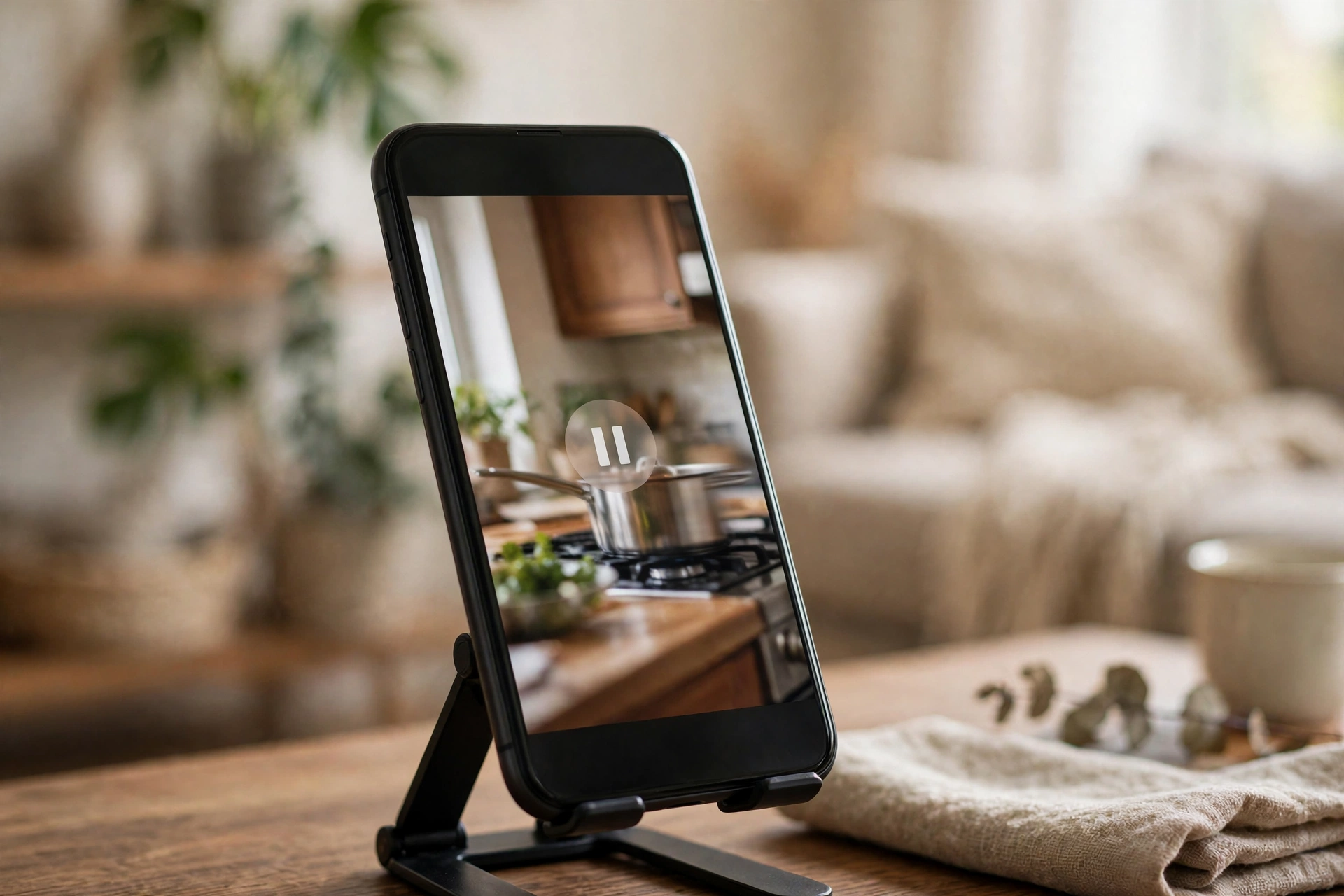
When lips move a fraction of a second before the words reach your ears, you’re dealing with a timing problem, not a volume problem. Audio delay can come from Bluetooth, the app or video player, a struggling connection, or the video file itself — and each cause has a different fix.
Pin Down Where the Lag Lives
Before touching any setting, spend two minutes finding out where the delay actually happens. The pattern points straight at the cause, and it stops you wasting time on fixes for the wrong thing.
- Play the same video through the phone’s built-in speaker, then through any Bluetooth earbuds or speaker, and compare the timing.
- Play the same video in a second app, such as your browser or another video player.
- Try a second, unrelated video in the same app to see whether the lag follows the app or the video.
If the delay shows up everywhere, including the built-in speaker, start with the restart and app checks below. If it only appears in one place, that app, video, or accessory is where your attention belongs.
Bluetooth: The Usual Suspect
Bluetooth audio nearly always carries a small delay, because the sound has to be encoded, sent wirelessly, and decoded by your earbuds or speaker. For music, that lag is invisible. For video, lip-sync makes even a short delay obvious — your eyes catch what your ears miss.
- Turn Bluetooth off and play the video through the phone’s built-in speaker. If the lips now match the sound, Bluetooth latency is your answer.
- Try a different pair of earbuds or a different speaker, since devices handle delay very differently.
- Move closer to the Bluetooth device and away from other wireless gadgets that might interfere.
- Look in your video app for an audio-delay or lip-sync adjustment, and shift the sound earlier in small steps.
- Some earbuds have a low-latency or game mode in their companion app — switching it on can shrink the lag noticeably.
The App or the Video Player?
Video apps and players can introduce lag of their own, especially when they buffer, switch video quality mid-stream, or struggle with a heavy file. An app that hasn’t been updated in a while, or a browser tab that has been sitting open for hours, can also fall behind the picture.
- Close the video app completely and reopen it, then play the same video again.
- Restart your phone to clear the temporary glitches that affect playback timing.
- Update the video app, and check for a phone software update while you’re at it.
- Drop the video quality for a test — a very high-resolution stream can lag on a slow connection.
- Clear the app’s cache from your phone’s app settings, if your phone offers that option, without deleting your saved content.
When the Connection Is the Problem
Streamed video and live calls need a steady connection, and a weak one forces the player to buffer. After buffering, audio and video can drift apart. This kind of delay comes and goes with signal strength rather than staying constant.
- Switch from mobile data to Wi-Fi, or the other way round, and test the same video again.
- Move closer to your Wi-Fi router, or test somewhere with a stronger signal.
- Pause the video for a few seconds to let it buffer ahead, then resume and check the sync.
- Close other apps and downloads that are eating the connection at the same time.
- For live streams and calls, leave and rejoin — a fresh connection often resets the timing.
Downloaded video is the cleanest test for this: if a video you downloaded plays in sync but the same video lags when streamed, the connection is the problem, not your phone.
Sometimes the Video Itself Is Broken
Now and then, no setting will fix the lag, because the video itself was uploaded with its audio track slightly offset. A live broadcast can drift, and a badly encoded file can be out of sync from the first frame. Test other videos before changing settings for one faulty upload.
- Play several different videos from different creators or channels.
- Play the same video on a second device, such as a tablet or a computer, if you can.
- Check the comments — other viewers often mention sync problems first.
- Download the video, if the app allows it, and test it offline to rule out streaming lag.
- If only that one video is out of sync everywhere, the source file is the problem, and nothing on your phone needs fixing.
When Delay Means Something Deeper
Most audio delay comes from Bluetooth, an app, or a video source, and none of that means your speaker is failing. Be more suspicious if the delay affects the built-in speaker in every app, including downloaded videos and offline playback, and if it keeps growing worse the longer a video plays. In that case a software fault or a deeper audio problem may be involved. The free speaker-cleaning tool at myspeakerfix.com can help you check: if its tone plays cleanly while other videos lag, your speaker is fine and the delay sits in the app, the stream, or the Bluetooth link. If every sound source lags and a restart plus an update doesn’t help, back up your phone and consider a factory reset — or a repair check — as a last resort.
Frequently Asked Questions
Why is my phone speaker audio delayed but not out of sync on Bluetooth?
That pattern is unusual, because Bluetooth normally adds delay rather than removing it. Check whether the comparison video was the same in both cases, and whether the app applied its own lip-sync correction for the Bluetooth device. Test the same downloaded video both ways for a fair comparison.
Does Bluetooth always cause audio delay on video?
Bluetooth almost always adds a small delay, but it’s not always noticeable. Music hides it well, while video exposes it through lip-sync. Some earbuds and speakers handle delay better than others, so switching devices or using the built-in speaker can make a real difference.
Can a slow internet connection cause audio delay?
Yes, for streamed video and live calls. A weak or unstable connection can force buffering, after which the audio and video drift apart. Switching networks, pausing to buffer, or rejoining a live stream often restores the sync.
How do I fix lip-sync delay in just one app?
Close and reopen the app, update it, restart your phone, and test a downloaded video in that app. If only that app lags while others stay in sync, the app’s playback or buffering is the cause, and its own audio-delay setting, if it has one, is worth adjusting.