
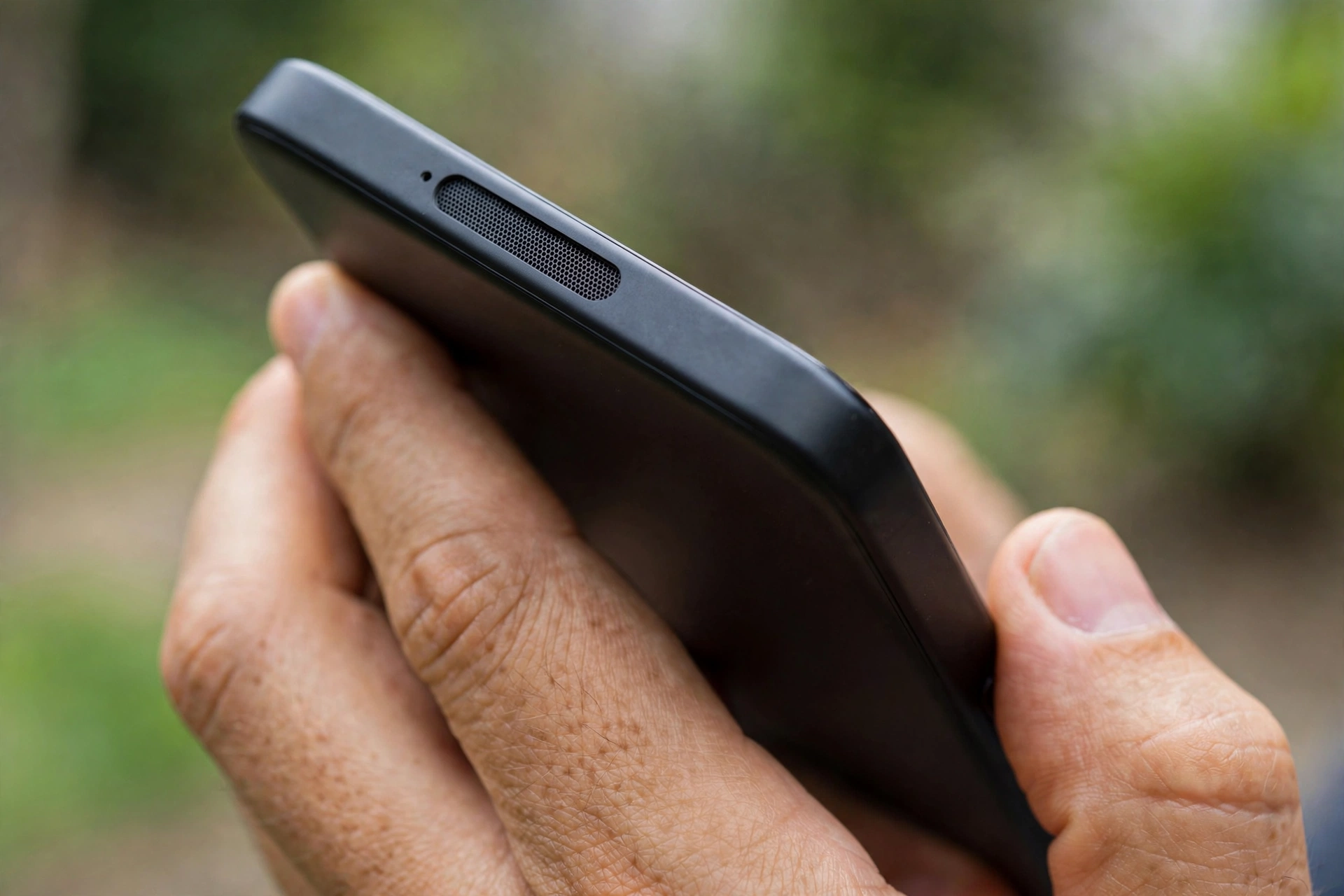
Phone Sound Coming From Earpiece Instead of Speaker? How to Fix It
If phone sound is coming from the earpiece instead of the speaker, music and calls play faintly from the top slit rather than loudly from the bottom speaker, so you must hold it to your ear to hear a video. This is a routing problem, not a volume problem.
Why Audio Ends Up in the Earpiece
Every phone has two main output speakers: the earpiece for quiet private calls, and the loudspeaker for media, speakerphone calls, and ringtones. The phone chooses between them by app, call state, proximity sensor, and last connected device. When that choice goes wrong, media meant for the loudspeaker goes to the earpiece instead. Common triggers: a blocked proximity sensor, a routing setting locked to the earpiece, an accessory confusing the output switch, or a software glitch after an update. Because the earpiece still makes sound, just quietly, people often mistake this for a broken speaker; usually the loudspeaker is fine and simply unused. It also differs from headphone mode, where sound goes to absent headphones and built-in speakers stay silent altogether.
Clean the Proximity Sensor Area
The proximity sensor sits near the earpiece at the top of the phone; during calls it detects your face and turns the screen off. If blocked, the phone can behave as though permanently against your face, keeping audio routed to the earpiece even for media and speakerphone. Check the top of the phone for anything covering the sensor area:
- Remove the case, especially one with a raised lip or flap covering the top edge, and test again.
- Check for a screen protector extending over the sensor area, or a cracked one with bubbles near the top.
- Wipe around the earpiece gently with a soft, dry cloth to remove dust or lint.
- If the problem started with a new case or protector, that accessory is the most likely cause.
Test after each change to identify the culprit accessory.
Switch the Output and Check Call Audio Routing
For a call, the fastest fix is often the speaker button: tap the speaker icon on the call screen and make sure Speaker is selected. It is easy to leave this on the wrong setting, especially after a private call. For media, use the output selector, not the volume buttons: on iPhone, open Control Center during playback, tap AirPlay, and choose iPhone; on Android, swipe down to the media notification, tap its output button, and choose “This phone” or “Phone speaker”. If an unexpected device shows, choose the phone speaker. Also check inside the app: some apps remember their own output choice, so if one app uses the earpiece while others use the loudspeaker, change it inside that app or force-close and reopen it.
If calls always default to the earpiece, check the routing setting: on iPhone, Settings, then Accessibility, then Touch, then Call Audio Routing should be Automatic, not Bluetooth Headset or Speaker, or a locked setting will override your taps and keep audio quiet. On Android, check Settings, then Sound and vibration, for a “separate app sound” option (on Samsung, this can send one app’s audio elsewhere); turn it off unless deliberately set up. Also check any driving or voice-assistant mode forcing call audio to the earpiece.
Disconnect Bluetooth and Wired Accessories Properly
Accessories are a frequent cause of stuck routing: when a Bluetooth device disconnects uncleanly, or a wired adapter is removed mid-playback, the phone can fall back to the earpiece and stay there. Turn Bluetooth off completely and test with a video: if sound moves to the loudspeaker, a connected device was interfering, even from another room. Forget that device in Bluetooth settings, reconnecting only when you want it. Then unplug everything — wired earphones, adapters, dongles — and play a video with nothing connected; if the loudspeaker returns, reconnect items one at a time to find the culprit. A faulty adapter is a common offender, far cheaper to replace than a speaker. Also stop any active casting session, as a lingering cast can leave output in an odd state.
Restart, Update, and Reset Audio Settings
If the sensor is clear, the output is set to the phone, and nothing is connected, yet audio still comes from the earpiece, restart: this clears stuck audio sessions and routing glitches. Turn the phone fully off, wait thirty seconds, turn it back on, and play a video before reconnecting Bluetooth. Next, check for a software update, since routing bugs sometimes appear after an update and are fixed in the next one: iPhone, Settings, then General, then Software Update; Android, Settings, then System, then Software update. If the problem survives both, reset audio-related settings: on iPhone, Settings, then General, then Transfer or Reset iPhone, then Reset, then Reset All Settings (keeps photos, apps, messages; resets Wi-Fi passwords and wallpaper); on Android, Settings, then System, then Reset options, then Reset Wi-Fi, mobile and Bluetooth (no files deleted). Do not factory-reset unless a repair shop has ruled out hardware: it will not fix a blocked sensor or faulty speaker.
When the Loudspeaker Is Blocked or Damaged
One hardware possibility remains: if the loudspeaker is blocked or damaged, the phone may fall back to the earpiece, or the loudspeaker may be too quiet to notice. Check the bottom speaker grille for dust or lint, clean it gently with a soft, dry brush, and never poke a pin into it, as that can puncture the membrane. If it stays silent or distorted after cleaning, a reset, and a restart, the speaker unit may have failed; a repair shop can test both speakers and replace the loudspeaker, a common repair.
Frequently Asked Questions
Why is my phone playing music through the earpiece?
The phone is routing media audio to the wrong speaker. The usual causes are a blocked proximity sensor, an output setting or app choice pointing at the earpiece, an accessory interfering with routing, or a software glitch. Clear the sensor area, set the output to the phone speaker, disconnect accessories, and restart.
Why do calls sound quiet even on speakerphone?
If speakerphone still sounds like the earpiece, the speaker button may not be engaged, the routing setting may be locked to the earpiece, or the loudspeaker may be blocked. Tap the speaker button during a call, check the routing setting, and inspect the bottom grille for dust.
Can a phone case cause sound to come from the earpiece?
Yes. A case or screen protector covering the proximity sensor can make the phone behave as though against your face, keeping audio routed to the earpiece. Remove the case and test again; if the problem clears, replace it with one leaving the sensor exposed.
Is this the same as my phone being stuck in headphone mode?
No. In headphone mode the phone sends audio to headphones that are not there, so the built-in speakers stay silent altogether. Here the sound is audible, but from the earpiece rather than the loudspeaker. The fixes here focus on the proximity sensor, output selection, and call-audio routing.
Related Guides
- https://myspeakerfix.com/
- https://myspeakerfix.com/phone-earpiece-not-working-during-call/
- https://myspeakerfix.com/earpiece-volume-too-low/
- https://myspeakerfix.com/phone-stuck-in-headphone-mode/
- https://myspeakerfix.com/phone-speaker-plays-instead-of-bluetooth/
- https://myspeakerfix.com/no-sound-on-my-phone/