
Fix iPhone SE Speaker Not Working
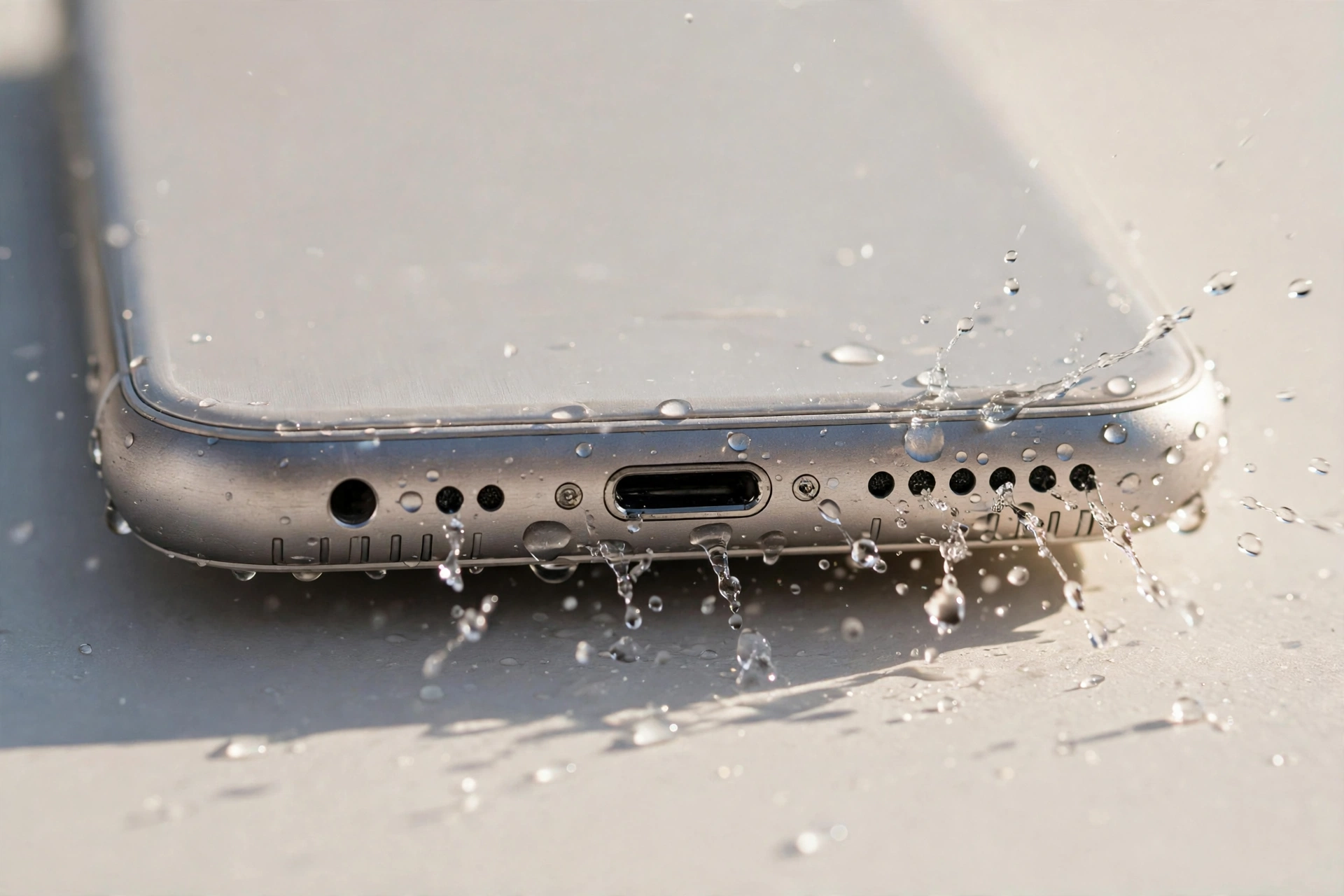
If your iPhone SE speaker isn’t working, the fix is usually simple: the Ring/Silent switch got flipped, a Bluetooth device is still holding the audio, or the little speaker grille on the bottom edge is clogged with lint. Work through the checks below and most SE speakers come back to life without a repair shop.
The 30-Second Checks
Start here — these take half a minute and solve the problem more often than anything else.
- Flip the Ring/Silent switch. It’s the small switch above the volume buttons. Push it toward the screen so no orange shows. If you see orange, the phone is silenced.
- Turn the volume up while media is playing. Open a video, press volume-up, and watch the on-screen indicator. Volume set during a call or alarm doesn’t always carry over to media.
- Swipe up for Control Center and check the volume slider. On the iPhone SE, swipe up from the bottom edge. Make sure the slider is up and the crescent moon (Do Not Disturb) isn’t lit.
- Check the Focus settings. Go to Settings > Focus and turn off any Focus that’s currently active — a Focus mode can silence ringtones and alerts without you realising it.
What Makes the iPhone SE Different
The iPhone SE is a small phone with an old-school design, and that changes where sound problems come from. Both the second and third generation SE have a single bottom-firing speaker next to the Lightning port — there’s no second speaker in the earpiece for media, so if that one grille gets blocked, the phone goes almost completely silent.
The SE also has a Home button and a compact body that spends a lot of time in tight pockets. Pocket lint is the number one enemy here: the speaker grille is small, and a surprising amount of fluff packs into it over time.
Bluetooth and AirPlay: Where Did the Sound Go?
Your iPhone SE will keep sending audio to your AirPods, your car, or a Bluetooth speaker long after you’ve stopped using them. Open Settings > Bluetooth and switch Bluetooth off entirely, then play a video. If sound returns, a paired device was the problem — tap the “i” beside devices you no longer use and choose Forget This Device.
Check AirPlay as well. In Control Center, tap the AirPlay icon in the music panel — if it’s pointing at a TV or a smart speaker instead of “iPhone,” your sound is playing in another room. Tap iPhone to route it back.
Also check the Lightning port. If you use a wired headset adapter, lint in the port can make the phone think headphones are plugged in. Shine a light into the port and pick any fluff out very gently with a wooden toothpick — never use metal.
Clean the Speaker Grille
This is the fix most SE owners skip, and it’s often the one that works. The grille is the row of tiny holes on the bottom edge, beside the Lightning port.
Hold the phone speaker-down and brush the grille lightly with a soft, dry toothbrush. Don’t press hard or poke anything into the holes, and skip the compressed air, which can drive debris further in.
If the phone got wet recently, hold it speaker-down for a while to let water drain, then run the free speaker-cleaner tool on myspeakerfix.com. It plays a tone that vibrates water and dust out of the speaker — run it a few times with the volume turned right up and check whether the sound gets clearer each time.
Restart, Update, and Reset
A frozen audio process is a common cause of sudden silence, and a restart clears it. On the iPhone SE, hold the side button (or the top button on the first-generation SE), drag the slider to power off, wait a few seconds, then hold the button again until the Apple logo appears. For a force restart on the second and third generation SE, press and quickly release volume-up, press and quickly release volume-down, then press and hold the side button until the Apple logo shows.
Next, check for updates: Settings > General > Software Update. Apple has fixed SE audio bugs in past updates, so install anything waiting.
To reset, go to Settings > General > Transfer or Reset iPhone > Reset > Reset All Settings. Your photos, apps, and messages stay put; only settings like Wi-Fi passwords and wallpaper go back to defaults. Test the speaker right after — if it works now, a bad setting was the cause.
Test It Properly Before You Give Up
Don’t guess whether the speaker works — test it properly.
- Make a call on speakerphone. If you can hear the other person, the speaker hardware is fine and the problem is software.
- Play the ringtone preview. Go to Settings > Sounds & Haptics, tap Ringtone, and pick one. Silence here with the volume up means the speaker output itself is affected.
- Try two different apps. Play a video in one app and a song in another. If both are silent, the fault is system-wide; if only one app is silent, check that app’s own settings and reinstall it.
If the speaker works in some tests but not others, the fault is almost certainly software.
When to Book a Repair
Visit Apple or a trusted repair shop if the speaker stays silent after a force restart, a settings reset, and a good grille cleaning — or if the sound vanished right after the phone was dropped or got properly wet. Tell the technician when it started and everything you’ve already tried; it helps them decide whether the speaker needs cleaning, reseating, or replacing. Back up your phone first, since repairs can end with the phone being wiped.
Frequently Asked Questions
Why is my iPhone SE speaker not working all of a sudden?
Usually it’s the Ring/Silent switch, a Bluetooth device holding the audio, or a clogged speaker grille. Check the switch, turn Bluetooth off, and clean the bottom grille before assuming the speaker is broken.
How do I test if my iPhone SE speaker is broken?
Make a call on speakerphone and play a ringtone preview in Settings > Sounds & Haptics. If both are silent with the volume up and Bluetooth off, and a force restart plus Reset All Settings doesn’t help, the speaker hardware is likely faulty.
Why does my iPhone SE only play sound through headphones?
The phone may think headphones are still connected. Turn Bluetooth off, check the AirPlay output in Control Center, and look for lint in the Lightning port that could be fooling the headphone detection.
Does the iPhone SE have one speaker or two?
The iPhone SE has a single bottom-firing speaker for media, ringtones, and speakerphone calls. That’s why a blocked grille or a faulty speaker affects all sound at once, rather than just one kind.