
Fix iPhone 12 Speaker Not Working
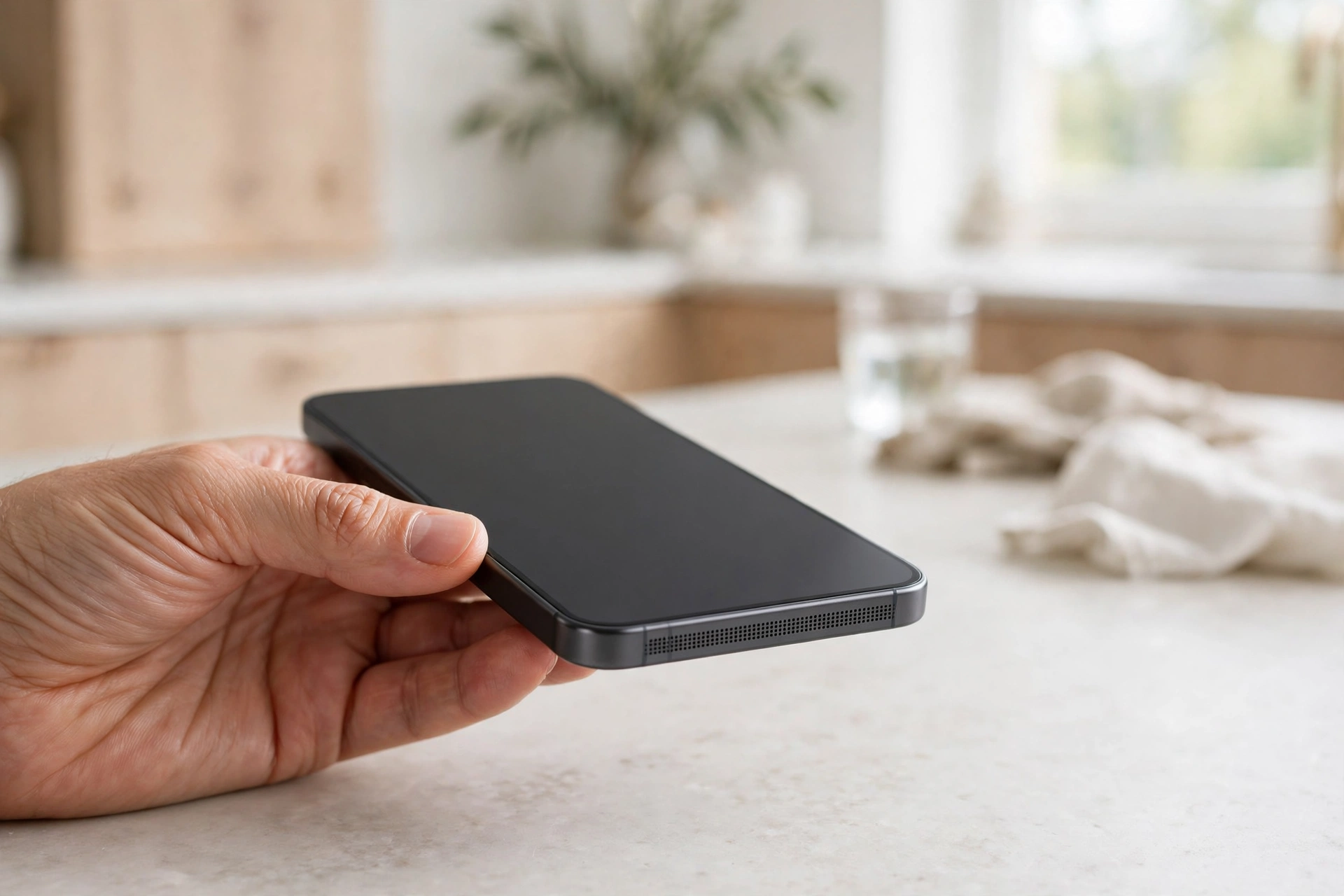
If your iPhone 12 speaker is not working, start with the mute switch, Bluetooth, and a force restart — those three checks fix most cases in under five minutes. Only move on to cleaning, software resets, and hardware checks if the sound is still missing after them.
Flip the mute switch and raise the volume
Find the small switch above the volume buttons on the left edge. If you can see orange in the switch, the phone is muted. Flip it toward the screen until the orange disappears and a bell icon appears on the display.
Then do this quick volume check:
- Press Volume Up several times and watch the on-screen bar.
- Open Settings, then Sounds and Haptics, and drag the Ringer and Alerts slider to at least halfway.
- Turn on “Change with Buttons” so the side buttons control the ringer.
- Play a ringtone from Settings, then Sounds and Haptics, then Ringtone, to test the speaker directly.
If the volume bar appears but no sound comes out, the speaker or its audio route is the problem, not the volume level.
Force restart the iPhone 12
A force restart clears the temporary audio glitches that often follow an update or a frozen app. It does not delete your data.
- Press and release Volume Up.
- Press and release Volume Down.
- Press and hold the Side Button until the Apple logo appears, then release it.
Wait for the phone to finish starting up, then play a song. If sound returns, the cause was a software glitch. If the speaker is still silent, keep going — the next steps take only a few minutes each.
Disconnect Bluetooth and unplug accessories
Your iPhone 12 may be sending sound to a device you forgot about: AirPods in a pocket, a car stereo, or a Bluetooth speaker in another room. Open Control Center, tap the AirPlay icon in the music card, and choose “iPhone” if anything else is ticked.
Then open Settings, then Bluetooth, and disconnect any device marked Connected. Remove anything plugged into the Lightning port as well — a cheap adapter, a dock, or a headset dongle can trap the phone in headphone mode even after it is unplugged. Restart the phone once more after removing the accessory and test the speaker again.
Clean the speaker grille the safe way
The iPhone 12 bottom speaker sits behind a small grille that collects pocket lint and dust over time. A blocked grille makes sound quiet, muffled, or one-sided. Cleaning it is safe if you are gentle.
- Brush the grille lightly with a soft, dry toothbrush or a clean makeup brush.
- Press a strip of low-tack tape over the grille and lift it to pull out lint.
- Wipe the area with a dry microfibre cloth.
- Never push a pin, needle, or SIM ejector tool into the holes, and never use compressed air at close range — both can damage the mesh or push dirt deeper.
If the phone got wet, hold it speaker-down and let gravity help. You can also run the free speaker-cleaner tool on myspeakerfix.com, which plays a tone that vibrates water and dust out of the speaker — just open it in the browser, turn the volume up, and hold the phone with the grille facing down for a short session.
Update the software and check the failing app
Open Settings, then General, then Software Update. If an update is waiting, install it over Wi-Fi with the phone charging. Apple fixes audio bugs in updates, and an iPhone 12 that has skipped several updates is more likely to hit one.
Next, find out whether the problem is everywhere or in one app:
- Test sound in the Music app, in Safari, and in the Phone app on speakerphone.
- If only one app is silent, check its in-app volume and mute settings first.
- Delete and reinstall that app if its settings look right.
- If every app is silent, the cause is system-wide, so continue to the reset below.
Reset all settings
When nothing above works, reset the phone’s settings. This restores audio, network, and privacy settings to their defaults without deleting photos, messages, or apps. Go to Settings, then General, then Transfer or Reset iPhone, then Reset, then Reset All Settings. Enter your passcode to confirm.
After the phone restarts, set the volume again and test a ringtone. You will need to rejoin Wi-Fi networks and re-pair Bluetooth devices, so keep your Wi-Fi password handy. If sound returns after this reset, a corrupted setting was the cause.
Check for hardware damage
A drop or a hard knock can loosen the speaker connector inside the iPhone 12. Look for these signs:
- Sound cuts in and out when you tilt or gently squeeze the phone.
- The speaker crackles or buzzes at every volume level.
- The earpiece works on calls but the bottom speaker is dead for media and ringtones.
- The problem started immediately after a drop or after the phone got very wet.
Remove the case and test again first — a swollen or warped case can press on the grille and muffle sound. If the speaker still fails every test, take the phone to Apple or a trusted repair shop. Tell them when it started, whether the phone was dropped or wet, and which steps you already tried. Do not open the phone yourself; the battery and the speaker sit close together and a wrong move can cause more damage.
Frequently Asked Questions
Why is my iPhone 12 speaker not working all of a sudden?
It is usually the mute switch, a Bluetooth device, or a software glitch. Check the switch, disconnect Bluetooth, and force restart the phone first.
How do I force restart an iPhone 12?
Press and release Volume Up, press and release Volume Down, then hold the Side Button until the Apple logo appears. No data is deleted.
Can a dirty speaker grille silence my iPhone 12?
Yes. Lint and dust in the grille can muffle sound badly. Brush it gently and lift lint with tape, but never poke anything sharp into the holes.
Is my iPhone 12 speaker broken if reset all settings does not help?
Not always, but it makes hardware more likely. If the speaker is still silent or distorted after a reset, get it checked by Apple or a trusted repair shop.