
Why Is My iPhone 11 Speaker Not Working?
Your iPhone 11 speaker has most likely gone quiet because of the mute switch on the side, a Bluetooth device still holding the audio, a clogged speaker grille, or a software glitch after an update — not because the speaker itself has died. Run the checks below in order and you’ll usually find the culprit in a couple of minutes.
What Exactly Is Happening?
The symptom points straight at the cause, so pin it down before you change anything.
- No sound anywhere — no ringtones, no videos, no alarms: a system setting, a stuck Bluetooth connection, or a hardware fault.
- Media is silent but ringtones play fine: the media volume is down, or an app has its own mute setting.
- Sound works through headphones or AirPods but not the speaker: the phone thinks audio is still routed elsewhere, or the grille is blocked.
- Sound is muffled, crackly, or faint: dust, pocket lint, or water sitting in the bottom speaker grille.
- It stopped right after an update or a drop: a software bug from the update, or a loosened speaker connection inside the phone.
The Silent Switch Is the Usual Suspect
The iPhone 11 still has a physical Ring/Silent switch above the volume buttons, and it’s the single most common reason for “no sound.” Flip it toward the screen — you should see no orange, and a “Ringer” banner should pop up on screen. If you see orange, the phone is silenced, and ringtones and alerts won’t play through the speaker.
While you’re there, press the volume-up button a few times while a video is playing. Then open Control Center by swiping down from the top-right corner and check the volume slider is up. Also make sure Do Not Disturb isn’t on — look for the crescent moon icon in Control Center and tap it off if it’s lit. Focus modes can silence sounds too, so check Settings > Focus and turn off any active Focus that might be muting alerts.
Is Bluetooth Stealing Your Sound?
Your iPhone 11 will happily keep sending audio to your AirPods, your car stereo, or a Bluetooth speaker even when you’re not using them anymore. Open Settings > Bluetooth and turn Bluetooth off completely, then play a video. If the sound comes straight back, a paired device was grabbing the audio. Forget devices you no longer use by tapping the “i” next to them and choosing Forget This Device.
Check AirPlay too. In Control Center, tap the AirPlay icon in the music widget — if it’s set to a TV or a HomePod instead of “iPhone,” that’s where your sound is going. Tap iPhone to bring it back.
Clean the Speaker Grille — Gently
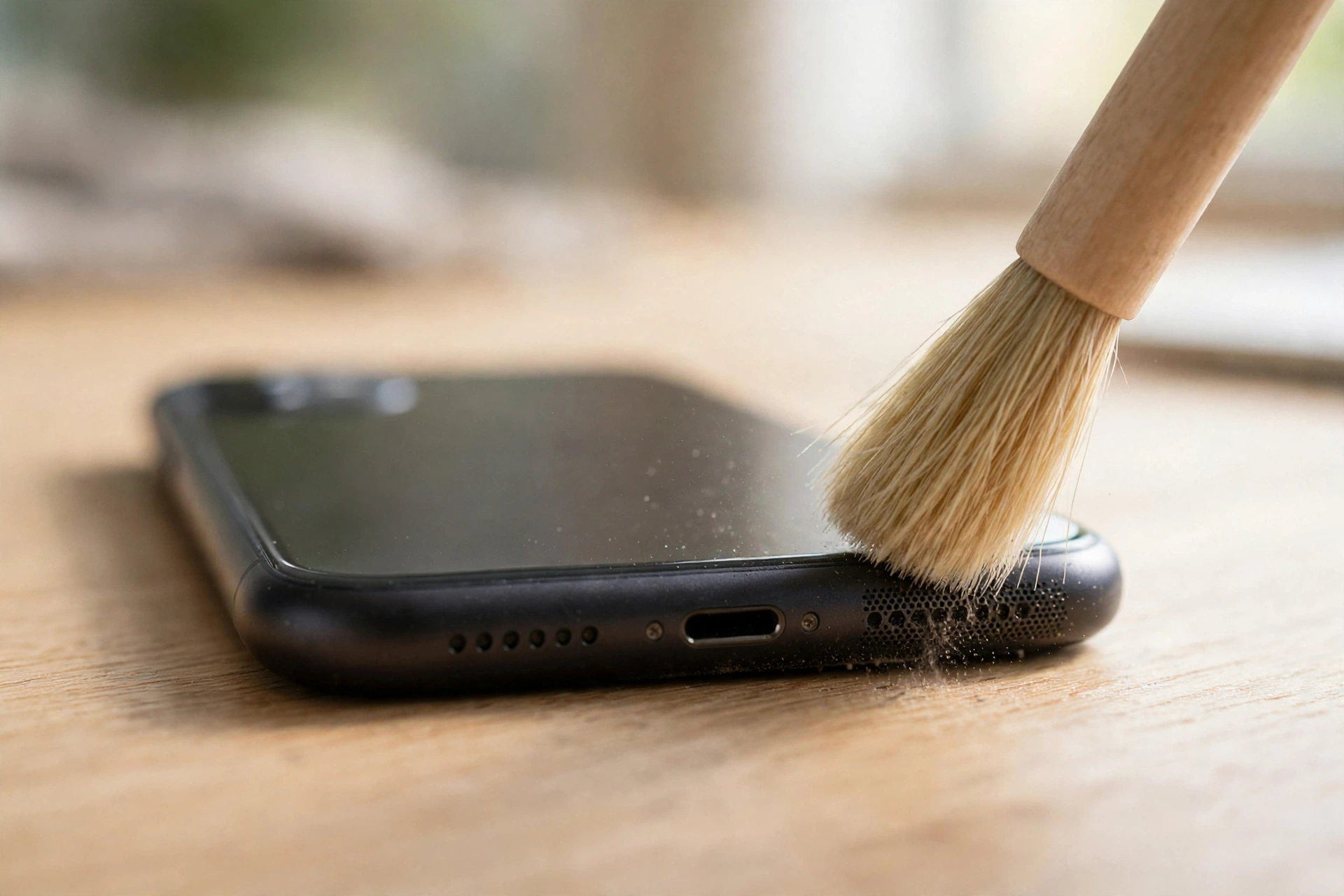
The iPhone 11’s speaker sits in the grille on the bottom edge, next to the Lightning port. After years of pockets and bags, that grille collects lint and dust, and a blocked grille can muffle the speaker so badly it sounds dead.
Hold the phone with the speaker facing down and brush the grille lightly with a soft, dry toothbrush. Don’t poke anything sharp into the holes, and don’t blast it with compressed air at close range — both can push debris deeper or damage the mesh.
If the phone got wet, water may be sitting inside the speaker chamber. Let it dry with the speaker facing down for a while, then run the free speaker-cleaner tool on myspeakerfix.com — it plays a tone designed to push water and dust out of the speaker. Run it a few times with the volume turned all the way up and see if the sound clears.
Force Restart Your iPhone 11
A lot of iPhone 11 audio problems are just a frozen audio process, and a force restart clears it without touching your data. Press and quickly release the volume-up button, press and quickly release the volume-down button, then press and hold the side button until the Apple logo appears. Let go and wait for the phone to boot up, then play a video and test the speaker.
Check for an iOS Update
Apple regularly ships audio fixes in software updates, and the iPhone 11 has had its share of update-related sound bugs. Go to Settings > General > Software Update and install anything waiting there. Make sure you’re on Wi-Fi and the battery is above half, or plug the phone in while it updates.
Reset All Settings — the Last Software Step
If nothing above worked, a settings reset often fixes stubborn audio problems. Go to Settings > General > Transfer or Reset iPhone > Reset > Reset All Settings. This puts all your settings back to their defaults — Wi-Fi passwords, wallpaper, notification preferences — but it does not delete your photos, apps, or messages.
Try the speaker again after the reset. If it works, something in your old settings was blocking the audio. If it still doesn’t work, you’ve ruled out software almost entirely, and the problem is most likely hardware.
When It’s Time for a Repair
Take the phone to Apple or a trusted repair shop if the speaker stays silent in every test — no ringtone preview in Settings > Sounds & Haptics, no speakerphone on calls, no media sound — after a force restart and a settings reset. The same applies if the sound died right after a hard drop or a swim. A drop can loosen the speaker connector, and water can corrode the contacts, and both need the phone opened up. Back up your phone first, since any hardware repair can end with the phone being wiped.
Frequently Asked Questions
Why is my iPhone 11 speaker suddenly not working?
Most often it’s the Ring/Silent switch, a Bluetooth device holding the audio, or a software glitch. Check the switch, turn Bluetooth off, and force restart the phone before assuming the speaker is broken.
How do I know if my iPhone 11 speaker is broken or just muted?
Play a ringtone preview in Settings > Sounds & Haptics with the volume up and Bluetooth off. If the preview is silent and a force restart doesn’t help, try Reset All Settings — if it’s still silent after that, the speaker hardware is likely at fault.
Why does my iPhone 11 only play sound through headphones?
The phone may still be routing audio to a Bluetooth device or AirPlay target. Turn Bluetooth off, check the AirPlay output in Control Center, and make sure no wired adapter is stuck in the Lightning port.
Can water damage make an iPhone 11 speaker stop working?
Yes. Water trapped in the speaker grille muffles or silences sound even though the iPhone 11 is water resistant. Dry it speaker-down and run a speaker-cleaner tone a few times to push the water out.