Speakerphone Not Working During Calls? 6 Fixes That Help
You tap the speakerphone button during a call and get… silence. The caller can’t be heard through the loudspeaker, even though the bottom speaker plays music just fine. Before you assume the speaker is broken, know this: speakerphone problems are almost always about in-call volume, audio routing, or a software bug — and the fix takes minutes.
Fix 1: Turn Up the In-Call Volume First
Your phone keeps separate volume levels for media, calls, ringtones, and alarms. If you turned the volume down while watching a video, you lowered the media volume — not the call volume. Some phones also remember a separate “in-call volume” that stays low from your last call.
The only reliable way to raise call volume is while you’re actually on a call in speakerphone mode. Call someone (a friend, or your own voicemail), tap the speakerphone button, then press volume-up repeatedly until the indicator hits maximum. Watch the label — it should say “Call volume” or “In-call volume,” not “Media.”
If the buttons do nothing, check Settings > Sound & vibration (Android) or Settings > Sounds & Haptics (iPhone) for a call-volume slider, and check whether your case is pressing against the volume buttons.
Fix 2: Make Sure Speakerphone Is Actually On — and Audio Isn’t Elsewhere
On the in-call screen, the speakerphone button must be highlighted as active. On some phones a single tap toggles it and an accidental second tap turns it back off — leaving you listening to a “dead” earpiece while thinking speakerphone is on.
More importantly, check where the audio is routed. During the call, tap the audio icon (on iPhone it says “audio”; on Android it may show a speaker or Bluetooth icon) and look at the list. If it shows a Bluetooth device — earbuds, a smartwatch, your car — the call is playing there, not through the loudspeaker. Select “Speaker” or “Phone” explicitly, and turn Bluetooth off entirely from quick settings to test.
Fix 3: Check Call Audio Routing and Do Not Disturb Settings
On iPhone, go to Settings > Accessibility > Touch > Call Audio Routing. If this is set to “Bluetooth Headset” instead of “Automatic,” every call defaults away from the phone’s speakers. Set it back to Automatic.
On Android, look in Settings > Accessibility for anything under “Hearing” or “Audio” that forces call audio to a specific device, and check your Phone app’s settings for Bluetooth or hearing-aid options that may have changed after an update.
Do Not Disturb won’t mute an active call, but answering a call while DND or a Focus mode is active can leave the audio in an odd state on some phones. If speakerphone fails right after answering a silenced call, toggle DND off and try again.
Fix 4: Clean and Test the Bottom Speaker
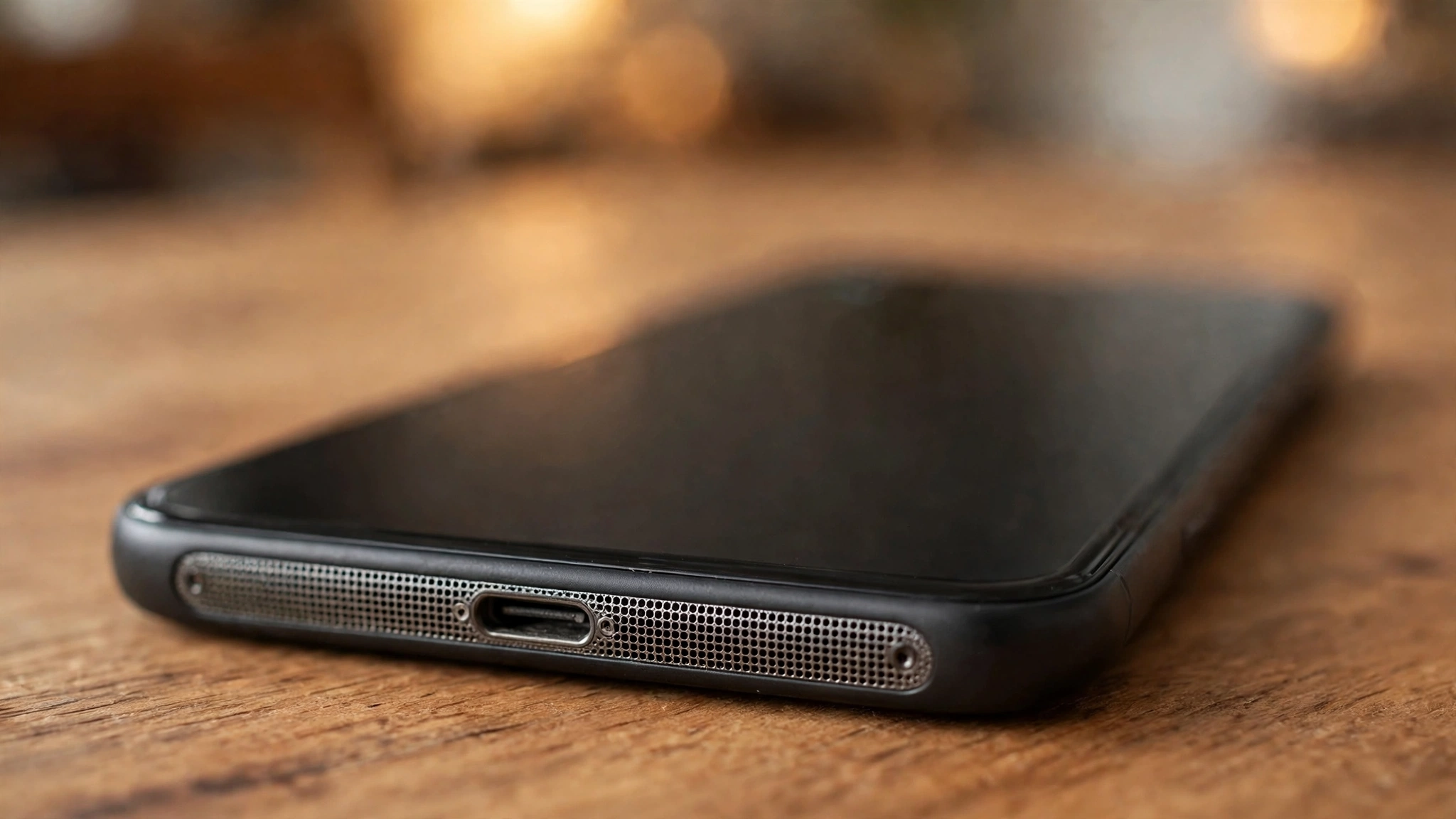
Speakerphone mode uses your phone’s main bottom speaker. If the bottom grille is packed with pocket lint, the speaker can be so muffled it seems dead on calls — even though you can still faintly hear music.
Power off the phone and brush the bottom grille gently with a clean, dry, soft-bristle toothbrush, sweeping across the holes. Follow with painter’s tape or sticky tack pressed over the grille and peeled off to pull out packed debris. Never poke pins or needles into the holes — you can puncture the speaker mesh.
Then test outside of calls: play a song or YouTube video at full volume. If it’s loud and clear, the hardware is fine and the problem is call-specific (go back to Fixes 1–3). If the phone got wet recently, play a low-frequency water-eject tone from our free tool at https://myspeakerfix.com/ while holding the phone speaker-side down — it helps push moisture out of the grille. It only helps with water, though, not with a damaged driver.
Fix 5: Restart, Update, and Check Your Dialer Apps
Call audio runs through a dedicated software path that can crash while everything else works — which is why media sounds fine but speakerphone doesn’t. Restart your phone to reset the call audio stack; this fixes a surprising share of speakerphone failures.
Next, check for OS updates: Settings > System > Software update (Android) or Settings > General > Software Update (iPhone). Audio driver bugs get patched regularly.
If you use a third-party dialer or call-screening app (Truecaller, Mr. Number, or a carrier visual-voicemail app), it can interfere with in-call audio routing. Make a test call with the stock Phone app as the default dialer — if speakerphone works there, the third-party app is the problem. On Android, booting into Safe Mode rules out all third-party apps at once.
As a last software step, reset all settings (iPhone: Settings > General > Transfer or Reset > Reset All Settings; Android: Settings > System > Reset options > Reset all settings). This keeps your data but clears every audio and network setting back to defaults.
Fix 6: When the Bottom Speaker Itself Is Dead
If the bottom speaker produces no sound at all — not in calls, not in music, not in ringtones — after cleaning, restarts, and settings resets, the speaker module has likely failed:
- It died right after a drop, with dents or cracks near the bottom edge or charging port.
- Sound cuts in and out when you press on the bottom of the phone (loose connection).
- It emits buzzing or rattling instead of silence (torn or blown driver).
Confirm with a media test at full volume: if a song is silent through the bottom speaker but the earpiece works during calls, the bottom speaker is the dead component. Get a quote from a repair shop — bottom speaker replacement is a common, quick repair. Under warranty with no physical or water damage, the manufacturer should cover it.
Frequently Asked Questions
Why does speakerphone work for music but not calls?
Media and calls use different audio paths and different volume levels. If music is loud but speakerphone calls are silent, it’s almost always call-specific: in-call volume set low, call audio routed to Bluetooth, or a crashed call-audio process. Restart the phone and raise the volume during an actual call.
Why does the speakerphone button do nothing when I tap it?
Usually the tap isn’t doing what you expect — or a third-party dialer app is overriding the call screen. Try the stock Phone app, and check whether Bluetooth routed the audio elsewhere, which makes the speaker button appear to do nothing.
Can an app break speakerphone?
Yes. Third-party dialer, call-recording, call-screening, and some VPN apps can hijack in-call audio routing. If speakerphone broke right after installing an app, uninstall it or boot into Safe Mode (Android) to confirm.
My speakerphone works but the caller can’t hear me — is that the same problem?
No — that’s the microphone side, not the speaker side. Your loudspeaker is fine; the mic used in speakerphone mode isn’t picking up your voice. That’s a separate issue with its own fixes, from cleaning the mic holes to checking app microphone permissions.